
Controlling a Fire TV with Alexa feels a little like living in the future, except the future still includes snack crumbs on the couch and someone asking, “Where did the remote go?” The good news is that Alexa can help with both the remote problem and the endless scrolling problem. With the right setup, you can use your voice to open apps, search for movies, pause a show, turn up the volume, switch inputs, and even find a lost Alexa Voice Remote Pro.
This guide explains exactly how to control a Fire TV with Alexa, whether you are using a Fire TV Stick, Fire TV Cube, Fire TV smart TV, Echo Dot, Echo Show, the Alexa app, or the Fire TV remote with the Alexa voice button. You will learn how to link your devices, which voice commands actually work, how to fix common problems, and how to make your setup feel less like a gadget experiment and more like a smooth home entertainment system.
What You Need Before You Start
Before you start shouting “Alexa, play my show!” across the room like a movie villain giving orders, make sure your setup has the basics covered. You need a compatible Fire TV device, an Alexa-enabled device or Alexa Voice Remote, the Alexa app on your phone, a stable Wi-Fi connection, and an Amazon account.
Most modern Fire TV devices work with Alexa voice control. This includes Fire TV Stick models, Fire TV Cube, Fire TV smart TVs, and Fire TV streaming devices. You can also use an Echo speaker, Echo Show, or the Alexa app to control your Fire TV hands-free after linking the devices.
Basic requirements
- A Fire TV device connected to your TV and Wi-Fi
- An Alexa-enabled device, such as an Echo Dot, Echo Show, Fire TV Cube, or Alexa Voice Remote
- The Alexa app installed on your phone
- The same Amazon account on both Alexa and Fire TV
- A reliable internet connection
The most common setup problem is simple: the Fire TV and Alexa device are not registered to the same Amazon account. The second most common issue is that they are on different Wi-Fi networks. If your phone is on one network, your Fire TV is on another, and your Echo is living its own mysterious digital life somewhere else, Alexa may not know which screen to control.
How to Link Fire TV and Alexa
The easiest way to control Fire TV with Alexa hands-free is to link your Fire TV to an Alexa-enabled device in the Alexa app. This tells Alexa which Fire TV should respond when you say commands like “Alexa, open Netflix” or “Alexa, play The Boys on Fire TV.”
Step-by-step setup
- Open the Alexa app on your phone.
- Tap More.
- Select Settings.
- Tap TV & Video.
- Choose Fire TV.
- Select Link Your Alexa Device.
- Choose the Fire TV device you want to control.
- Select the Alexa device you want to use with it.
- Follow the on-screen instructions to finish linking.
Once linked, test it with a simple command: “Alexa, open Prime Video on Fire TV.” If the app opens, congratulations. You have officially reduced your dependence on tiny plastic rectangles that vanish between couch cushions.
How to Use the Alexa Voice Button on a Fire TV Remote
If you do not have an Echo device nearby, you can still control Fire TV with Alexa using the Alexa Voice Remote. Press and hold the Alexa voice button, speak your command, and release the button. This is not fully hands-free, but it is fast, accurate, and great for searching without typing letter by letter like it is 2008.
Examples of remote voice commands
- “Open Hulu.”
- “Find action movies.”
- “Search for The Marvelous Mrs. Maisel.”
- “Play Jack Ryan.”
- “Pause.”
- “Rewind 30 seconds.”
- “Show me comedies.”
The Alexa Voice Remote is especially helpful when searching across apps. Instead of opening each streaming service one at a time, you can ask Alexa to find a title and let Fire TV show available options. This is one of the best everyday reasons to use Alexa with Fire TV: it cuts down on scrolling, typing, and the ancient family debate known as “What are we watching?”
Best Alexa Commands for Fire TV
Once your devices are linked, Alexa can handle a wide range of Fire TV voice commands. Some commands control playback, some launch apps, and others control TV hardware features if your device and television support them.
Search and discovery commands
- “Alexa, find sci-fi movies on Fire TV.”
- “Alexa, search for cooking shows.”
- “Alexa, show me popular comedies.”
- “Alexa, find movies with Tom Hanks.”
- “Alexa, show me free movies.”
These commands are useful when you know the mood but not the title. For example, “Alexa, find family movies” can bring up a list of options faster than manually jumping between apps.
App launch commands
- “Alexa, open Prime Video.”
- “Alexa, launch Netflix.”
- “Alexa, open YouTube.”
- “Alexa, start Disney Plus.”
- “Alexa, go to Hulu.”
App commands are among the most reliable Fire TV Alexa commands because they are direct and simple. If an app is installed, Alexa usually opens it quickly. If the app is not installed, Fire TV may show you where to get it.
Playback commands
- “Alexa, play.”
- “Alexa, pause.”
- “Alexa, resume.”
- “Alexa, rewind 30 seconds.”
- “Alexa, fast-forward two minutes.”
- “Alexa, next episode.”
Playback commands work best once content is already playing. They are perfect when your hands are full, your remote is across the room, or your pet has decided the remote is now a pillow.
TV control commands
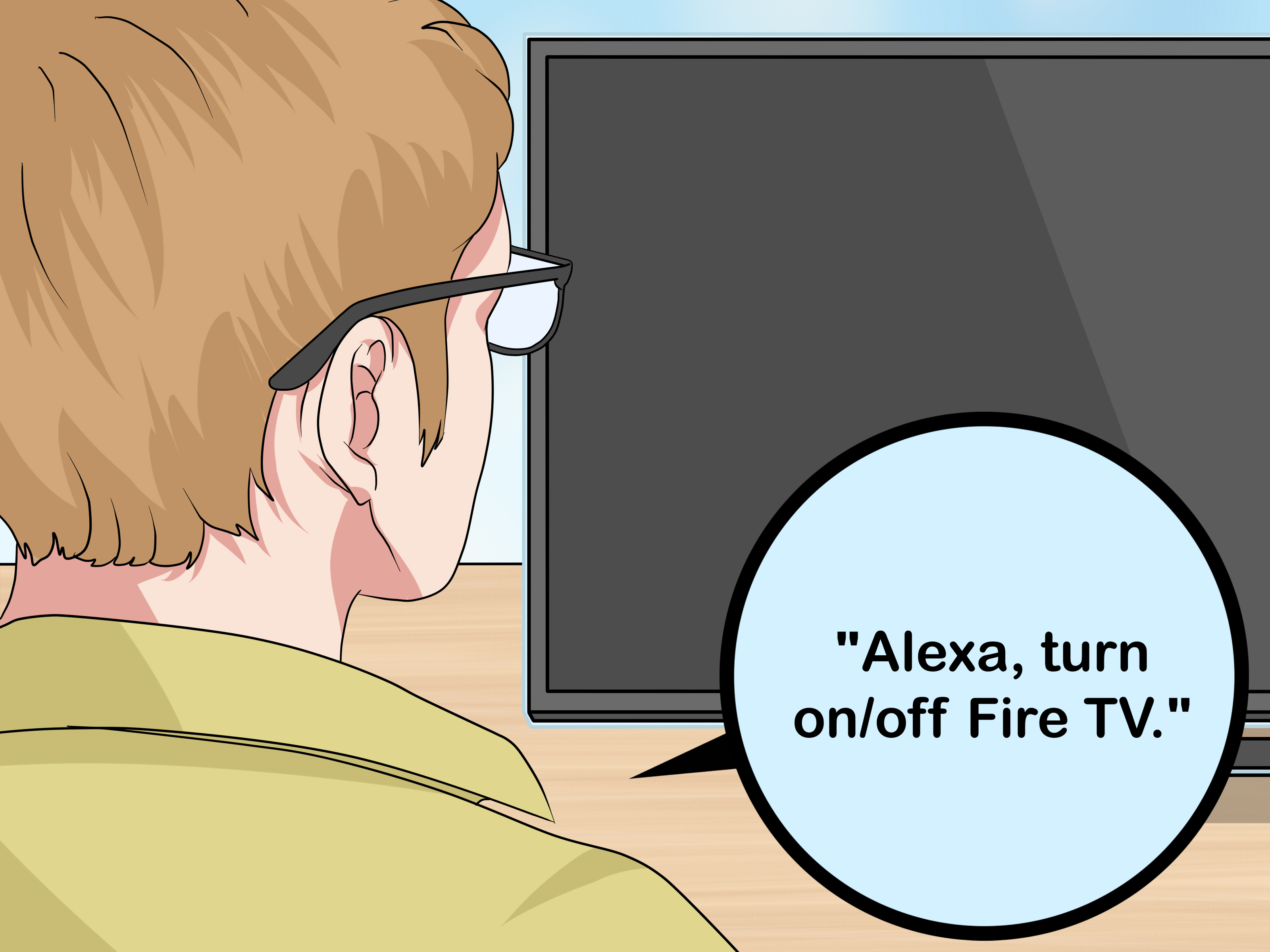
- “Alexa, turn on Fire TV.”
- “Alexa, turn off Fire TV.”
- “Alexa, turn up the volume on Fire TV.”
- “Alexa, mute Fire TV.”
- “Alexa, switch to HDMI 1.”
Power, volume, and input controls depend on your Fire TV device, TV model, HDMI-CEC settings, and equipment configuration. Fire TV smart TVs and Fire TV Cube setups usually offer stronger hardware control than a basic streaming stick connected to an older television.
How to Turn Your TV On and Off with Alexa
To turn your TV on or off with Alexa, your TV and Fire TV setup must support power control. On many Fire TV smart TVs, you can enable this through Fire TV settings. On some streaming-stick setups, HDMI-CEC helps send power and input signals between your TV and Fire TV device.
Try these settings
- On Fire TV, open Settings.
- Go to Display & Sounds.
- Look for HDMI CEC Device Control and turn it on if available.
- For Fire TV smart TVs, check whether Turn on TV with Alexa is enabled.
After enabling the right settings, say, “Alexa, turn on Fire TV.” If it works, you have successfully made your TV obey voice commands, which is honestly one of the more satisfying small victories in modern living.
How to Control Fire TV with an Echo Device
Using an Echo device with Fire TV gives you hands-free control. This is the setup most people imagine when they think about controlling Fire TV with Alexa. You speak from the couch, Alexa listens, and Fire TV responds.
For best results, place the Echo device where it can hear you clearly. Avoid hiding it behind the TV, next to loud speakers, or under a stack of magazines from 2017. A clear microphone path makes voice control much more reliable.
Helpful Echo-to-Fire TV examples
- “Alexa, play Reacher on Fire TV.”
- “Alexa, pause Fire TV.”
- “Alexa, open Max on Fire TV.”
- “Alexa, search for nature documentaries on Fire TV.”
- “Alexa, go home on Fire TV.”
If you have more than one Fire TV, include the device name in your command. For example: “Alexa, open YouTube on Living Room Fire TV.” Clear names prevent Alexa from guessing, and Alexa guessing is how you end up opening cartoons in the bedroom while everyone in the living room stares at a blank screen.
How to Use the Fire TV Mobile App as a Backup Remote
The Fire TV mobile app is a useful companion when your physical remote is missing, out of batteries, or currently being guarded by a sleeping cat. The app offers navigation controls, a keyboard for typing, and search features that make Fire TV easier to manage from your phone.
To use it, install the Amazon Fire TV app, sign in with your Amazon account, and make sure your phone is connected to the same Wi-Fi network as your Fire TV. Then select your Fire TV from the app and follow the pairing prompt on the TV screen.
Why the Fire TV app is useful
- It works as a backup remote.
- It offers faster text entry with your phone keyboard.
- It can help launch and browse content.
- It is handy when remote batteries die.
- It can help with setup on compatible Fire TV devices.
For passwords, search terms, and long app logins, the phone keyboard is a blessing. Nobody enjoys typing an email address with a directional pad. That is not entertainment; that is character development.
How to Find a Lost Fire TV Remote with Alexa
If you have an Alexa Voice Remote Pro, Alexa can help you find it. Say, “Alexa, find my remote,” using a compatible Alexa device, the Alexa app, or the Fire TV app. The remote can ring so you can track it down.
This feature requires the remote to be compatible, paired, powered, and close enough to respond. It will not magically locate a remote in another city, under three feet of laundry, or inside a backpack at school. But for normal couch-cushion disasters, it can be wonderfully useful.
Troubleshooting: Why Alexa Is Not Controlling Fire TV
If Alexa is ignoring your Fire TV commands, do not immediately blame the robot. Most problems come from account mismatch, Wi-Fi issues, outdated software, unclear device names, or unsupported commands.
Check the Amazon account
Make sure your Fire TV and Alexa device are registered to the same Amazon account. If your Fire TV is signed into one account and your Echo is signed into another, Alexa may not connect the dots.
Check Wi-Fi
Your Fire TV, phone, and Alexa device should be on the same Wi-Fi network whenever possible. If your router has separate 2.4 GHz and 5 GHz networks, check that your devices can still communicate properly.
Rename your devices
Simple names work best. “Living Room Fire TV” is better than “John’s 4K Max Stick 2nd Gen New Final Version.” Device names should be easy to say and easy for Alexa to understand.
Update your software
Update your Fire TV software, Alexa app, and Fire TV app. Updates often fix bugs and improve device compatibility.
Restart everything
When in doubt, restart your Fire TV, Echo device, phone, and router. It is not glamorous, but the classic “turn it off and on again” method remains undefeated in the smart-home universe.
Privacy Tips When Using Alexa with Fire TV
Alexa voice control is convenient, but it is smart to manage your privacy settings. In the Alexa app, you can review voice history, delete recordings, and adjust privacy preferences. You can also mute the microphone on many Echo devices when you do not want them listening for the wake word.
A practical privacy routine is simple: review your Alexa privacy settings once in a while, delete voice history if you prefer, and place Echo devices in locations where voice control is useful but not intrusive. The goal is convenience without feeling like your living room has joined a spy movie.
Pro Tips for Better Fire TV Alexa Control
Use natural but specific commands
Alexa understands many casual phrases, but specific commands work better. Say “Alexa, open Prime Video on Living Room Fire TV” instead of “Alexa, put on that thing.” Alexa is smart, but she is not a mind reader with popcorn.
Create clear room names
If you have multiple Fire TV devices, name them by location: Living Room Fire TV, Bedroom Fire TV, Office Fire TV. This reduces confusion and makes commands faster.
Pair the closest Echo
Link the Echo device closest to the TV you use most. This creates a smoother experience because Alexa does not have to guess which screen you mean.
Use Alexa for searching, not everything
Voice control is excellent for launching apps, searching titles, pausing, and resuming. For detailed browsing or app-specific menus, the remote or Fire TV app may still be faster.
Real-World Experience: What It Is Like to Control Fire TV with Alexa
In real daily use, controlling a Fire TV with Alexa is not about replacing every button press. It is about removing the most annoying button presses. The biggest improvement comes from search. Instead of opening an app, moving across a keyboard, selecting one letter at a time, making a typo, deleting it, sighing dramatically, and wondering why entertainment became homework, you can simply ask Alexa to find the title.
The second best experience is playback control. When a phone rings, someone walks into the room, or the doorbell goes off, saying “Alexa, pause” is much easier than hunting for the remote. It is a small thing, but small things matter when you are halfway through a dramatic scene and someone decides that exact moment is perfect for asking where the scissors are.
Voice control also shines for families. Kids, parents, and guests do not need to learn the Fire TV interface just to open an app. A simple command like “Alexa, open YouTube” or “Alexa, find cartoons” can get them started. Of course, households should still use parental controls where appropriate, especially if children have access to streaming services.
There are a few realistic limits. Alexa may occasionally misunderstand a title, especially if the title has a strange spelling, a foreign word, or sounds like something else. Background noise can also interfere. If the TV volume is high, people are talking, or the Echo device is too far away, Alexa may respond slowly or not at all. The fix is usually simple: speak clearly, use the Fire TV device name, or move the Echo device closer.
The best setup I recommend is a mixed-control approach. Use Alexa for fast commands: launching apps, searching shows, pausing, resuming, adjusting volume, and turning the TV on or off. Use the physical remote or Fire TV app for detailed navigation, account logins, and scrolling through long menus. That combination feels natural instead of forced.
The Fire TV mobile app is especially useful as an emergency tool. When the remote disappears, the app saves the evening. When typing a password, the phone keyboard saves your patience. When the batteries die, the app saves you from shaking the remote like it owes you money.
For smart-home fans, the setup becomes even better when Fire TV is part of a room routine. You can dim smart lights, turn on the TV, and open an app with fewer steps. Even without advanced routines, Alexa gives Fire TV a more relaxed, living-room-friendly feel. You talk, the screen responds, and nobody has to dig through the couch unless snacks are involved.
Conclusion
Learning how to control a Fire TV with Alexa is one of the easiest ways to make your streaming setup faster and more comfortable. Start by linking Fire TV and Alexa in the Alexa app, then test simple commands for opening apps, searching movies, controlling playback, and adjusting volume. If you have a Fire TV smart TV, Fire TV Cube, compatible Echo device, or Alexa Voice Remote, you can turn voice control into a daily convenience instead of a party trick.
The key is to keep your setup clean: use the same Amazon account, connect devices to the same Wi-Fi network, choose simple device names, and update your apps and Fire TV software. Alexa will not replace every button, but it can absolutely replace the most irritating ones. And if your remote has once again escaped into the couch dimension, Alexa may even help you find it.













