WebM is great when you want a lightweight, web-friendly video format. MP4 is great when you want your video to actually behave itself. That’s the short version. If you’ve ever tried to upload a WebM file to a platform, open it in an editor, or send it to someone whose device responds with the digital equivalent of a blank stare, you already know why this guide exists.
The good news is that converting WebM to MP4 is not some dark art performed only by video wizards in dimly lit basements. You can do it with free desktop software, free online tools, or a command line that looks scarier than it really is. In this guide, you’ll learn five free and easy methods, when each one makes sense, and how to avoid the classic mistakes that lead to bloated files, fuzzy video, or silent audio. Because yes, a “successful” conversion that produces a mute video is still a disaster.
Why convert WebM to MP4 in the first place?
Before jumping into the methods, it helps to understand why so many people search for “convert WebM to MP4” in the first place. WebM is built for the web and often uses codecs that work beautifully in browsers. MP4, on the other hand, is the practical overachiever of video formats. It is broadly supported by video editors, social platforms, devices, messaging apps, and media players.
In plain English, converting a WebM file to MP4 usually helps when you want to:
- Upload a video to a platform that prefers or recommends MP4
- Edit footage in software that handles MP4 more gracefully
- Play the file on phones, TVs, or older apps with fewer compatibility issues
- Share the video with people who should not need a technical support hotline just to open it
For the best compatibility, many people aim for an MP4 file encoded with H.264 video and AAC audio. That combination is a safe default for social media, email sharing, presentations, and general playback. It may not be the fanciest option in the world, but it is the dependable one. Think of it as the plain white T-shirt of video formats: not dramatic, always useful.
Before you convert: 3 quick things to check
1. Decide whether you care most about quality, speed, or convenience
If quality and privacy matter most, a local tool like FFmpeg or HandBrake is the better choice. If convenience wins, a browser-based converter is faster to start.
2. Keep the original WebM file
Never convert over your only copy. A fresh MP4 is great. Losing the original is not.
3. Expect file size to change
Converting formats can increase or decrease file size depending on the bitrate, resolution, frame rate, codec, and audio settings you choose. Smaller is not always better if it turns your video into a pixelated soup.
Method 1: Convert WebM to MP4 with FFmpeg
If you like precision, speed, and a little healthy intimidation from a black terminal window, FFmpeg is fantastic. It is one of the most trusted video conversion tools around, and once you learn one command, you can reuse it forever.
Best for
Power users, batch conversions, and anyone who wants full control over video and audio settings.
How to do it
- Install FFmpeg on your computer.
- Open Terminal on Mac or Linux, or Command Prompt/PowerShell on Windows.
- Run this command:
Why this command works well
-c:v libx264converts the video to H.264 for broad compatibility-c:a aacconverts the audio to AAC, another safe default-movflags +faststarthelps the MP4 start playing sooner online
Pros
- Free and extremely powerful
- Excellent quality control
- Ideal for bulk conversions
- Runs locally, so your file stays on your device
Cons
- Not beginner-friendly at first glance
- No shiny buttons unless you add a front-end tool
If you want the best balance of quality and compatibility, FFmpeg is hard to beat. It is basically the Swiss Army knife of video conversion, except with more flags and fewer toothpicks.
Method 2: Convert WebM to MP4 with HandBrake
HandBrake is what happens when powerful video conversion meets a friendly interface. It is free, open source, and far less likely than FFmpeg to make beginners feel like they accidentally enrolled in computer science.
Best for
People who want a free desktop app with presets, simple controls, and reliable MP4 output.
How to do it
- Download and install HandBrake.
- Open your WebM file in the app.
- Choose an output preset, such as a general fast preset.
- Select MP4 as the container format.
- Pick your output file location.
- Click Start Encode.
Why HandBrake is popular
HandBrake gives you control without overwhelming you. You can adjust resolution, frame rate, encoder settings, subtitles, and audio tracks, but you can also keep things simple and let the preset do the heavy lifting.
Pros
- Free and open source
- Works on Windows, Mac, and Linux
- Great presets for beginners
- Local conversion is better for privacy
Cons
- More advanced settings can still feel a little nerdy
- Large files may take time to encode
If FFmpeg is the race car, HandBrake is the reliable daily driver with cupholders and a decent playlist. It gets the job done with less drama.
Method 3: Convert WebM to MP4 with Adobe Express
If you want a no-install option from a familiar brand, Adobe Express is one of the easiest ways to convert a video to MP4 in your browser. Upload the file, let the tool process it, and download the MP4.
Best for
Quick one-off conversions, especially for casual users who do not want to install software.
How to do it
- Open the Adobe Express video-to-MP4 converter.
- Upload your WebM file.
- Choose your settings if prompted.
- Download the converted MP4 file.
Pros
- Very easy to use
- No software installation required
- Good for fast browser-based conversions
Cons
- You need to upload the file, which may be slower for large videos
- Online tools are less ideal for private or sensitive footage
- Free tools may have file size limits
This is a great option when you need speed and simplicity. It is the “I just need this done before lunch” method.
Method 4: Convert WebM to MP4 with CloudConvert
CloudConvert is another browser-based option that is especially useful if you want a few extra settings without going full command-line goblin. It supports WebM and MP4, and it lets you tweak things like resolution, quality, and file size in many cases.
Best for
Users who want an online converter with more control than the average drag-and-drop tool.
How to do it
- Open the WebM to MP4 converter page.
- Upload your WebM video from your device or cloud storage.
- Select MP4 as the output format.
- Adjust optional settings if needed.
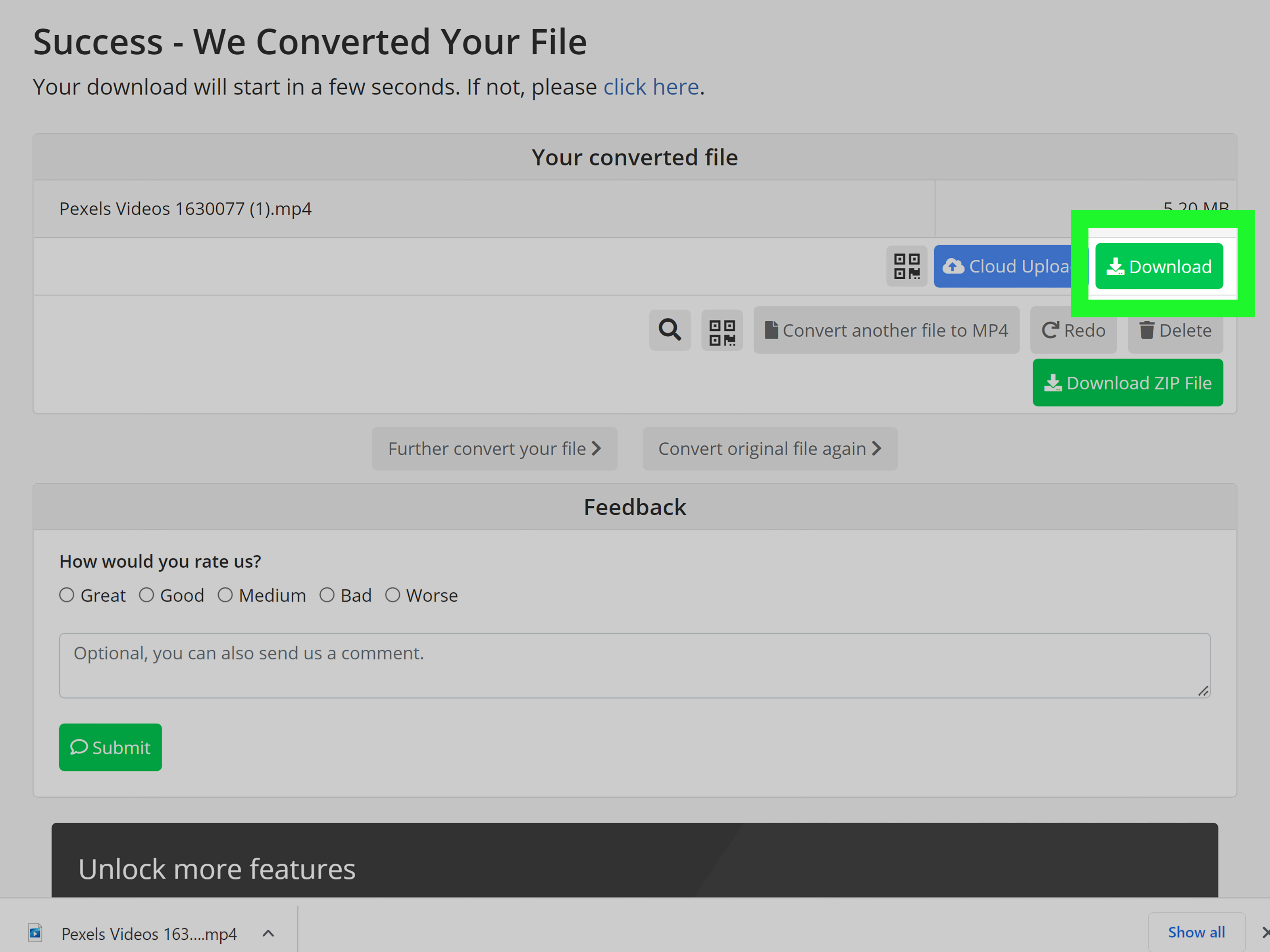
- Start the conversion and download the MP4.
Pros
- Works in the browser
- Good format support
- Helpful advanced options for many users
- No desktop install needed
Cons
- Free use comes with daily limits
- Upload speed matters a lot for larger files
- Not the best choice for confidential videos
If HandBrake feels like too much and a basic converter feels too little, CloudConvert lands nicely in the middle.
Method 5: Convert WebM to MP4 with Clipchamp
Clipchamp is a smart option if your WebM file also needs a little cleanup. Since it accepts WebM uploads and exports finished projects as MP4, it doubles as both a converter and a lightweight editor.
Best for
People who want to trim, crop, add text, or make quick edits before exporting an MP4.
How to do it
- Open Clipchamp and start a new project.
- Upload your WebM video.
- Drag it into the timeline.
- Make any edits you want, or skip this step.
- Export the video as MP4.
Pros
- Free tier available
- Accepts WebM files
- Lets you edit and convert in one workflow
- Beginner-friendly interface
Cons
- Online editing can feel slower on older machines
- Project-based workflow is more than you need for a simple conversion
This is a nice method when your video needs a haircut before it leaves the house.
Which WebM to MP4 converter should you choose?
Here is the simple version:
- Use FFmpeg if you want maximum control, batch conversion, and pro-level efficiency.
- Use HandBrake if you want a free desktop app that is easy to learn.
- Use Adobe Express if you want the quickest beginner-friendly online method.
- Use CloudConvert if you want an online converter with extra settings.
- Use Clipchamp if you want to edit and export to MP4 in one place.
If privacy matters most, go with FFmpeg or HandBrake. If convenience matters most, choose an online tool. If you are dealing with a very large file, local software is usually the better bet because you do not have to upload the entire thing first.
Common problems when converting WebM to MP4
No audio in the MP4
This often happens when the original audio codec is not carried over cleanly. Re-encoding audio to AAC usually solves it.
The file size gets huge
Your bitrate may be too high, or the tool may be using a less efficient setting. Lower the bitrate slightly, reduce the resolution if appropriate, or use a preset designed for web playback.
The video looks blurry
You may have compressed it too aggressively. Increase quality settings or use a slower encoder preset for better efficiency.
The conversion takes forever
That can happen with large files, high resolutions, or slower hardware. Local tools may still be faster overall than uploading a giant video to an online service over a sleepy internet connection.
Real-world experiences: what people usually learn the hard way
The first time many people convert WebM to MP4, they assume it will be a one-click miracle. Sometimes it is. Sometimes it is more like assembling furniture with one missing screw and a vague sense of optimism. The most common experience is discovering that “video format” is really a sneaky combination of container, codec, bitrate, audio settings, and playback compatibility. In other words, the file extension tells part of the story, not the whole plot.
A very common real-life scenario goes like this: someone records or downloads a WebM clip, tries to upload it to a social platform, and gets rejected. They then use the first converter they can find, download an MP4, and realize the file is either gigantic, fuzzy, or mysteriously silent. This is usually the moment they learn that a good conversion tool matters almost as much as the conversion itself.
Another common experience is the privacy realization. People often start with an online converter because it is convenient, then pause when they remember the video contains work material, client content, personal footage, or internal training clips. That is when local tools like HandBrake or FFmpeg suddenly become much more appealing. You may lose a little convenience, but you gain more control over where your file goes and how it is processed.
There is also the “I only needed a quick fix and now I know way too much about codecs” journey. A person starts with a tiny goal, like sending a video in a group chat, and ends up learning why H.264 and AAC are safer choices for compatibility. It is oddly empowering. Annoying at first, yes. But empowering.
Many creators also discover that conversion is a perfect checkpoint for small improvements. Since you are already exporting a new file, it is often worth trimming dead space, fixing orientation, lowering unnecessary resolution, or optimizing the video for sharing. That is why editor-style tools like Clipchamp are helpful. A conversion can be more than a format change; it can be a cleanup pass.
And perhaps the most universal experience of all is this: once you find one method that works reliably on your device and for your typical file sizes, you stick with it forever. People become loyal to their favorite converter in the same way they become loyal to one coffee mug, one browser, or one suspiciously old USB drive. So if one of the five methods in this guide works beautifully for you, congratulations. You may have just found your forever tool.
Final thoughts
Converting WebM to MP4 does not have to be complicated. The best method depends on what you care about most: control, convenience, privacy, editing features, or speed. If you want the most reliable professional-grade route, FFmpeg and HandBrake are excellent. If you want a fast browser-based option, Adobe Express and CloudConvert are easy wins. If you want to edit and export in the same workflow, Clipchamp is a practical choice.
The most important takeaway is simple: choose a method that fits your real situation, not just the fastest-looking button on the page. A short social clip, a presentation video, and a private client recording all deserve slightly different decisions. Pick the right tool, keep your original file, and aim for a compatibility-friendly MP4. Future you will be grateful. So will everyone who receives the file and does not have to ask, “Uh… what exactly is a WebM?”