Editing a distribution list in Outlook sounds like one of those tiny office tasks that should take twelve seconds. Then Outlook politely reminds you that it has multiple versions, multiple names for the same thing, and at least three buttons that look like they were invited to the meeting but forgot why they came. Don’t worry. Whether you are using Outlook on a Windows PC, Outlook for Mac, new Outlook, classic Outlook, or Outlook on the web, this guide will walk you through the process clearly.
A distribution list in Outlook lets you send one email to multiple people without typing every address one by one. In newer Microsoft language, you may also see terms like contact group, contact list, Microsoft 365 Group, or distribution group. These are related, but they are not always identical. That distinction matters because the editing steps can change depending on what type of list you are managing.
This in-depth guide explains how to edit a distribution list in Outlook on PC or Mac, how to add or remove members, how to rename a list, how to troubleshoot common problems, and how to avoid sending the quarterly budget update to the intern who left in 2021.
What Is a Distribution List in Outlook?
A distribution list is a saved group of email addresses. Instead of adding every recipient manually, you type the list name into the To, Cc, or Bcc field, and Outlook sends the message to everyone included in that list. It is especially useful for departments, project teams, family groups, volunteer committees, classroom updates, client groups, and any other situation where the same people need the same message regularly.
In classic Outlook for Windows, these lists are often called Contact Groups. In new Outlook and Outlook on the web, Microsoft commonly uses the term Contact List. In work or school accounts, you may also encounter Distribution Groups or Microsoft 365 Groups, which are usually managed through organizational settings and may require owner or administrator permissions.
Distribution List vs. Contact Group vs. Microsoft 365 Group
Before editing anything, it helps to know what you are actually editing. Outlook’s naming system can feel like a family reunion where everyone is named “Group,” but each one behaves differently.
Personal Contact Group
A personal contact group is stored in your own Outlook contacts. You control it, and it is usually visible only to you. This is the easiest type of list to edit. If you created it yourself in classic Outlook, you can usually open it from People or Contacts, add or remove members, and save the changes.
Contact List in New Outlook or Outlook on the Web
A contact list works much like a personal mailing list. It is managed from the People section in new Outlook or Outlook on the web. You can edit the list name, add contacts, remove contacts, and sometimes add a description.
Microsoft 365 Group
A Microsoft 365 Group is more than an email list. It can include a shared mailbox, shared calendar, files, Planner space, and collaboration features. Editing members may require you to be a group owner.
Organization-Wide Distribution Group
A company or school distribution group is managed through Microsoft 365 or Exchange settings. You may be able to edit it only if you are listed as an owner. If not, you will need help from your IT administrator. Translation: this is where the “Ask IT” ritual begins.
How to Edit a Distribution List in Outlook on Windows PC
If you use classic Outlook for Windows, editing a personal contact group is straightforward once you know where Microsoft hid the good stuff.
Step 1: Open Outlook and Go to People
Open Outlook on your Windows PC. In the navigation bar, select People or Contacts. Depending on your Outlook layout, the icon may appear as two small people, a contact card, or a button tucked away like it owes someone money.
Step 2: Find the Contact Group
Under My Contacts, choose the folder where your group is saved. This is often simply called Contacts. Look through the list or use the search box to find the name of the distribution list or contact group you want to edit.
Step 3: Open the Group
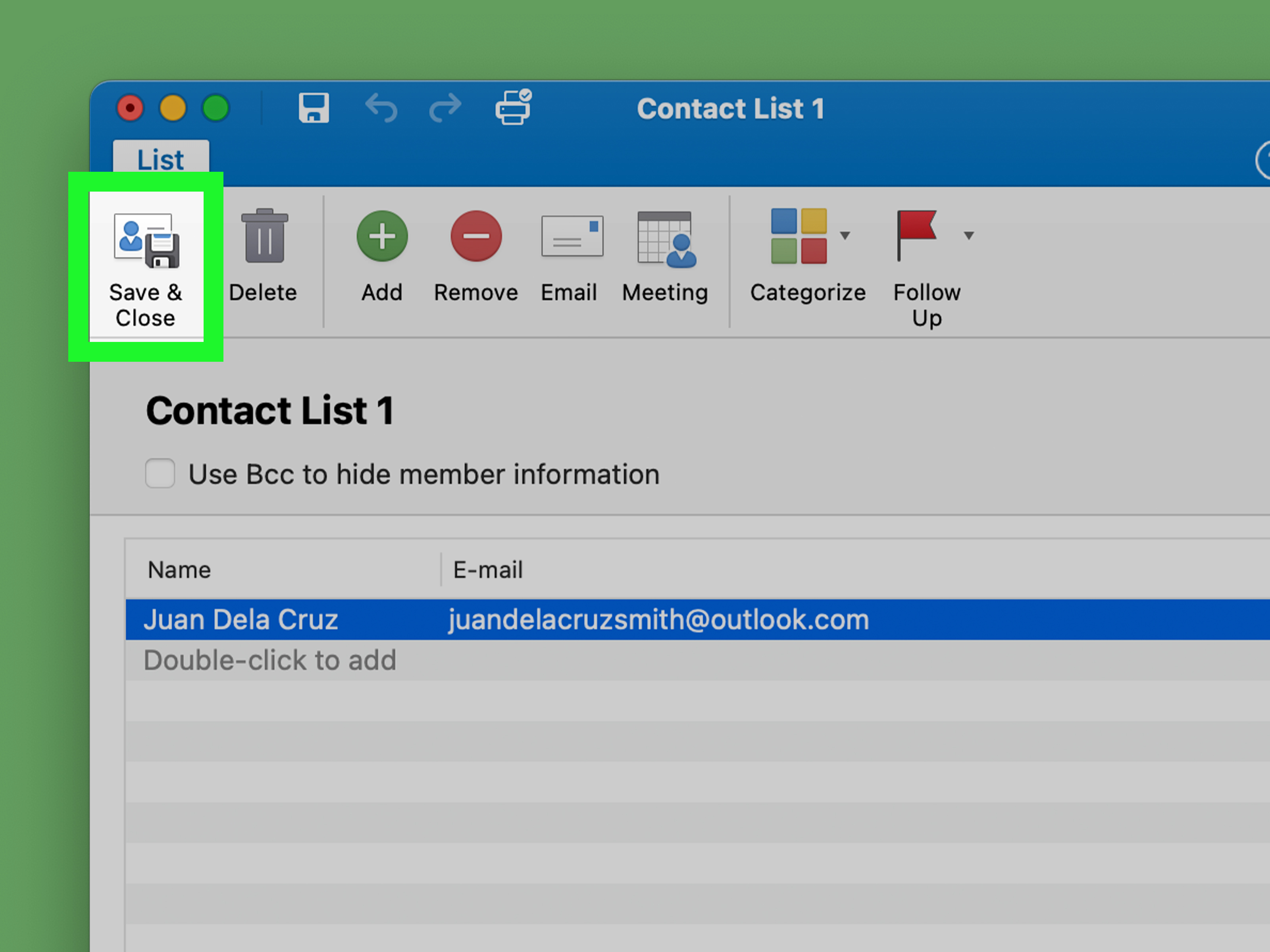
Double-click the contact group. Outlook will open a group editing window where you can see the group name and its members.
Step 4: Add New Members
To add people, select Add Members. Outlook may give you several choices, such as:
- From Outlook Contacts: Choose someone already saved in your contacts.
- From Address Book: Search your organization’s address book or Global Address List.
- New Email Contact: Add someone by typing a display name and email address.
After selecting or entering the person’s information, add them to the member list. Repeat the process for each new person you want included.
Step 5: Remove Members
To remove someone, select the person’s name in the member list and click Remove Member. This removes the person from the contact group only. It does not delete them from your contacts or erase them from existence, which is good, because Outlook is powerful but not that powerful.
Step 6: Save and Close
When you finish editing, select Save & Close. If you forget this step, Outlook may not keep your changes. Always save before closing the window, especially if you just cleaned up a group with dozens of members.
How to Edit a Contact List in New Outlook for Windows
New Outlook looks and behaves more like Outlook on the web. The layout is cleaner, but some classic features have moved. If you are using new Outlook, follow these steps.
Step 1: Open People
Open new Outlook and select People from the side panel. If you do not see it immediately, check the app bar or navigation menu.
Step 2: Select All Contact Lists
In the People area, choose All contact lists. This view shows the contact lists connected to your account.
Step 3: Choose the List You Want to Edit
Find the list, right-click it, or select it and use the available ribbon options. Choose Edit.
Step 4: Update the List
You may be able to rename the list, add contacts, remove people, or add a description. Make your changes carefully, especially if the list is used for recurring announcements or client updates.
Step 5: Save the Changes
Select Save when you are done. Then test the list by starting a new email and typing the list name in the recipient field. If it appears correctly, your edit probably worked.
How to Edit a Distribution List in Outlook on the Web
Outlook on the web is often the easiest place to manage contact lists, especially if your desktop version is being moody. Here is how to edit a contact list online.
Step 1: Sign In to Outlook on the Web
Open Outlook in your browser and sign in with your Microsoft, work, or school account.
Step 2: Open the People App
Select the People icon from the left navigation panel. This area manages contacts and contact lists.
Step 3: Go to All Contact Lists
Choose All contact lists. Search for the list you want to update.
Step 4: Edit the Contact List
Select the list and choose Edit. You can add contacts, remove contacts, rename the list, or update its description if that option is available.
Step 5: Save Your Work
Click Save. Give Outlook a moment to sync the update across your devices. If you use both web and desktop Outlook, the change may not appear instantly everywhere.
How to Edit a Distribution List in Outlook for Mac
Outlook for Mac has changed over the years, so the exact steps depend on whether you are using legacy Outlook for Mac, new Outlook for Mac, or Outlook through the web. If you cannot find a feature in the Mac app, try Outlook on the web as a reliable backup.
Editing a Contact List in Outlook for Mac
To edit a contact list in Outlook for Mac, open Outlook and select People from the navigation area. Locate the contact list you want to update. Open the list, then add or remove members as needed. When finished, save the changes.
If New Contact List Is Grayed Out
Some Mac users notice that the contact list option is unavailable or grayed out. This commonly happens when local contact folders are hidden. In legacy Outlook for Mac, you may need to show On My Computer folders in Outlook preferences. Once those folders are visible, the contact list option may become available again.
Using Outlook on the Web from a Mac
If the Mac desktop app does not show the list-editing tools you need, sign in to Outlook through your browser. Go to People, choose All contact lists, select the list, choose Edit, make your changes, and save. This method is often simpler because the web version tends to expose contact list controls more consistently.
How to Edit a Microsoft 365 Group in Outlook
If your “distribution list” is actually a Microsoft 365 Group, the process is different from editing a personal contact group. A Microsoft 365 Group is usually tied to shared resources, so Outlook treats it with more structure.
Step 1: Open Groups
In Outlook, select Groups from the app bar or navigation area. Choose the group you want to manage.
Step 2: Open the Members List
Select the member count or the members section under the group name. This opens the membership area.
Step 3: Add Members
Choose Add members, enter the person’s name or email address, and confirm the addition. If your organization allows guests, group owners may also be able to add external email addresses.
Step 4: Remove Members
To remove someone, select the remove option next to that person. In many work or school environments, only group owners can remove members.
Step 5: Manage Owners
If the group is important, consider having at least two owners. That way, if one owner leaves the company, goes on vacation, or mysteriously stops answering Teams messages, someone else can still manage the group.
How to Edit an Organization Distribution Group
In many workplaces and schools, distribution groups are managed through Microsoft 365 settings. If you own the group, you may be able to add or remove members yourself. If you do not own it, you will likely need an administrator.
General Steps for Owners
- Open Outlook on the web or Microsoft 365.
- Go to Settings.
- Search for or open Distribution groups.
- Find the section for groups you own.
- Select the group you want to edit.
- Open the members area.
- Add or remove members.
- Save or confirm the changes.
Exact labels may vary by organization because administrators can configure Microsoft 365 differently. If you cannot see the group, cannot edit membership, or receive a permission error, contact your IT team and ask whether you are listed as a group owner.
How to Rename a Distribution List in Outlook
Renaming a list can make it easier to identify, especially if your contact groups have names like “Team,” “Team New,” “Team Final,” and “Team Final FINAL use this one.” A clean name prevents mistakes.
In Classic Outlook for Windows
Go to People, open the contact group, click inside the name field, type the new name, and select Save & Close.
In New Outlook or Outlook on the Web
Open People, select All contact lists, choose the list, click Edit, update the name, and save.
In Outlook for Mac
Open the contact list from the People section, edit the list name if the option is available, and save. If the desktop app does not cooperate, use Outlook on the web.
How to Delete a Distribution List Without Deleting Contacts
Deleting a contact list usually removes only the list itself, not the individual contacts. Think of it like throwing away a playlist without deleting the songs. The people remain in your contacts unless you delete them separately.
To delete a list in new Outlook or Outlook on the web, go to People, open All contact lists, select the list, choose Delete, and confirm. In classic Outlook, open your contacts, select the contact group, and delete it from the contacts folder.
Common Problems When Editing Outlook Distribution Lists
You Cannot Find the Distribution List
Make sure you are looking in the right place. Personal contact groups are usually under People or Contacts. Microsoft 365 Groups are under Groups. Company distribution groups may be under Microsoft 365 distribution group settings.
The Edit Button Is Missing
If the edit option is missing, you may not have permission to manage the list. This is common with organization-wide groups. Ask your administrator whether you are an owner.
Changes Do Not Sync Immediately
Outlook sometimes needs a little time to sync across desktop, web, and mobile apps. Close and reopen Outlook, refresh the web page, or wait a few minutes before testing again.
The Wrong Person Still Receives Emails
Check whether you edited the correct list. Some organizations have similar group names. Also check the autocomplete cache in Outlook. If Outlook is using an old saved recipient entry, remove the outdated suggestion and select the updated list again.
New Members Do Not Receive Emails
Confirm that the email address is spelled correctly. Also check whether the list is a personal contact group, a Microsoft 365 Group, or an admin-managed distribution group. Some groups restrict external recipients or require approval.
Best Practices for Managing Outlook Distribution Lists
Use Clear List Names
Name lists based on purpose, team, location, or audience. For example, Marketing Team – Weekly Updates is better than Marketing Stuff. Your future self will thank you with a silent nod of respect.
Review Members Regularly
Set a reminder to review important lists monthly or quarterly. Remove people who have changed roles and add new team members promptly.
Use Bcc for Privacy When Appropriate
If recipients do not need to see each other’s email addresses, use Bcc. This is especially important for external mailing lists, community groups, and client communications.
Avoid Using Personal Lists for Company-Wide Announcements
For official company communication, use admin-managed distribution groups or Microsoft 365 Groups. Personal lists can become outdated quickly and may not follow organizational policies.
Test Important Lists
Before sending a high-stakes message, test the list or expand it in the recipient field to review the members. This small habit can prevent big email disasters.
Practical Example: Updating a Project Team List
Imagine you manage a project called “Website Redesign.” You created a distribution list named Website Redesign Team. Two designers joined the project, one developer moved to another team, and the finance contact changed.
In classic Outlook for Windows, you would open People, double-click the Website Redesign Team contact group, remove the developer, add the two designers and the new finance contact, then save and close. In new Outlook or Outlook on the web, you would open People, choose All contact lists, edit the Website Redesign Team list, update the members, and save.
After editing, you could start a new email, type the list name, expand the list if needed, and confirm the right people are included. That final check takes less than a minute and can save you from sending design mockups to someone who has not touched the project since the “we should make the logo bigger” era.
Security and Privacy Tips
Distribution lists are convenient, but convenience can turn messy if you use them carelessly. Always think about who should receive the information. If a list includes external contacts, double-check the message content before sending. Sensitive documents, internal updates, payroll details, legal notes, and client data should go only to approved recipients.
For business accounts, follow your organization’s email policies. Some companies restrict who can create, edit, or send to large distribution groups. Others require approval for external guests. These controls may feel annoying, but they exist because one accidental email can travel faster than office gossip near the coffee machine.
Experience-Based Tips for Editing Outlook Distribution Lists
After working with Outlook distribution lists in real office situations, one thing becomes obvious: the technical steps are only half the story. The bigger challenge is keeping the list accurate, understandable, and safe to use. A distribution list is not just a button in Outlook. It is a small communication system. If it is clean, everyone saves time. If it is messy, people miss updates, old employees keep getting copied, and someone eventually replies, “Why am I on this thread?” which is the email equivalent of a tiny thunderstorm.
The first practical lesson is to name lists in a way that makes sense to people who did not create them. A list called Ops may be clear to you today, but six months from now it could mean Operations, Opportunities, Office Party Snacks, or “Oops, we forgot what this was.” A better name might be Operations Team – Internal Updates or Q3 Product Launch – Core Team. Clear names reduce mistakes, especially when Outlook autocomplete starts suggesting similar groups.
The second lesson is to review membership before major announcements. Before sending a message about deadlines, budgets, policy changes, or client work, open the list and scan the members. This is especially important when team structures change often. People join, leave, switch departments, change email addresses, or move from vendor to full-time employee. Outlook will not automatically understand your organization’s drama. You have to clean the list yourself.
The third lesson is to be careful with external contacts. If your list includes clients, contractors, vendors, or partners, think twice before using the To field. In many situations, Bcc is safer because it protects recipient privacy. It also prevents the dreaded “Reply All festival,” where one innocent message turns into a digital parade of confirmations, corrections, and someone asking to be removed.
The fourth lesson is to understand permission limits. If you cannot edit a group, it does not always mean Outlook is broken. It may mean the group is managed by Microsoft 365, Exchange, or your organization’s IT department. In that case, the best move is to ask who owns the group and request the update. Include the exact group name, the members to add, the members to remove, and the reason for the change. Clear requests get handled faster than “Can you fix the email thing?”
The fifth lesson is to keep a backup record for important lists. For critical teams or recurring campaigns, maintain a simple document with the list purpose, owner, review date, and member rules. This does not need to be fancy. A short note can prevent confusion when someone else has to manage the list later. Think of it as leaving breadcrumbs for the next person, except the forest is Microsoft Outlook and the birds are calendar invites.
Finally, test after editing. Send a harmless internal test message or expand the list in a draft to confirm the correct members appear. This is especially useful when you manage similar lists, such as Sales Team, Sales Leadership, and Sales External Partners. One wrong selection can change the audience completely. A quick review is the difference between professional communication and a “please disregard” follow-up.
The best Outlook distribution list managers are not necessarily technical experts. They are organized, careful, and slightly suspicious of autocomplete. They know that lists age quickly, names matter, permissions matter, and every group should have a clear purpose. Treat your distribution lists like living tools, not forgotten drawers full of old email addresses, and Outlook becomes much easier to manage.
Conclusion
Editing a distribution list in Outlook on PC or Mac is simple once you know which type of list you are dealing with. In classic Outlook for Windows, go to People, open the contact group, add or remove members, and save. In new Outlook or Outlook on the web, use People and All contact lists to edit and save changes. On Mac, use the People section or switch to Outlook on the web if the desktop app does not show the tools you need. For Microsoft 365 Groups or organization-managed distribution groups, make sure you have owner permissions before trying to change membership.
The real secret is maintenance. A good distribution list should have a clear name, accurate members, and a defined purpose. Review your lists regularly, remove outdated contacts, protect recipient privacy, and test important groups before sending major emails. Your inbox may still be chaotic, but at least your mailing lists will be under control. Small victories count.