
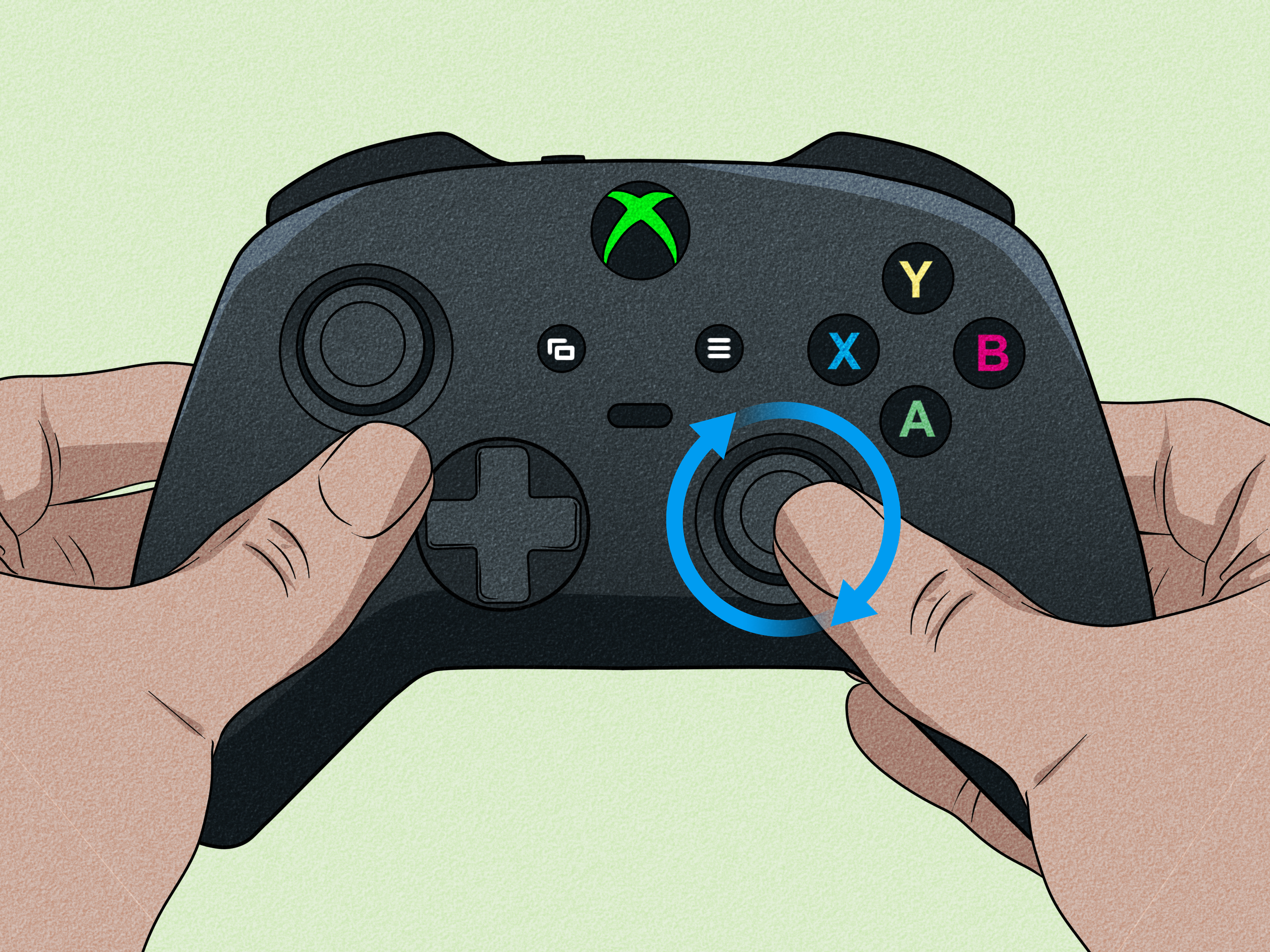
Nothing ruins a perfect gaming moment quite like an Xbox One controller that decides your character should stroll into a wall, aim at the ceiling, or spin in circles like it just discovered espresso. That annoying phantom movement is called stick drift, and it happens when an analog stick sends movement signals even though your thumb is nowhere near it.
The good news: Xbox One stick drift is not always a death sentence for your controller. Sometimes the culprit is dirt around the thumbstick, a firmware issue, an aggressive in-game sensitivity setting, or a worn stick cap. Other times, the internal joystick sensor is simply tired after years of heroic duty in racing games, shooters, and accidental controller drops.
This guide explains how to troubleshoot Xbox One controller stick drift, clean the controller safely, use software workarounds, decide whether a repair is worth it, and understand when it is time to replace the joystick module or the entire controller.
What Is Xbox One Stick Drift?
Xbox One stick drift happens when one or both analog sticks register movement without being touched. You may notice your character walking slowly forward, a camera drifting upward, menus scrolling by themselves, or aiming that never quite stays centered.
Stick drift can affect either thumbstick:
- Left stick drift: Usually affects player movement in games.
- Right stick drift: Usually affects camera movement, aiming, or menu navigation.
- Diagonal drift: Often feels like the character is being pulled toward one corner of the screen.
- Intermittent drift: Appears only after long gaming sessions or when the stick is moved in a certain direction.
The analog sticks inside an Xbox One controller use sensors called potentiometers. These parts measure movement by detecting changes in electrical resistance. Over time, dust, grime, wear, pressure, moisture, or damaged internal components can cause incorrect readings. The controller then believes the stick is moving when it is actually resting.
Common Causes of Xbox One Controller Stick Drift
Dust, Skin Oil, and Debris
The small gap around the thumbstick is an open invitation for dust, snack crumbs, pet hair, and mysterious debris from the gaming universe. A little buildup can interfere with the stick’s movement or prevent it from returning smoothly to center.
Worn Potentiometer Sensors
The most common long-term cause of analog stick drift is wear inside the joystick assembly. The internal sensor tracks movement every time you push, rotate, flick, or press the stick. After enough use, the contact surface can wear down and produce inaccurate readings.
This is why cleaning may help mild drift but cannot always fix a controller with heavily worn internal components. Sometimes the sensor has simply completed its service record and is ready for retirement.
Damaged Thumbstick Mechanism
A hard drop, a forceful click, or a controller being launched after a difficult boss fight can damage the joystick mechanism. The stick may become loose, fail to center correctly, feel crunchy, or move farther in one direction than the other.
Firmware or Configuration Problems
Not every drifting controller has a hardware problem. A firmware issue, unusual button mapping, damaged profile setting, or game-specific dead-zone setting can sometimes make stick drift seem worse than it really is.
Game-Specific Dead-Zone Settings
Some games use tiny dead zones for more responsive aiming. That can make a slight controller imperfection feel enormous. A controller that seems fine in one game may drift badly in another because the second game is more sensitive to small stick movements.
How to Confirm That Your Xbox One Controller Is Drifting
Before taking anything apart, confirm that the issue is really stick drift. This saves time, screws, and emotional damage.
- Restart the Xbox console completely.
- Turn the controller off and remove its batteries for a minute.
- Reconnect the controller using a USB cable, if available.
- Test the controller in more than one game.
- Check whether menus move on their own while the sticks are untouched.
- Try another controller on the same console.
- Use the Xbox Accessories app to inspect controller settings and available updates.
If only one game has the problem, check that game’s controller settings first. If the problem appears in menus, multiple games, and another device, the controller is probably the issue.
Quick Fixes for Xbox One Stick Drift
1. Restart the Controller and Console
This sounds almost too simple, which makes it easy to ignore. Turn off the Xbox One, unplug it for a short time, then restart it. Remove the controller batteries or disconnect the controller’s USB cable before reconnecting.
A restart will not repair a worn analog sensor, but it can clear temporary connection problems or strange controller behavior caused by software glitches.
2. Update Xbox One Controller Firmware
Firmware updates can improve controller compatibility, connection stability, and input behavior. Open the Xbox Accessories app on your Xbox console or Windows PC, connect the controller, and check for an available update.
For older Xbox One controllers, a wired USB connection may be the easiest way to update reliably. Keep the controller connected until the update finishes. Interrupting an update is an excellent way to turn a small controller problem into a much more dramatic one.
3. Reset Custom Controller Mapping
If you use custom button mappings, accessibility settings, or profile-specific controller configurations, reset them temporarily and test again. Incorrect mapping does not usually create true analog stick drift, but it can make a controller feel unpredictable.
4. Adjust the Dead Zone in the Game
Many modern games allow you to adjust the controller dead zone. Increasing the dead zone slightly can hide mild drift by requiring more movement before the game reacts.
This is a workaround, not a permanent repair. It is most useful when drift is minor and you need a fast solution before a multiplayer match, a tournament, or a weekend gaming session.
Start with a small adjustment. A giant dead zone may stop drift, but it can also make aiming feel sluggish and movement less responsive. You want the controller to behave, not feel like it is steering through peanut butter.
5. Clean Around the Thumbstick
Cleaning is the safest physical fix to try before opening the controller. It may remove dust or residue that is preventing the thumbstick from moving smoothly.
Gather the following:
- A clean microfiber cloth
- Cotton swabs
- Isopropyl alcohol, preferably 70% or higher
- Compressed air, used carefully
Turn off the controller and remove the batteries. Gently pull the thumbstick outward and rotate it around its full range of motion. Use a dry cotton swab to remove visible debris around the base.
Next, lightly dampen a cotton swab with isopropyl alcohol. Do not soak it. Clean around the thumbstick opening while moving the stick in different directions. Let the controller dry completely before reinstalling the batteries and testing it.
A few careful bursts of compressed air can help loosen dust. Hold the can upright and avoid spraying for too long in one place. Do not spray household lubricants, water, cooking oil, perfume, or mystery garage chemicals into the controller. The controller does not need a spa treatment.
When Cleaning Will Not Fix Xbox One Stick Drift
Cleaning is helpful when dirt is the problem. It is less useful when the joystick’s internal potentiometer is worn, the spring mechanism is weak, or the stick assembly has been damaged.
You may need a deeper repair when:
- The drift returns immediately after cleaning.
- The thumbstick feels loose or fails to center.
- The stick clicks strangely or feels rough when rotated.
- The controller has been dropped or damaged.
- The drift is severe in every game and menu.
- Increasing the dead zone makes gameplay feel unusable.
How to Repair Xbox One Stick Drift
Option 1: Replace the Thumbstick Cap
If the rubber cap is torn, loose, or spinning independently from the stick shaft, replacing the cap may improve grip and comfort. However, a new thumbstick cap usually will not fix true stick drift because the problem is typically deeper inside the controller.
Think of a thumbstick cap as new shoes. It can make the controller feel better, but it cannot fix a bad knee.
Option 2: Replace the Potentiometer Sensor
Some Xbox One controller repairs involve replacing only the small potentiometer sensor attached to the joystick assembly. This can be less expensive than replacing the full joystick module, but it still requires careful disassembly and compatible replacement parts.
Potentiometer replacement can be a reasonable option for experienced DIY repairers. It is important to buy parts that match the controller model. Two joystick parts may look nearly identical while having different shaft lengths, alignment, resistance values, or mounting details.
Option 3: Replace the Entire Joystick Module
Replacing the full analog joystick assembly is the most complete repair for severe stick drift. It typically requires opening the controller, removing the circuit board, desoldering the old joystick module, soldering in a new one, and testing the result.
This repair is best for people with soldering experience. The joystick assembly has multiple solder points, and overheating the board can damage pads or traces. A repair that begins as “I will save money” can become “Why is this controller smoking?” surprisingly fast.
Tools Often Needed for Internal Xbox One Controller Repairs
- TR8 or T8 security Torx screwdriver
- Plastic opening tool or spudger
- Precision tweezers
- Soldering iron and solder
- Desoldering braid or solder pump
- Flux
- Replacement joystick module or potentiometer
- Isopropyl alcohol for cleanup
Most Xbox One controller models use security Torx screws, and some have a hidden screw behind the battery-compartment label. Check the controller model number before ordering tools or parts. Xbox One controller revisions are similar, but not identical.
Should You Repair or Replace an Xbox One Controller?
The answer depends on the controller’s condition, your repair skills, and the cost of replacement parts.
| Situation | Best Next Step |
|---|---|
| Mild drift with no physical damage | Clean the thumbstick and adjust the dead zone. |
| Drift started after a firmware issue | Update firmware and reset controller settings. |
| Loose stick or severe drift | Consider potentiometer or joystick module replacement. |
| Controller is still covered by warranty or service protection | Use official service options before opening it. |
| You have no soldering tools or repair experience | Use a reputable controller repair shop or replace the controller. |
| Several buttons, triggers, and sticks are failing | Replacement may be more practical than extensive repair. |
Opening a controller can affect warranty coverage. When in doubt, check the controller’s service options before removing screws or puncturing the battery label.
How to Prevent Stick Drift on an Xbox One Controller
You cannot prevent every hardware failure, but good habits can reduce stress on the analog sticks.
- Keep food, dust, and liquids away from the controller.
- Wash or dry your hands before long gaming sessions.
- Store the controller in a clean, dry place.
- Avoid forcing the sticks against their edges repeatedly.
- Do not leave the controller under heavy objects.
- Use a protective case when traveling.
- Clean around the thumbsticks occasionally before debris builds up.
It is also wise to avoid storing the controller where pets can chew it, children can use it as a drumstick, or gravity can repeatedly test its durability from a coffee table.
Common Xbox One Stick Drift Mistakes to Avoid
Using Too Much Liquid
Flooding a controller with alcohol, cleaner, or lubricant can cause more problems than it solves. Use a lightly dampened swab rather than spraying liquid directly into the controller.
Using WD-40 or General-Purpose Lubricants
General-purpose lubricants are not designed for delicate electronics and can leave residue behind. Use electronics-safe cleaning methods instead.
Ignoring Game Settings
A controller may seem broken when a game’s dead-zone setting is simply too low. Always test multiple games before assuming the hardware has failed.
Buying Random Replacement Parts
Controller parts can look alike while being incompatible. Confirm your controller revision and the exact replacement part before ordering anything.
Attempting a Solder Repair Without Practice
Joystick replacement is possible, but it is not the best first soldering project. Practice on an old circuit board first, or let a repair professional handle the job.
Xbox One Stick Drift FAQ
Can stick drift fix itself?
Sometimes minor drift improves after cleaning, restarting, updating firmware, or changing dead-zone settings. Drift caused by worn internal sensors usually does not permanently fix itself.
Does calibration fix Xbox One stick drift?
Calibration can help with certain controller input issues, especially when supported by the controller model and Xbox Accessories app. However, calibration cannot restore a physically worn potentiometer or damaged joystick assembly.
Can I use a higher dead zone instead of repairing the controller?
Yes, for mild drift. Raising the dead zone can make a controller usable for some games, especially slower-paced games. For competitive shooters, racing games, or precise platformers, a proper repair or replacement is usually better.
Is it cheaper to repair or replace an Xbox One controller?
Cleaning and simple replacement parts are inexpensive. Full joystick replacement can be affordable if you already own soldering tools and know how to use them. If you must buy tools, parts, and repair equipment for one controller, replacement may be the more practical option.
Can I use an Xbox Series controller on Xbox One?
Many newer Xbox Wireless Controllers work with Xbox One consoles, although some features may vary by game or console generation. Check compatibility before purchasing a replacement controller.
Real-World Repair Lessons: What Stick Drift Experiences Usually Teach
One of the most useful lessons from Xbox One stick drift repairs is that the symptom is often more dramatic than the cause. A player may describe the issue as “my controller is possessed,” but the actual problem may be a barely visible upward input from the right stick. That tiny input becomes extremely obvious in first-person shooters because the camera slowly climbs toward the sky. In racing games, the same issue may feel like the car has suddenly developed a strong personal opinion about guardrails.
Many players first notice drift in menus rather than during gameplay. A selection cursor moves slowly through options, a digital keyboard scrolls, or a game character starts wandering before a match begins. That is a useful clue because it suggests the problem is not limited to one game. Testing the controller in the Xbox dashboard, a second game, and a different device can quickly separate a hardware problem from a game-specific setting.
Another common experience is discovering that cleaning helps, but only temporarily. This does not mean the cleaning attempt was pointless. It often means there was dust around the stick, but the internal sensor was already worn as well. The controller may behave perfectly for a day, a week, or a few gaming sessions before the drift returns. That pattern usually points toward gradual wear in the joystick mechanism rather than a simple surface blockage.
Players also learn that dead-zone settings can be both helpful and misleading. Increasing the dead zone may make a controller feel normal again, especially in a game with flexible controller settings. That can be a smart temporary solution for casual games. However, a larger dead zone can make precise aiming feel slower, and it can hide a problem that continues to worsen. A player may think the repair is complete until they switch to another game with stricter input sensitivity and the drift returns with theatrical flair.
For DIY repairs, the biggest lesson is patience. Opening an Xbox One controller is not especially mysterious, but it is easy to rush. Small screws disappear, plastic clips bend, cables get tugged, and replacement parts turn out to be almost compatible instead of actually compatible. Keeping screws organized, taking photos during disassembly, and confirming the controller model before buying parts can save an enormous amount of frustration.
Experienced repairers often recommend starting with the least invasive option: inspect, update, clean, test, and only then open the controller. That sequence matters. It is easy to assume every drifting controller needs a soldering iron, but some problems are caused by dirt, loose caps, unusual settings, or stale firmware. On the other hand, severe drift that continues across games after cleaning and testing usually deserves a more honest diagnosis: the joystick hardware may be worn out.
The final lesson is practical rather than dramatic. A controller repair is worthwhile when it restores a device you enjoy using, saves money, or prevents unnecessary waste. But there is no shame in choosing professional repair or replacement when the work requires tools and skills you do not have. The goal is not to win a battle against tiny screws. The goal is to get back to gaming without your character walking into walls unsupervised.
Conclusion
Xbox One stick drift can range from a minor annoyance to a full-time gaming saboteur, but it is often manageable. Start with simple troubleshooting: restart the console, update controller firmware, test multiple games, reset settings, and clean around the analog stick. Use dead-zone adjustments as a temporary workaround when the drift is mild.
When drift continues after cleaning and software checks, the internal joystick sensor may be worn or damaged. At that point, replacing the potentiometer, installing a new joystick module, using a repair service, or replacing the controller may be the most reliable solution. A careful diagnosis helps you spend money only where it actually solves the problem.













