
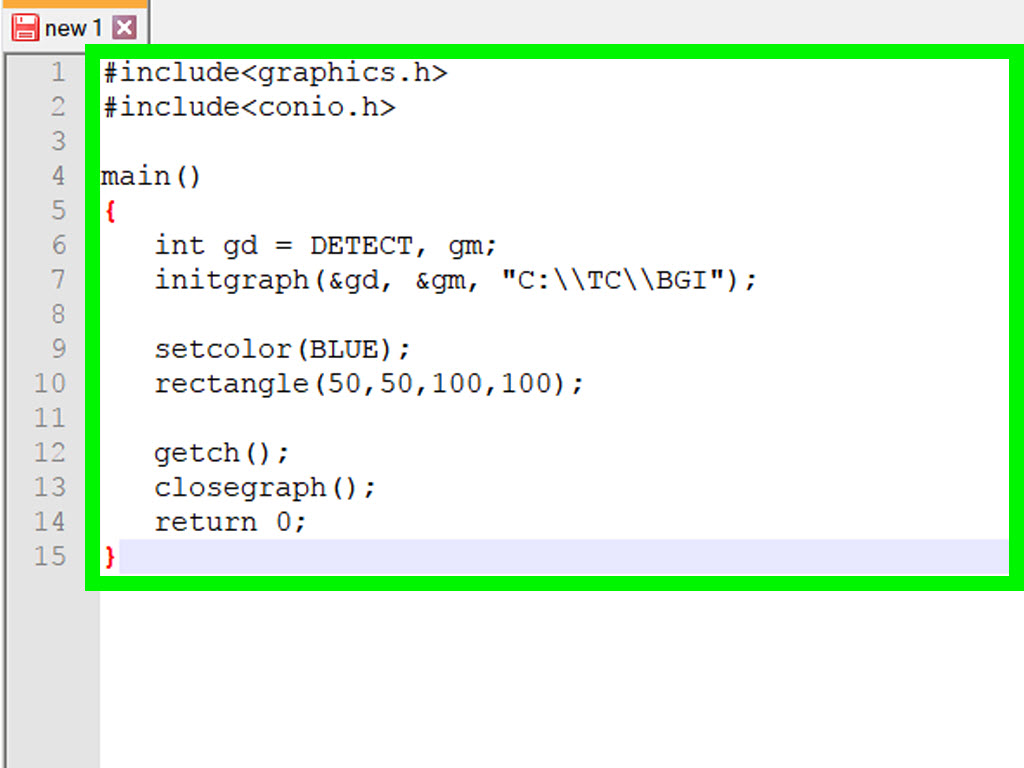
Note: This guide focuses on coloring terminal and console output in C, not changing the color of pixels in a graphical window. In other words, we are teaching your command-line program to stop looking like it was raised in a basement with one fluorescent bulb.
Introduction: Why Add Color to a C Program?
Learning how to get color in C program output is one of those small programming skills that feels weirdly powerful. One minute your console application prints plain white text. The next minute errors are red, success messages are green, warnings are yellow, menus are easier to scan, and your terminal suddenly has a personality. Not a huge personality, obviouslyit is still a terminalbut enough to make your C program feel more polished.
Color in C is most commonly used in terminal applications, command-line tools, games, menus, debugging utilities, and text-based dashboards. A compiler does not magically understand “make this word blue” because standard C does not include built-in color functions. Instead, color is handled by the environment where the program runs: a terminal emulator, Windows Console, Linux shell, macOS Terminal, or a library such as ncurses.
The good news is that adding colored text in C is usually simple. The most popular method is to print ANSI escape codes with printf(). On modern terminals, this approach works beautifully for foreground colors, background colors, bold text, reset codes, 256-color palettes, and even RGB true color. On Windows, you may use ANSI virtual terminal sequences in modern consoles or older Windows-specific functions such as SetConsoleTextAttribute().
This article explains the practical ways to get color in a C program, when to use each method, and how to avoid the classic beginner mistake: turning the entire terminal red and leaving it that way like your program just committed a tiny digital crime.
What “Color in C” Really Means
Before writing code, it helps to understand where the color actually comes from. C itself does not control terminal color. C sends characters to output streams such as stdout. The terminal reads those characters. If the terminal sees normal text, it displays normal text. If it sees special control sequences, it may interpret them as formatting instructions.
These formatting instructions are commonly called ANSI escape codes or ANSI escape sequences. They start with the escape character, usually written in C as \033 or \x1b, followed by bracketed commands. For example:
In that line, \033[31m tells the terminal to switch the foreground text color to red. The text prints in red. Then \033[0m resets the formatting back to normal. The reset code matters. Forgetting it is like opening a bag of glitter: suddenly everything after it is involved.
Method 1: Use ANSI Escape Codes with printf()
The easiest and most portable way to print colored text in C is to use ANSI escape codes directly inside printf(). This method works well in Linux terminals, macOS Terminal, many IDE terminals, Windows Terminal, and modern versions of Command Prompt or PowerShell when virtual terminal processing is enabled.
Basic ANSI Color Example
This program prints four lines in different colors. The pattern is simple: start color, print text, reset color. That last part is the seat belt. Technically, you can drive without it, but future you will not be proud.
Common ANSI Foreground Color Codes
| Color | ANSI Code | C String |
|---|---|---|
| Black | 30 | \033[30m |
| Red | 31 | \033[31m |
| Green | 32 | \033[32m |
| Yellow | 33 | \033[33m |
| Blue | 34 | \033[34m |
| Magenta | 35 | \033[35m |
| Cyan | 36 | \033[36m |
| White | 37 | \033[37m |
| Reset | 0 | \033[0m |
These are the classic eight foreground colors. Many terminals also support bright versions using codes 90 through 97. For background colors, use 40 through 47, or bright backgrounds from 100 through 107.
Text and Background Color Together
You can combine foreground and background color in one escape sequence by separating values with semicolons:
The first example uses white foreground text and a blue background. The second uses black text on a yellow background, which is perfect for warnings, labels, and dramatic messages like “Do not delete production database,” a phrase that should probably be printed in 72-point neon.
Method 2: Define Color Macros for Cleaner Code
Raw ANSI escape codes work, but after a few lines, your program can start looking like a robot sneezed into your source file. A cleaner approach is to define macros or constants for your colors.
This style is easier to read, easier to maintain, and much less likely to make your eyes file a complaint with management. It also makes SEO-friendly tutorial code clearer for beginners searching for “C color text,” “ANSI color C,” or “printf colored output C.”
Method 3: Create a Color Printing Function
If you want reusable code, create a helper function. This keeps color handling in one place and makes your main program cleaner.
A helper function is especially useful in larger C programs where you need consistent output formatting. For example, command-line tools often use green for successful operations, red for errors, cyan for informational messages, and yellow for warnings. This makes the user interface easier to scan without turning the terminal into a carnival ride.
Method 4: Use 256-Color ANSI Codes
Classic ANSI color gives you basic colors, but many modern terminals support 256-color mode. Instead of only red, green, blue, and friends, you can choose from a much larger palette.
The syntax for a 256-color foreground is:
The syntax for a 256-color background is:
Here is a C example:
Color numbers 0 through 15 represent standard and bright colors. Numbers 16 through 231 are usually arranged as a color cube. Numbers 232 through 255 are grayscale shades. The exact appearance may vary by terminal theme, so do not rely on one exact shade unless you control the user environment.
Method 5: Use RGB True Color in the Terminal
Many modern terminal emulators support 24-bit RGB color, also known as true color. This allows you to specify red, green, and blue values from 0 to 255. If you are building a beautiful text dashboard, syntax highlighter, or terminal-based art project, true color is where the crayons become a full art supply store.
The syntax for RGB foreground color is:
The syntax for RGB background color is:
Example:
RGB color is powerful, but it is not guaranteed everywhere. Some older terminals may ignore it or display strange results. If compatibility matters more than beauty, stick with standard ANSI colors or 256-color mode.
Method 6: Get Color in C Program on Windows
Windows has two major approaches for colored console output in C: ANSI virtual terminal sequences and the Windows Console API. Modern Windows environments, especially Windows Terminal, generally support ANSI escape sequences. Older Command Prompt environments may need extra setup.
Using ANSI Escape Codes on Windows
If ANSI escape codes do not work on Windows, you may need to enable virtual terminal processing. Here is a practical example:
This is a good cross-platform strategy because the same ANSI codes can be used on Linux, macOS, and modern Windows after virtual terminal processing is enabled.
Using SetConsoleTextAttribute()
Another option is the Windows-specific SetConsoleTextAttribute() function. It changes text attributes for future console output. This is useful for older Windows programs, but it is less portable because it only works with the Windows Console API.
For new cross-platform command-line tools, ANSI escape codes are usually the better choice. For legacy Windows-only projects, SetConsoleTextAttribute() still gets the job done, even if it feels like it arrived wearing a Windows XP polo shirt.
Method 7: Use ncurses for Advanced Terminal Color
If your C program is more than a simple command-line script, consider using ncurses. The ncurses library is commonly used for text-based user interfaces, menus, terminal games, dashboards, and full-screen console applications.
Unlike simple ANSI escape codes, ncurses manages screen positioning, keyboard input, windows, color pairs, and terminal capabilities. In ncurses, colors are usually handled as pairs: a foreground color plus a background color.
To compile this on many Unix-like systems, you would use:
ncurses is overkill for “print this word red.” But for a C terminal game, interactive menu, file manager, or system monitor, it is a serious tool. Think of ANSI codes as a paint marker and ncurses as a full workshop with labels on every drawer.
Best Practices for Colored Output in C
Always Reset the Color
Every time you turn on a color, turn it off with \033[0m. This prevents later output from inheriting the same style. It also prevents your shell prompt from becoming red, bold, blinking, and emotionally unstable.
Use Color to Improve Meaning, Not Just Decoration
Color should help the reader understand the output faster. Use red for errors, yellow for warnings, green for success, and cyan or blue for informational text. Avoid using five colors in one sentence unless your program is secretly a birthday invitation.
Do Not Depend Only on Color
Some users may use monochrome terminals, customized themes, screen readers, or color-blind-friendly settings. A good C program should not rely only on color to communicate meaning. Include words such as “Error,” “Warning,” and “Success” along with colored formatting.
Keep Color Codes Organized
For small programs, macros are fine. For larger programs, create a small header file such as colors.h. This makes your code cleaner and prevents repeated escape-code soup.
Test in the Terminal Your Users Actually Use
Colors can look different depending on terminal themes, operating systems, fonts, contrast settings, and user preferences. A bright blue that looks nice on your dark theme may be nearly unreadable on someone else’s light theme. Test your C program in at least a couple of terminals before publishing it.
Common Mistakes When Adding Color in C
Mistake 1: Expecting Standard C to Have a Color Function
Beginners often search for a function like setColor() in standard C. There is no universal standard C function for colored terminal output. Use ANSI escape sequences, Windows Console API functions, or a terminal library.
Mistake 2: Forgetting the Escape Character
The sequence must begin with the escape character. In C, common forms are \033 and \x1b. These are not the same as typing the characters “ESC.”
Mistake 3: Forgetting to Reset
If your whole terminal stays green after the program ends, you probably forgot \033[0m. Congratulations: you have invented accidental terminal landscaping.
Mistake 4: Using system(“color”) for Everything
On Windows, some beginners use system("color 0A"). While this can change console colors, it is limited, platform-specific, and usually not ideal for fine-grained colored output. It may change the whole console rather than specific words or lines. Prefer ANSI sequences or proper console APIs.
Complete Example: A Colorful C Status Logger
Here is a simple reusable logger that prints success, warning, error, and info messages in different colors:
This example is a strong starting point for real command-line tools. It keeps color constants organized, uses clear message labels, supports modern Windows terminals, and still works naturally on Unix-like systems.
When Should You Use Each Color Method?
| Method | Best For | Portability |
|---|---|---|
| ANSI escape codes | Simple colored terminal output | High on Linux, macOS, modern Windows |
| Color macros | Cleaner source code | Same as ANSI support |
| Helper functions | Larger command-line tools | High if based on ANSI |
| 256-color ANSI | Richer terminal themes | Good in modern terminals |
| RGB true color | Advanced visual output | Good but not universal |
| SetConsoleTextAttribute() | Windows-only legacy console programs | Windows only |
| ncurses | Full-screen terminal applications | Excellent on Unix-like systems; Windows support varies |
Personal Experience: What Actually Works Best in Real C Projects
In real-world C programming, the best way to get color in a C program depends less on what is “coolest” and more on what kind of program you are building. For a small learning project, ANSI escape codes are perfect. They are quick, easy to understand, and satisfying. You write printf("\033[32mSuccess\033[0m"), run the program, and instantly feel like you upgraded from black-and-white television to glorious command-line cinema.
For beginner projects, I usually recommend starting with simple macros. They make the code readable without hiding too much. A new programmer can still see that color is just text being printed to the terminal, but the source file does not become crowded with mysterious numbers. Defining RED, GREEN, YELLOW, and RESET is enough for most early projects: calculators, student management systems, menu-driven programs, quiz games, and file utilities.
One practical lesson is that colors should be consistent. If red means error in one part of the program, do not use red later for a friendly heading just because it looks spicy. Users learn patterns quickly. Green should usually mean success, yellow should mean caution, and red should mean something needs attention. This makes the program feel more professional even if the code behind it is still held together with determination and three cups of coffee.
Another experience worth mentioning is terminal compatibility. On Linux and macOS, ANSI colors usually work without drama. On Windows, results depend on the terminal. Windows Terminal handles ANSI colors well. Modern PowerShell and Command Prompt usually work too, especially when virtual terminal processing is enabled. But older Windows consoles may show strange characters instead of colors. That is why adding a small Windows setup function can save a lot of confusion.
For larger tools, I prefer wrapping color logic in functions such as print_error(), print_success(), and print_warning(). This makes the main program easier to read. It also lets you disable colors later if output is redirected to a file. Nobody wants a log file filled with raw escape sequences like ^[31m. That looks less like a useful log and more like a haunted printer report.
When building text-based games or full-screen terminal interfaces, basic ANSI codes can become messy. Moving the cursor, clearing lines, refreshing screens, and handling keyboard input are all possible with escape sequences, but at some point you are juggling flaming bowling pins. That is where ncurses becomes useful. It takes more setup, but it gives you better control over windows, colors, input, and screen updates.
The biggest beginner mistake I have seen is using color everywhere. A colorful program is nice; a program where every word has its own emotional support color is exhausting. Good color design is selective. Highlight important information, guide the eye, and leave normal text normal. The terminal is not a bag of candy. You are allowed to show restraint.
In short, for most C programmers, the best path is simple: start with ANSI escape codes, organize them with macros, add helper functions when your project grows, enable virtual terminal processing for Windows support, and move to ncurses when you need a real text user interface. That approach keeps your code understandable, portable, and colorful in the useful waynot the “my terminal has joined a circus” way.
Conclusion
Getting color in a C program is not difficult once you understand that C sends text and the terminal handles the styling. The fastest method is to use ANSI escape codes with printf(). For cleaner code, define color macros or helper functions. For Windows, enable virtual terminal processing or use SetConsoleTextAttribute() in Windows-only applications. For advanced terminal interfaces, use ncurses and color pairs.
The most important rule is simple: use color with purpose. Make errors red, success messages green, warnings yellow, and informational text easy to scan. Always reset formatting, test your output in different terminals, and remember that color should improve usabilitynot turn your program into a disco ball with a compiler.













