
Note: This article is written for publication and contains no source links in the body. It focuses on practical, current, user-friendly ways to reduce spam in Yahoo Mail using built-in tools, safe email habits, and account security best practices.
Spam in Yahoo Mail is a little like glitter after a craft project: you delete it, sweep it, swear you handled it, and somehow it is still there three days later. The good news is that you can reduce it dramatically. The less-good news is that there is no magical “destroy all spam forever” button, because spammers keep changing their tricks, sender names, domains, and subject lines. Still, Yahoo Mail gives you several useful tools to fight back, and when you combine them with smart security habits, your inbox can become peaceful againor at least peaceful enough that you no longer feel personally attacked by fake package alerts and mysterious “urgent invoices.”
This guide explains how to get rid of spam on Yahoo Mail in 10 clear steps. You will learn how to mark messages as spam, block repeat senders, unsubscribe safely, create filters, clean your Spam folder, protect your Yahoo account, spot phishing messages, and prevent your email address from becoming a spam magnet. Whether you use Yahoo Mail on desktop or the Yahoo Mail app, these steps can help you build a cleaner, safer, and less chaotic inbox.
Why Spam Shows Up in Yahoo Mail
Spam emails are unwanted messages that may advertise products, push scams, spread malware, or trick you into sharing personal information. Some spam is merely annoying, like endless retail promotions you never asked for. Other spam is dangerous, especially when it impersonates a bank, delivery company, streaming service, government agency, or even Yahoo itself.
Yahoo Mail uses spam filters to catch suspicious messages before they reach your inbox. However, no filter catches everything. Spammers constantly rotate addresses, use misleading subject lines, hide malicious links behind buttons, or make messages look like normal business emails. That is why your actions matter. When you mark spam correctly, Yahoo’s system learns. When you block repeat offenders, you cut off obvious sources. When you secure your account, you prevent criminals from using your email identity against you or your contacts.
How to Get Rid of Spam on Yahoo! Mail: 10 Steps
-
Step 1: Mark Unwanted Messages as Spam
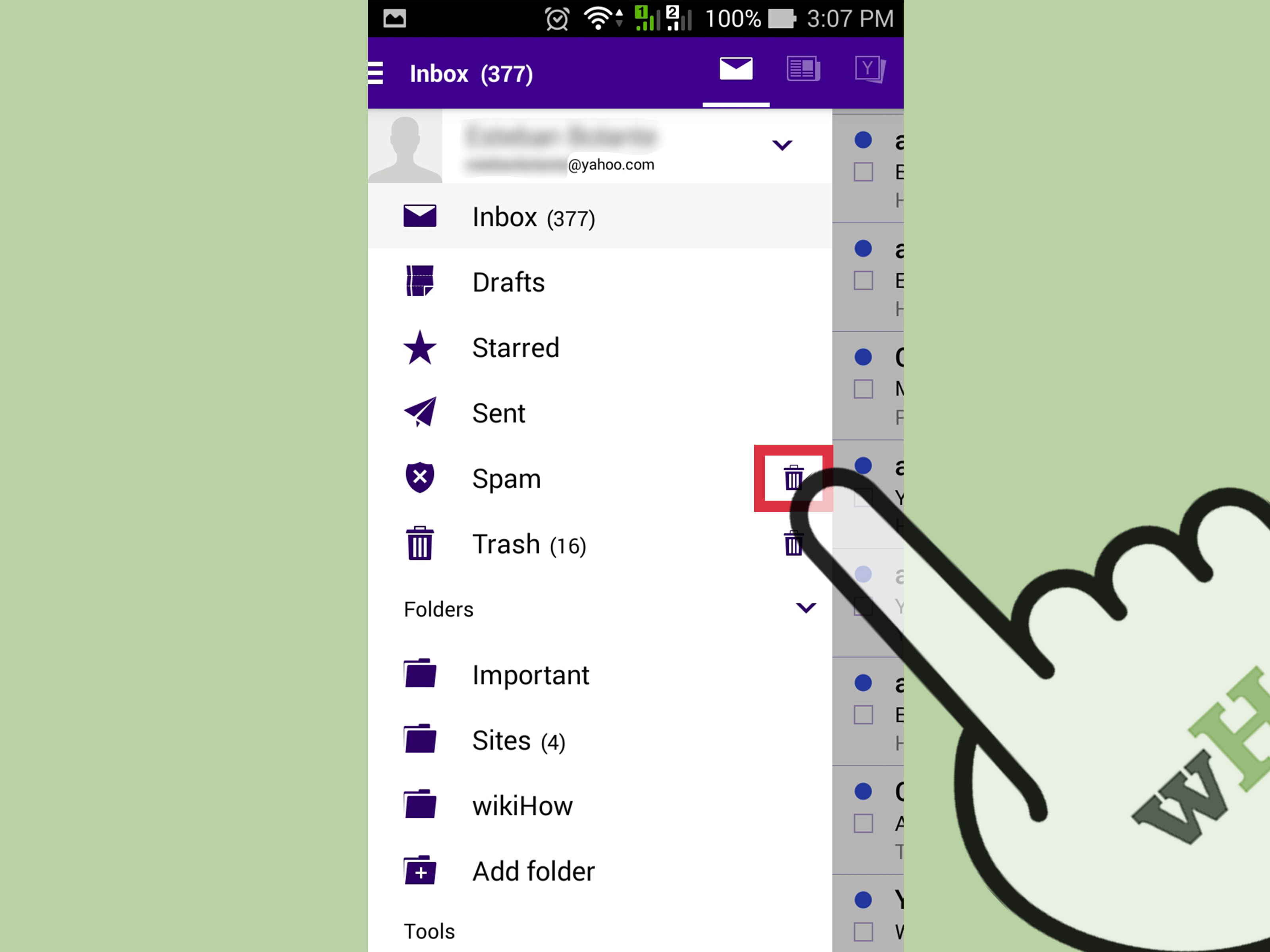
The fastest way to clean up Yahoo Mail spam is to use the built-in spam reporting tool. Open Yahoo Mail, select the unwanted message, and click or tap Spam or Mark as spam. This moves the email out of your inbox and tells Yahoo that similar messages should be treated with suspicion in the future.
Do not simply delete spam from your inbox. Deleting removes one message, but marking it as spam gives Yahoo a stronger signal. Think of it as training a guard dog. If you never tell the dog which visitors are suspicious, it may keep wagging its tail at the guy holding a fake “You won a free laptop” sign.
On the Yahoo Mail app, open the message or select multiple messages, tap the More icon, and choose Mark as spam. This is especially useful when spam arrives in batches from similar senders.
-
Step 2: Block Repeat Spam Senders
If the same sender keeps bothering you, blocking can help. In New Yahoo Mail, go to Settings, choose More Settings, open Security and Privacy, and add the sender under blocked addresses. Yahoo Mail allows users to block many unwanted email addresses, which is helpful for persistent spam campaigns.
Blocking works best when the sender uses the same address repeatedly. It is less effective against spam networks that create a new sender address every time. Still, if a specific newsletter, fake store, or suspicious “support team” keeps appearing, blocking saves time and sanity.
Use blocking carefully. Do not block a whole domain unless you are certain you never need email from that domain. Blocking one address is precise; blocking too broadly can accidentally hide legitimate mail.
-
Step 3: Use Yahoo Mail Filters to Route Junk Automatically
Yahoo Mail filters can automatically move incoming emails into folders or trash based on rules you create. Filters are useful when spam has a repeated pattern, such as the same phrase in the subject line, a recurring sender name, or a suspicious keyword.
On desktop, open Settings, choose More Settings, and select Filters. Create a new filter with conditions such as sender, subject, recipient, or message content. Then choose where matching emails should go. For example, you might send messages with “crypto bonus” or “urgent gift card” directly to Trash if those phrases keep showing up.
Yahoo filters are applied in order, so place important filters above less important ones. If two filters match the same email, the higher-priority rule may take control. A tidy filter list is like a tidy kitchen drawer: you can actually find the scissors instead of discovering seven mystery batteries and a soy sauce packet from 2018.
-
Step 4: Unsubscribe From Legitimate Mailing Lists
Not every unwanted message is criminal spam. Some emails come from real companies you once bought from, downloaded a coupon from, or accidentally blessed with your email address during a moment of online optimism. For legitimate newsletters and retail promotions, Yahoo Mail may show an Unsubscribe option.
Use unsubscribe tools for senders you recognize and trust. For example, if you subscribed to a store’s newsletter and no longer want daily discounts on throw pillows, unsubscribing is reasonable. In the Yahoo Mail app, you may also see an unsubscribe view or option for mailing lists.
Be careful with suspicious emails. If the message looks fake, contains weird grammar, pressures you to act immediately, or claims your account will be closed unless you click, do not use links inside the email. Report it as spam or phishing instead. A fake unsubscribe link can confirm that your address is active or take you to a harmful site.
-
Step 5: Check the Spam Folder for Mistakes
Spam filters are helpful, but they are not mind readers. Occasionally, a real email may land in the Spam folder. Open your Yahoo Mail Spam folder every so often and scan for legitimate messages. If you find a message that should not be there, select it and click Not Spam. This moves it back to your inbox and helps Yahoo treat future messages from that sender more accurately.
This matters for emails from banks, schools, employers, clients, appointment systems, travel companies, and online stores. Missing a real password reset email because it went to Spam can turn a five-minute task into a small emotional weather event.
Do not open suspicious attachments while checking the folder. If a message looks dangerous, leave it alone and delete it or keep it marked as spam.
-
Step 6: Report Phishing and Suspicious Yahoo Impersonation
Spam is annoying; phishing is dangerous. Phishing emails try to steal passwords, verification codes, credit card numbers, Social Security numbers, or other sensitive details. They often pretend to come from trusted companies. A phishing email may say your Yahoo account is locked, your payment failed, your package is delayed, or your bank needs immediate confirmation.
When an email claims to be from Yahoo, inspect it carefully. Legitimate account security messages should not ask you to send passwords, share verification codes, download strange attachments, or pay for support through unofficial channels. If something feels off, do not click. Go directly to Yahoo by typing the address into your browser or opening the official Yahoo Mail app.
In Yahoo Mail, use the spam or abuse reporting option when available. Reporting suspicious messages helps protect your account and improves spam detection for other users too. You are not just cleaning your inbox; you are doing a tiny public service, minus the cape.
-
Step 7: Strengthen Your Yahoo Account Security
If spam suddenly increases, or your friends say they received strange messages from you, check your Yahoo account security immediately. Change your password, review recent account activity, and enable two-step verification if available for your account. Two-step verification adds another layer of protection by requiring a code or approval in addition to your password.
Also review recovery email addresses and phone numbers. If an old phone number or unknown recovery address appears, update it. Spammers and hackers love weak recovery settings because they can use them to regain access even after you change your password.
Look at third-party app access too. If you use Yahoo Mail through another mail app, make sure you recognize every app connection. Remove access for apps you no longer use. A forgotten app connection can become a side door into your email life.
-
Step 8: Stop Sharing Your Main Yahoo Address Everywhere
One of the best long-term ways to reduce Yahoo Mail spam is to protect your email address before spam starts. Avoid posting your main Yahoo address publicly on websites, forums, social media profiles, comment sections, or online marketplaces. Spammers use automated tools to collect exposed email addresses.
Use a secondary email address for shopping, giveaways, downloads, loyalty programs, and online forms that do not deserve VIP access to your primary inbox. Your main email should be reserved for important accounts, personal contacts, work, banking, healthcare, and other serious business.
If a website looks sketchy, do not give it your main Yahoo address. No coupon is worth a lifetime subscription to suspicious miracle supplements, fake invoices, and “exclusive investment opportunities” from people who apparently cannot spell “opportunity.”
-
Step 9: Avoid Clicking Links, Images, and Attachments in Spam
Opening a spam message is not always disastrous, but interacting with it can be risky. Do not click links, download attachments, reply to the sender, or load suspicious images. Some emails use tracking pixels or external content to confirm that your address is active. Once spammers know you open messages, they may send more.
Be especially cautious with attachments ending in file types you did not expect, invoices from unknown companies, shared document links, fake shipping labels, or messages that create panic. Scammers use urgency because calm people ask questions. A message that says “act in 10 minutes or lose your account” is often trying to switch off your common sense.
If you need to verify a claim, leave the email and go directly to the official website or app. For example, if a delivery email looks suspicious, visit the carrier’s website manually and enter the tracking number there.
-
Step 10: Clean Up Regularly and Keep Your Devices Updated
Spam control is not a one-time project. Set a simple routine: once a week, clear obvious junk, review your Spam folder for mistakes, unsubscribe from legitimate newsletters you no longer read, and update filters if needed. A little maintenance prevents inbox chaos from turning into an archaeological dig.
Keep your browser, phone, computer, and security software updated. Many spam and phishing attacks rely on outdated devices, weak passwords, or careless clicks. Updated software helps close security gaps that criminals may exploit.
Also review your Yahoo Mail settings occasionally. If you notice missing emails, strange forwarding behavior, unfamiliar filters, or messages being sent without your knowledge, treat it as a possible account security issue. Change your password, check recent activity, remove unknown filters, and secure recovery options.
Common Yahoo Mail Spam Mistakes to Avoid
Deleting Spam Without Reporting It
Deleting spam feels satisfying, but it does not teach Yahoo much. Marking messages as spam helps the system recognize similar messages later. Use delete for ordinary cleanup; use spam reporting for unwanted or suspicious email.
Replying to Spam
Never reply to spam, even to say “remove me.” A reply confirms your inbox is active. It may also encourage more messages. The spammer is not sitting there thinking, “You know what, this person used a firm tone. Let us respect their boundaries.”
Trusting Every Unsubscribe Link
Unsubscribe from real companies you know. Avoid unsubscribe links in suspicious messages. If the email looks fake, mark it as spam instead.
Ignoring Account Security
If your Yahoo account is compromised, spam can become worse. Criminals may use your account to send messages, change filters, or monitor your inbox. Strong passwords, two-step verification, and recent activity checks are not optional extras; they are the locks on the front door.
How to Tell Spam From Legitimate Email
Spam often has warning signs. Look for generic greetings, spelling errors, urgent threats, unexpected attachments, strange sender addresses, too-good-to-be-true offers, and requests for passwords or verification codes. A message may use a familiar logo but still be fake. Scammers copy branding because it works.
Legitimate companies usually do not ask for sensitive information by email. They also do not demand gift cards, wire transfers, cryptocurrency payments, or secret verification codes. When in doubt, do not click. Open a new browser tab and visit the company’s official website yourself.
Extra Tips to Keep Yahoo Mail Cleaner
- Use folders: Organize real emails so spam is easier to spot.
- Search before deleting: Check whether a sender is legitimate before removing important account emails.
- Review filters: Delete old filters that no longer help.
- Use a separate email for sign-ups: Keep your main Yahoo inbox for important communication.
- Do not publish your email publicly: Public email addresses are easy targets for spam bots.
- Watch for sudden changes: A sudden flood of spam may hide real security alerts or account activity messages.
Real-World Experience: What Actually Works When Fighting Yahoo Mail Spam
In practice, getting rid of spam on Yahoo Mail works best when you stop looking for one perfect fix and start using a layered approach. The users who struggle most with spam often do only one thing: they delete junk messages every day. That feels productive, but it is like bailing water from a boat while politely ignoring the hole. The better approach is to mark spam, block repeat offenders, use filters for patterns, unsubscribe from legitimate lists, and strengthen account security all at once.
One common experience is the “shopping newsletter avalanche.” Someone buys one item from an online store, enters a Yahoo address at checkout, and within a month the inbox is full of promotions. These are not always scams. They are often legitimate marketing emails, but they still clutter the inbox. In this case, the best move is to use Yahoo’s unsubscribe option or the company’s official unsubscribe link, assuming the sender is clearly recognizable. After unsubscribing, give it a few days. Some mailing systems take a short period to process opt-out requests.
Another common experience is the “fake delivery panic.” These messages claim a package cannot be delivered, a shipping fee is due, or a label must be confirmed. They usually include a button that looks convenient. Convenient, unfortunately, is exactly what scammers are selling. The safer habit is to avoid the button, visit the official delivery company website, and check tracking information manually. This one habit can prevent a lot of trouble.
People also notice that spam often increases after entering their email address on coupon sites, sweepstakes pages, free download forms, or unknown online tools. That does not always mean the site intentionally sold the address, but it does mean the address became more exposed. A smart long-term strategy is to create a separate email address for low-trust sign-ups. Your main Yahoo Mail account should not be the address you give to every pop-up promising 15 percent off socks.
Filters are especially useful for repetitive spam, but they require a little patience. A filter that is too narrow may miss many messages. A filter that is too broad may catch real email. For example, filtering every message with the word “invoice” could be a disaster if you actually receive invoices for work or business. A better filter might combine sender patterns, suspicious phrases, and destination folders. Review your filters monthly to make sure they still make sense.
The biggest lesson is that spam control is partly technical and partly behavioral. Yahoo Mail can catch a lot, but your choices matter too. Do not click suspicious links. Do not reply to spam. Do not reuse weak passwords. Do not ignore strange account activity. Treat your email address like a house key, not a napkin you hand out at every digital picnic. With steady habits, the inbox gets quieter, the scams become easier to spot, and Yahoo Mail becomes much easier to use every day.
Conclusion
Getting rid of spam on Yahoo Mail is not about one dramatic inbox rescue mission. It is about building a smarter routine. Mark spam instead of only deleting it. Block repeat senders. Use filters carefully. Unsubscribe from legitimate mailing lists, but avoid suspicious unsubscribe links. Check your Spam folder for mistakes, report phishing, and secure your Yahoo account with stronger login protection.
The more consistently you use Yahoo Mail’s built-in tools, the better your inbox becomes. Spam may never disappear completely, but it can become far less disruptive. Your inbox should be a place for real messages, useful updates, and maybe the occasional pizza coupon you actually wantednot a haunted carnival of fake prizes, fake invoices, and fake emergencies.














