
Note: This guide is based on current iPhone Lock Screen customization options available on modern iOS versions. Menu names may vary slightly depending on your iPhone model, iOS version, region, and Weather app settings.
Few things make you feel more prepared than waking your iPhone and instantly seeing whether the day is going to be sunny, stormy, windy, or personally offensive. The good news: you do not need to unlock your phone, open the Weather app, squint at tiny radar maps, or ask a smart speaker that answers with the enthusiasm of a bored elevator. Your iPhone can show useful weather information right on the Lock Screen.
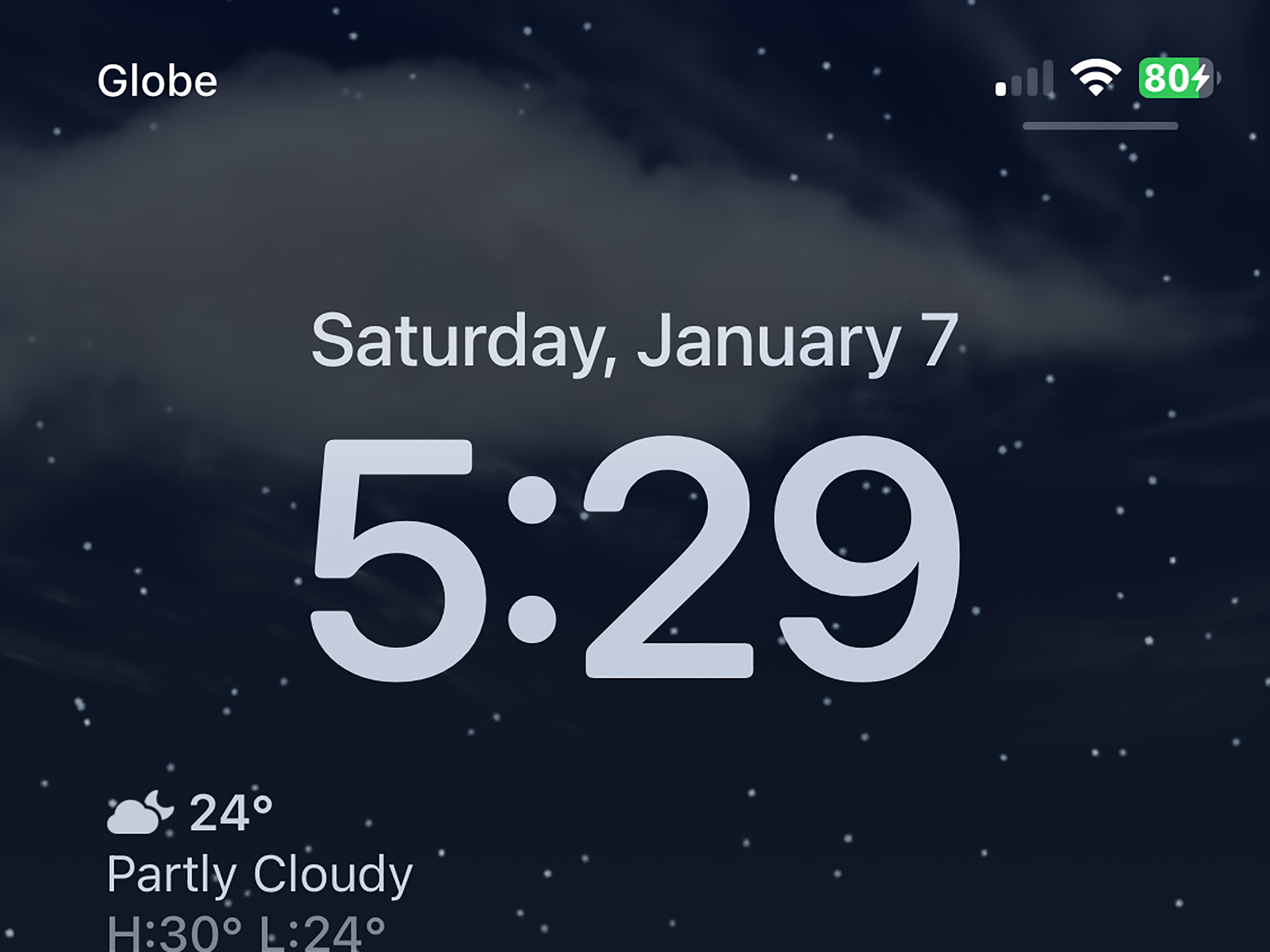
There are two simple built-in ways to get weather on your iPhone Lock Screen. The first is by adding a Weather widget, which can show quick information like temperature, conditions, precipitation, UV index, air quality, or wind. The second is by using Apple’s Weather wallpaper, a dynamic Lock Screen background that visually reflects current conditions in your area. One gives you data at a glance; the other gives you atmosphereliterally.
In this guide, you will learn how to get the weather on your iPhone’s Lock Screen using both methods, how to choose the best setup, how to fix common problems, and how to make your Lock Screen genuinely useful instead of just pretty. Because yes, your wallpaper can be both stylish and a tiny meteorologist.
Before You Start: What You Need
To use weather on the iPhone Lock Screen, you need an iPhone running a recent version of iOS that supports Lock Screen customization. Lock Screen widgets became widely available starting with iOS 16, and Apple has continued improving Lock Screen personalization in newer versions. If your iPhone has not been updated in a while, go to Settings > General > Software Update and install the latest available version.
You also need Apple’s Weather app installed. It usually comes preinstalled, but if you deleted it during one of those “I’m going minimalist” phases, you can reinstall it from the App Store. The Weather app powers many of the built-in weather widgets and weather-based Lock Screen features.
Finally, for the most accurate local weather, make sure Location Services are enabled. Go to Settings > Privacy & Security > Location Services, turn on Location Services, then scroll to Weather. For live local conditions, choose While Using the App or Widgets or Always, depending on the options available on your iPhone. Keeping Precise Location turned on helps your iPhone show weather for your actual area instead of a vague “somewhere near civilization” forecast.
Way 1: Add a Weather Widget to Your iPhone Lock Screen
The easiest and most practical way to show weather on your iPhone Lock Screen is by adding a Weather widget. This is the best method if you want quick facts: current temperature, chance of rain, wind speed, air quality, UV index, or conditions like cloudy, sunny, or thunderstorms.
Lock Screen widgets are small, glanceable blocks of information that appear above or below the clock. They are designed for quick checks, not deep weather analysis. Think of them as the weather equivalent of a sticky note: short, useful, and impossible to ignore when placed correctly.
How to Add a Weather Widget to the Lock Screen
- Wake your iPhone and unlock it with Face ID, Touch ID, or your passcode.
- Press and hold the Lock Screen until the customization gallery appears.
- Tap Customize.
- Select Lock Screen if your iPhone asks whether you want to customize the Lock Screen or Home Screen.
- Tap the widget area below the clock. You may also be able to edit the small widget area above the clock.
- Scroll through the widget list and tap Weather.
- Choose the weather widget you want, such as temperature, conditions, precipitation, UV index, air quality, or wind.
- Tap or drag the widget into the Lock Screen widget area.
- Tap the close button, then tap Done.
- Tap the finished Lock Screen to use it.
That is it. Now when you wake your iPhone, your weather information should appear directly on the Lock Screen. No unlocking required. No app-hunting required. No dramatic window-opening required unless you enjoy verifying technology with your face.
Which Weather Widget Should You Choose?
The best weather widget depends on what you actually care about. If you simply want to know whether to wear a jacket, choose the temperature or conditions widget. If you live somewhere rain enjoys making surprise appearances, choose precipitation. If you spend time outdoors, the UV index widget is useful. If wildfire smoke, pollution, or allergies are a concern, the air quality widget may be more helpful than the temperature.
For most people, the ideal setup is one temperature widget plus one precipitation or conditions widget. That gives you a fast answer to the two most important daily questions: “How hot is it?” and “Will the sky betray me?”
Can You Change the Weather Widget Location?
In many cases, the iPhone Lock Screen Weather widget uses your current location. Depending on the widget type and iOS version, you may be able to tap the widget while customizing the Lock Screen and choose a saved city. If that option appears, select your preferred location and save the Lock Screen.
If you do not see a city-selection option, open the Weather app and make sure your preferred cities are saved there. You can add a city by opening Weather, tapping the list icon, searching for a location, and adding it to your list. Also check your Location Services settings if the widget shows dashes, outdated information, or “Location Access Needed.”
Why the Weather Widget Is the Best Everyday Option
The Lock Screen Weather widget is practical because it gives you actual numbers. A dynamic wallpaper can show clouds or rain, but a widget tells you it is 43 degrees and windy enough to make your umbrella question its career choices. If you want fast, reliable, readable weather information, the widget method should be your first choice.
It is also flexible. You can combine Weather widgets with Calendar, Battery, Reminders, Fitness, or third-party widgets. For example, a morning Lock Screen could show temperature, precipitation, your first meeting, and battery level. That is a tiny command center on glass.
Way 2: Use the Weather Wallpaper on Your iPhone Lock Screen
The second way to get weather on your iPhone Lock Screen is to use Apple’s Weather wallpaper. This option turns your Lock Screen background into a live weather-inspired scene. If it is sunny, the wallpaper looks sunny. If it is cloudy, the wallpaper changes accordingly. If it is raining, your Lock Screen may look rainy toowithout actually soaking your phone, which is considerate.
This method is best for people who want a beautiful, visual weather experience instead of a small data widget. It does not replace a detailed forecast, but it makes the Lock Screen feel alive and connected to the outside world.
How to Set a Weather Wallpaper on iPhone
- Open the Settings app.
- Tap Wallpaper.
- Tap Add New Wallpaper.
- Look for Weather or Weather & Astronomy, depending on your iOS version.
- Select the Weather wallpaper option.
- Customize the clock style, color, and widgets if desired.
- Tap Add.
- Choose Set as Wallpaper Pair or customize the Home Screen separately.
You can also start from the Lock Screen itself. Wake and unlock your iPhone, press and hold the Lock Screen, tap the plus button, and choose a Weather wallpaper from the wallpaper gallery. This route is especially convenient if you enjoy testing several Lock Screen designs in one sitting, which is how many of us accidentally lose twenty minutes and call it “personalization research.”
What the Weather Wallpaper Shows
The Weather wallpaper is visual rather than text-heavy. It reflects current conditions using animated or dynamic-looking weather scenes. You may see sunshine, clouds, rain, fog, or other weather moods depending on your local conditions and system availability.
Unlike a widget, the Weather wallpaper usually does not show exact numbers by itself. It tells you the vibe. A widget tells you the facts. That is why the most useful setup is often to combine both: use the Weather wallpaper for atmosphere and add a small Weather widget for the actual temperature or rain chance.
When the Weather Wallpaper Is Better Than a Widget
The Weather wallpaper is better when you want your Lock Screen to feel clean and immersive. Widgets are useful, but too many of them can make your Lock Screen look like an airport departures board. If you prefer a minimalist design, the Weather wallpaper gives you a weather-aware screen without filling every available pixel with data.
It is also excellent for people who check the weather casually. If you only need a quick sense of the daybright, cloudy, rainy, dramaticthe wallpaper does the job beautifully. If you need exact hourly rain timing, wind speed, or air quality, open the Weather app or use widgets.
Weather Widget vs. Weather Wallpaper: Which Should You Use?
Use the Weather widget if you want numbers, alerts, and practical details. It is the better option for commuters, parents, runners, dog walkers, gardeners, travelers, and anyone who has ever dressed confidently for spring and been humbled by a cold front.
Use the Weather wallpaper if you want a clean, visual Lock Screen that changes with the conditions. It is beautiful, simple, and surprisingly satisfying. It will not tell you everything, but it makes your iPhone feel more personal and connected to your environment.
For the best experience, use both. Set the Weather wallpaper as your Lock Screen background, then add one or two compact Weather widgets below the clock. This gives you the visual charm of live weather plus the practical value of quick data. It is the iPhone equivalent of wearing a nice coat with useful pockets.
How to Fix Weather Not Showing on the iPhone Lock Screen
If the Weather widget is blank, stuck, outdated, or asking for location access, do not panic. Your iPhone is probably not boycotting meteorology. Most issues are caused by location permissions, network problems, disabled widgets, or a temporary Weather app glitch.
Check Location Services
Go to Settings > Privacy & Security > Location Services and make sure Location Services are turned on. Then scroll down to Weather. Allow the Weather app to use your location while using the app or widgets. If your iPhone offers an Always option and you want the most consistent background updates, you can choose it. Keep Precise Location enabled for better local accuracy.
Open the Weather App Once
Sometimes the widget needs the Weather app to refresh its data. Open the Weather app, wait a few seconds, confirm that your current location loads correctly, then return to the Lock Screen. This simple step fixes more widget weirdness than it has any right to.
Remove and Re-add the Widget
If the widget still does not work, customize the Lock Screen again, remove the Weather widget, and add it back. This forces iOS to reload that widget. It is the digital version of unplugging something and plugging it back in, except with more tapping and less crawling under a desk.
Restart Your iPhone
A restart can clear temporary system issues. Turn your iPhone off, wait a few seconds, turn it back on, and check the Lock Screen again. If you have not restarted your phone in weeks, it may appreciate the nap.
Update iOS
Weather widgets and Lock Screen customization features can improve with software updates. Go to Settings > General > Software Update and install any available update. Updates often include bug fixes that can affect widgets, Weather data, wallpaper behavior, and location services.
Privacy and Battery Tips for Lock Screen Weather
Weather features work best when your iPhone knows where you are, but you remain in control. If you prefer not to share precise location, you can turn off Precise Location for Weather. The forecast may be less exact, but it can still be useful for general conditions. If you travel often and want hyperlocal updates, keeping precise access on will usually provide a better experience.
Battery impact is usually minimal, especially for basic widgets. Weather widgets update periodically rather than constantly. However, if you use many widgets, live activities, location-based features, and always-on display options, your battery may drain faster. If battery life matters more than constant updates, keep your Lock Screen simple: one Weather widget, one Calendar widget, and no unnecessary visual clutter.
Real-World Experience: Living With Weather on the iPhone Lock Screen
After using weather on the iPhone Lock Screen for a while, the biggest benefit is not that it feels futuristic. It is that it removes one tiny daily annoyance. You wake your phone, glance once, and know whether the day requires sunglasses, a hoodie, an umbrella, or emotional resilience. That may sound small, but small conveniences are exactly what make a phone feel smarter.
The Weather widget is especially useful in the morning. When you are half-awake and negotiating with your alarm clock, opening a full weather app can feel like too much effort. A Lock Screen temperature widget gives you the answer immediately. If it says 38 degrees, you grab a jacket. If it says 82 degrees before breakfast, you prepare for the kind of day where the sidewalk looks personally hostile.
For commuters, the precipitation widget is the quiet hero. It does not need to be dramatic. Even a small rain indicator can change your morning routine. You might leave five minutes early, pack a compact umbrella, wear different shoes, or avoid parking under a tree that turns into a showerhead. The value is not just knowing the weather; it is knowing it early enough to do something about it.
The Weather wallpaper offers a different kind of satisfaction. It makes the iPhone feel more connected to the outside world. A cloudy Lock Screen on a gray morning feels oddly natural. A sunny background can make the phone feel brighter before you even step outside. It is not as practical as a widget, but it is more pleasant. And sometimes pleasant matters. Not every feature has to behave like a spreadsheet with icons.
The best personal setup is usually a combination: Weather wallpaper plus one compact temperature widget and one precipitation or conditions widget. This keeps the screen clean while still giving you useful information. Too many widgets can make the Lock Screen busy, and once everything is important, nothing is easy to read. Weather belongs on the Lock Screen because it answers a question you ask every day. The trick is to show only the answer you need most.
One lesson from real use: permissions matter. If Location Services are too restricted, the widget may show outdated information or ask for access. If the Weather app has not been opened in a long time, it may need a refresh. And if your iPhone is running an older iOS version, a software update can make the whole experience smoother. Most weather display problems are not mysterious; they are usually permission, refresh, or update issues.
Another practical tip is to create different Lock Screens for different routines. You can have a morning Lock Screen with weather, calendar, and reminders. You can have a travel Lock Screen with weather and maps-related widgets. You can have a minimalist weekend Lock Screen with only the Weather wallpaper and no widgets at all. The iPhone lets you switch Lock Screens quickly, so your weather setup does not have to be one-size-fits-all.
Overall, weather on the iPhone Lock Screen is one of those features that becomes invisible in the best way. You stop thinking about how it works and simply rely on it. It saves taps, prevents bad outfit choices, and occasionally stops you from walking into rain with the confidence of someone who absolutely should have checked the forecast.
Conclusion
Getting weather on your iPhone’s Lock Screen is simple, useful, and worth setting up. If you want clear information, add a Weather widget. If you want a beautiful screen that reflects current conditions, use the Weather wallpaper. If you want the best of both worlds, combine them and enjoy a Lock Screen that is both informative and good-looking.
The Weather widget is the stronger choice for everyday utility because it shows exact details like temperature, conditions, rain chance, wind, UV index, or air quality. The Weather wallpaper is the better choice for visual appeal because it turns your Lock Screen into a live-feeling snapshot of the sky outside. Together, they make your iPhone more helpful before you even unlock it.
Once you enable the right location settings, choose your preferred widget, and customize your wallpaper, checking the forecast becomes effortless. Your Lock Screen can help you dress better, plan smarter, and avoid being surprised by weather that clearly had no respect for your schedule.














