If you are trying to insert an image into a shape on Adobe Illustrator, here is the good news: you are not wrestling with some secret wizard-level feature hidden behind seven mysterious panels and a blood oath. In most cases, you just need one tool: the clipping mask. Once you understand how Illustrator treats shapes, images, and stacking order, the whole process becomes surprisingly easy.
This guide walks you through the exact steps, explains why the method works, shows you how to fix the most common mistakes, and shares a few practical tricks that make the final design look polished instead of “I made this at 2:13 a.m. and hoped for the best.” Whether you want to place a photo inside a circle, fill text with an image, or crop artwork into a custom silhouette, this tutorial will help you do it cleanly.
What Is the Easiest Way to Put an Image Inside a Shape in Illustrator?
The easiest way to insert an image into a shape in Adobe Illustrator is to create a clipping mask. In simple terms, the shape becomes a window, and the image shows only inside that window. Anything outside the shape is hidden from view.
That is why this method is so popular for profile pictures in circles, product photos inside custom labels, travel images inside text, social media graphics, poster layouts, and logo mockups. It is also non-destructive, which means the hidden parts of the image are not deleted. They are just tucked away out of sight like laundry behind a closed door.
Step-by-Step: How to Insert an Image Into a Shape on Adobe Illustrator
Step 1: Open Illustrator and Place Your Image
Start by opening your Illustrator document. Then go to File > Place and choose the image you want to use. Click on the artboard to place it, or click and drag if you want to set the size as you place it.
If the image is part of a larger design, using Place is usually the better move than opening the image as its own document. It keeps your workflow organized and makes it easier to combine the photo with shapes, text, and other vector elements.
In many real-world projects, designers also choose to embed the image once it is placed. This can make file handoff easier later, especially if the Illustrator file needs to travel to another computer and you do not want the dreaded missing-link surprise.
Step 2: Create the Shape That Will Hold the Image
Now create the shape you want to use. You can use the Rectangle Tool, Ellipse Tool, Polygon Tool, Star Tool, or the Pen Tool if you want a custom shape.
This is where Illustrator starts showing off. Your shape can be something simple, like a circle for a headshot, or something more stylized, like a badge, silhouette, heart, speech bubble, or abstract blob. If you can draw it as a vector shape, you can usually use it as the mask.
For the cleanest result, make sure the shape is a proper vector object and, in most beginner workflows, a closed path. If you use the Pen Tool, connect the first and last anchor points so Illustrator does not treat your shape like an unfinished sentence.
Step 3: Move the Shape Above the Image
This step trips up a lot of people. The shape must sit above the image in the stacking order. If it is behind the image, Illustrator will not use it as the clipping path.
If needed, select the shape, then right-click and choose Arrange > Bring to Front. You can also confirm this in the Layers panel. Think of the mask shape as the top cookie cutter. If it is underneath the dough, nothing useful is happening.
Step 4: Select Both the Shape and the Image
Use the Selection Tool, then hold Shift and click both the image and the shape. You can also drag a selection box around both objects if there is nothing else nearby.
Make sure you are selecting the actual image and shape, not just the visible part of a larger group. If your artwork is cluttered, use the Layers panel to target the right objects more precisely.
Step 5: Make the Clipping Mask
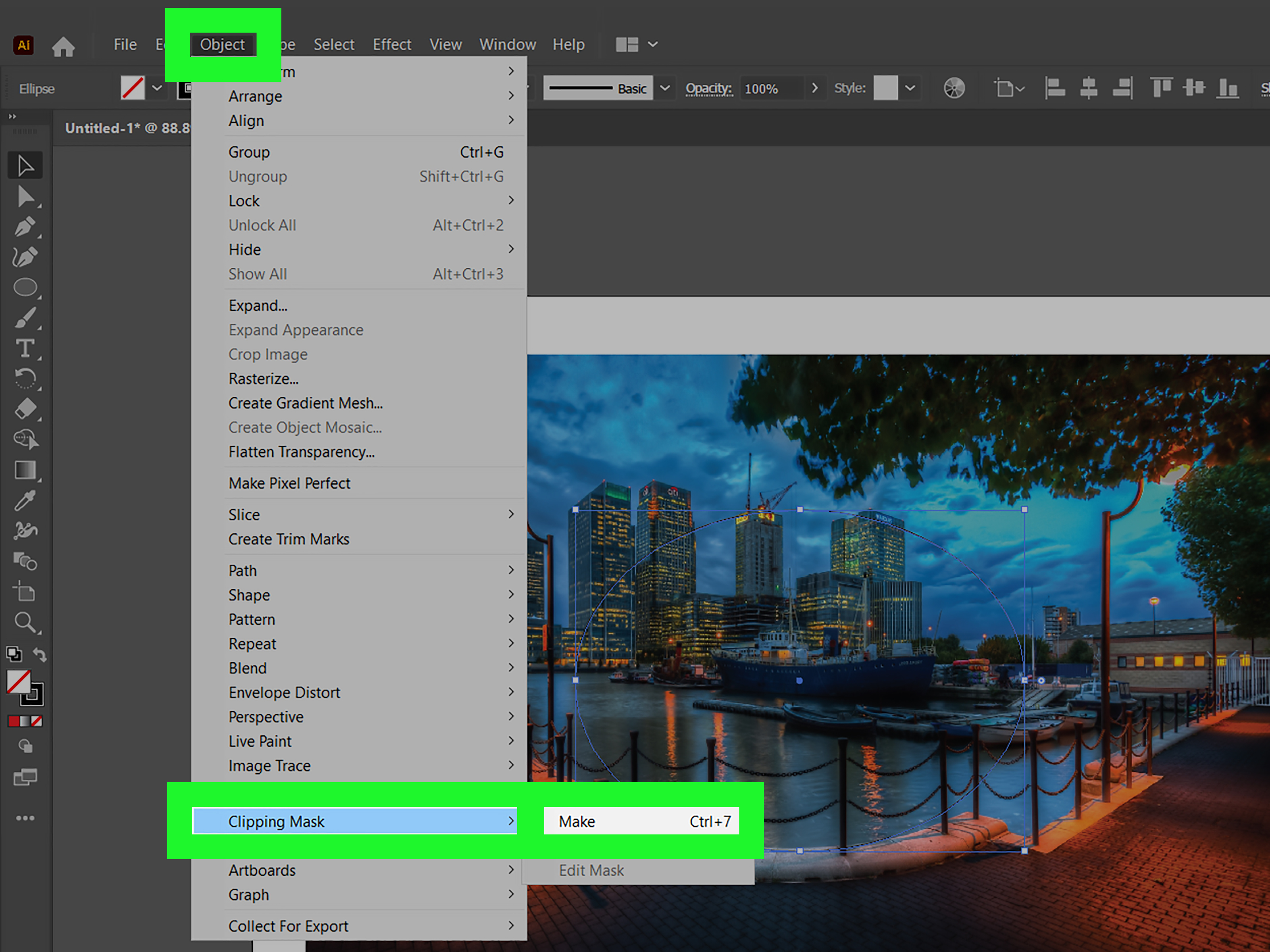
Once both objects are selected, go to Object > Clipping Mask > Make.
You can also right-click and choose Make Clipping Mask, or use the shortcut Ctrl + 7 on Windows or Command + 7 on Mac.
That is it. Your image now appears inside the shape, and everything outside the shape is hidden.
Step 6: Reposition the Image for a Better Crop
Sometimes the first result is technically correct but visually awkward. Maybe the face is too low in the circle, or the interesting part of the photo got clipped out. That does not mean you did anything wrong. It just means Illustrator is being literal.
To adjust the placement, double-click the clipped artwork to enter isolation or editing mode. Then select the image and move it around inside the shape until the crop looks right. You can also resize the image if needed.
This is one of the biggest advantages of using a clipping mask instead of deleting parts of the image. You keep flexibility. Illustrator lets you fine-tune the composition without starting over from scratch.
What Happens Behind the Scenes?
Illustrator turns your selection into a clip group. The vector object on top becomes the clipping path, and the artwork underneath becomes the masked content. The hidden parts are still there; they just are not visible outside the mask boundary.
That matters because it keeps your edit options open. If you later decide the image should show more sky, less shoulder, or a different focal point, you can simply edit the mask or move the image inside it.
Another small surprise: when Illustrator converts a shape into a clipping mask, the original fill and stroke may disappear automatically. So if your circle suddenly loses its visible outline, do not panic. Illustrator is not broken. It is just following mask behavior.
Best Uses for This Illustrator Technique
1. Profile Photos in Circles or Rounded Shapes
This is the classic use case. You place a portrait, draw a circle, make the clipping mask, and boom: polished avatar. Perfect for resumes, team pages, speaker decks, and social banners.
2. Images Inside Text
Yes, you can also fill text with an image. Large headline text with a landscape or texture inside it can look fantastic in hero graphics, album art, and promo banners. Illustrator supports masking with text objects as well, which makes this effect very accessible.
3. Product Photos in Custom Labels
If you are making packaging mockups, stickers, or digital ads, placing photos inside badges, shields, ribbons, or custom vector labels gives the design a cleaner and more intentional look.
4. Collage and Tile Layouts
Want to split one image across multiple rounded rectangles, circles, or abstract shapes? Clipping masks make that possible. It is a popular approach for brochures, social media carousels, and poster layouts where one photo needs more visual drama.
5. Pattern or Texture Fills Inside Shapes
This trick is not only for photos. You can also insert vector textures, repeated patterns, or decorative graphics inside shapes. The result can feel layered, premium, and intentionally designed instead of flat.
Common Problems and How to Fix Them
The Shape Is Not Working as a Mask
The most common cause is stacking order. The mask shape must be on top of the image. Bring it to the front, then try again.
Nothing Seems to Happen
Sometimes Illustrator does create the clip group, but visually it looks unchanged because the mask shape is the same size as the image, or the crop difference is subtle. Try moving the image inside the mask to confirm the effect is working.
You Used Multiple Shapes
If you want one image inside multiple cutout areas, Illustrator may need those shapes turned into a compound path first. Otherwise, the software may not understand which single clipping path to use. This is especially common with letterforms, donut-like shapes, or layouts with holes and internal spaces.
Your Stroke Disappeared
That is normal. A clipping mask often removes the visible fill and stroke from the mask object itself. If you still want an outline around the final shape, copy the mask shape before clipping, then paste the copy on top afterward and apply your stroke there.
The Image Is Inside the Shape, but the Crop Looks Wrong
Double-click into the clipped group and move the image around. This is usually a composition issue, not a technical one. The mask is doing its job; you just need a better crop.
You Want Soft Fades Instead of Hard Edges
A regular clipping mask creates crisp edges. If you want gradual transparency, shadows, or soft blends, consider using an opacity mask through the Transparency panel instead. That is the better tool for feathered or gradient-based masking effects.
An Alternative Method: Draw Inside Mode
If you are working with a single vector shape, Illustrator also offers Draw Inside mode. Select the shape, switch to Draw Inside, and then place, paste, or create content. Illustrator automatically keeps that content inside the selected object.
This method is handy when you know from the start that all added artwork should stay inside one shape. It can feel faster than creating a clipping mask manually every time, especially when building decorative elements or layered graphics inside a badge, icon, or illustration component.
That said, for beginners and for photo-based work, the standard clipping mask method is still the most straightforward and easiest to troubleshoot.
Pro Tips for Cleaner Results
Use High-Resolution Images
A beautifully cropped image still looks rough if the source photo is blurry. If the final design will be printed or enlarged, start with a high-resolution image.
Choose a Shape That Supports the Photo
Not every image works inside every shape. A face in a skinny triangle may feel more unsettling than stylish. Match the shape to the subject. Portraits often work best in circles, rounded rectangles, and soft custom forms.
Reduce Opacity Temporarily While Aligning
If you are trying to line up the image with a custom shape, temporarily lower the shape opacity so you can see the photo underneath while positioning it. Then restore the opacity before making the mask.
Keep a Backup of the Original Shape
Before making the clipping mask, duplicate the shape and keep a copy off to the side. Future-you may be grateful when you want to add a stroke, rebuild the mask, or test a new crop without redrawing anything.
Organize Your Layers
Clipped groups can get messy in complex documents. Name your layers, group related artwork, and check the disclosure triangles in the Layers panel when something seems missing. Illustrator often is not hiding your artwork forever. It is just nesting it one layer deeper than expected.
Example: Put a Portrait Into a Circle
Let’s say you want a team headshot for a company profile card.
First, place the portrait into the document. Next, choose the Ellipse Tool and draw a circle over the area of the photo you want to show. Bring the circle to the front if needed. Select both the circle and the photo. Then choose Object > Clipping Mask > Make.
If the person’s face is too high or too low, double-click the result and drag the image into better position. If you want a visible white ring around the portrait, paste a copy of the original circle on top and give it a stroke. Clean, fast, professional.
Example: Put an Image Inside Text
Want a bold banner headline with a city skyline inside the letters? Type your word in a large, heavy font. Place the image behind the text. Select both. Make the clipping mask.
Then nudge the image until the most interesting part of the skyline sits inside the letterforms. This is one of those effects that looks fancy but is basically just a clipping mask wearing a nice jacket.
Final Thoughts
Learning how to insert an image into a shape on Adobe Illustrator is one of those small skills that pays off over and over again. It looks polished, works across many design styles, and gives you much more control over composition than simply dropping a rectangular photo onto the page and hoping the audience calls it “minimalist.”
The main method to remember is simple: place the image, create the shape, put the shape on top, select both, and make a clipping mask. Once that becomes muscle memory, you can expand into text masks, compound paths, Draw Inside mode, tiled layouts, and opacity masks for softer effects.
Illustrator rewards repetition. The first time you do this, it might feel slightly fussy. The fifth time, it feels routine. The tenth time, you will wonder why you ever thought it was difficult. And yes, by the fifteenth time, you may start putting photos inside random stars just because you can.
Real-World Experiences With Putting Images Into Shapes in Illustrator
In real design work, inserting an image into a shape on Adobe Illustrator usually starts as a simple idea and turns into a tiny lesson in patience, precision, and layer management. A lot of people first try it because they want a circular headshot, a photo inside text, or a product image tucked neatly into a badge. On paper, it sounds easy. In practice, the first attempt often produces one of three classic beginner moments: the image stays rectangular, the shape disappears, or everything vanishes and you briefly wonder whether Illustrator has personally declared war on you.
That learning curve is normal. One of the most common experiences is realizing that the technique itself is not hard, but Illustrator is very strict about order. The shape has to be above the image. Both objects have to be selected. The shape needs to be the right kind of vector object. Once users understand that Illustrator is following rules rather than improvising, the whole process becomes less frustrating and much more predictable.
Another common experience is discovering how important composition becomes after the mask is made. Many beginners feel a rush of success when the clipping mask finally works, only to notice that the image is poorly framed inside the shape. The subject’s face may be cut off, the focal point may sit awkwardly at the edge, or the best part of the photo may be hiding outside the visible area. That is usually the moment when people stop thinking of this as a technical trick and start seeing it as a design tool. The crop matters. Position matters. The shape is only half the story.
More advanced users often run into a different set of experiences. They start using custom silhouettes, multiple shapes, or text with counters and holes, and then suddenly one simple mask turns into a compound path puzzle. This is where Illustrator teaches an important lesson: visually similar objects do not always behave the same way under the hood. A group of shapes may need to become one compound path. A decorative outline may need to be duplicated. A stroke may need to live on a copied shape above the mask instead of the mask itself. It is a little less “click one thing and done,” and a little more “welcome to the architecture of vector graphics.”
There is also a practical workflow experience that many designers share: clipping masks make mockups, ads, and branded content feel dramatically cleaner. A photo inside a custom frame looks deliberate. A texture inside lettering feels more premium. A collage split into repeating rounded tiles feels designed rather than assembled. Once people use this technique successfully in one project, they usually start spotting opportunities to use it everywhere else.
Perhaps the most useful long-term experience is this: the more often you use image masking in Illustrator, the less it feels like a special effect and the more it feels like basic visual hygiene. It becomes part of how you build layouts, refine crops, direct attention, and make images work harder inside a design. What begins as a tutorial task eventually becomes one of those dependable everyday skills that quietly upgrades the quality of your work.