Linking Excel to PowerPoint is one of those small office skills that feels boring until it saves your Friday afternoon. Instead of copying numbers from Excel, pasting them into PowerPoint, realizing the finance team changed the forecast, sighing deeply, and doing the whole thing again, you can create a live connection between the workbook and the presentation. Update the Excel file, refresh the PowerPoint link, and your slide deck behaves like it has finally learned manners.
This guide explains how to link an entire Excel file to PowerPoint, how to link a specific section of cells, and how to link raw data, charts, and tables so your presentation stays accurate. You will also learn when to link, when to embed, when to paste as a picture, and how to avoid the classic “Why did my link break five minutes before the meeting?” situation.
What Does It Mean to Link Excel to PowerPoint?
When you link Excel to PowerPoint, you place Excel content inside a slide while keeping a connection to the original workbook. That means the PowerPoint object can update when the Excel source changes. This is different from a normal copy-and-paste action, where PowerPoint receives a frozen snapshot of the data.
Think of it this way: pasting is like taking a photo of your spreadsheet. Linking is like installing a window into it. If the view changes in Excel, PowerPoint can show the new view too.
Linked vs. Embedded vs. Pasted
These three options often get mixed up, so let’s make them simple:
- Linked Excel content: PowerPoint points back to the original Excel file. Changes in Excel can update the slide.
- Embedded Excel content: A copy of the Excel content lives inside PowerPoint. It can be edited, but it does not rely on the original file.
- Pasted content: The data becomes static text, a table, or an image. It will not update automatically.
For recurring reports, dashboards, monthly results, budget reviews, sales presentations, and executive decks, linking Excel to PowerPoint is usually the smarter choice. For one-time presentations, static images may be cleaner and safer.
Before You Start: Set Up Your Files the Smart Way
Before linking anything, save both your Excel workbook and PowerPoint presentation. Unsaved files are like toddlers with markers: unpredictable and capable of making a mess. Put both files in a stable folder, preferably the same project folder. If you move, rename, or delete the Excel workbook later, PowerPoint may lose the path to the source file.
Here are a few best practices before you create links:
- Give your workbook a clear name, such as Q4-Sales-Dashboard.xlsx.
- Avoid saving the source file in temporary download folders.
- Keep linked Excel and PowerPoint files together when sharing them.
- Use clean worksheet names, such as Revenue_Summary or Chart_Data.
- Remove extra blank rows and columns before linking a range.
A clean workbook creates a clean presentation. A chaotic workbook creates a slide deck that looks like it fought a copier and lost.
Method 1: Link an Entire Excel File to PowerPoint
If you want to connect a full workbook to a slide, use PowerPoint’s object insertion feature. This is useful when you want the presentation to display or provide access to the Excel file itself, not just a tiny range of cells.
Steps to Link a Full Excel Workbook
- Open your PowerPoint presentation.
- Go to the slide where you want the Excel file to appear.
- Select Insert from the ribbon.
- Choose Object.
- In the dialog box, choose Create from file.
- Click Browse and select your Excel workbook.
- Check the box labeled Link.
- Click OK.
PowerPoint now inserts a linked Excel object. Depending on your settings, it may display part of the workbook directly on the slide or show the file as an icon. If you choose Display as icon, the slide will show a clickable icon rather than worksheet content.
When to Use a Full File Link
Linking an entire Excel file works well when the workbook is important supporting material. For example, a financial review deck might include a linked workbook containing all assumptions, calculations, and supporting data. The slide can act as a doorway into the original file.
However, this method is not always ideal for polished storytelling. If your audience only needs one chart or a small summary table, linking the whole workbook may feel clunky. Use it when the file matters as a file. Use selected ranges or charts when the slide itself needs to look sharp.
Method 2: Link a Section of Excel Data to PowerPoint
Most people do not need an entire workbook on a slide. They need one clean table, one KPI block, one budget section, or one forecast range. For that, use Paste Special and choose a linked Excel worksheet object.
Steps to Link a Cell Range
- Open the Excel workbook.
- Select the cells you want to show in PowerPoint.
- Copy the range with Ctrl + C or Command + C.
- Open PowerPoint and select the target slide.
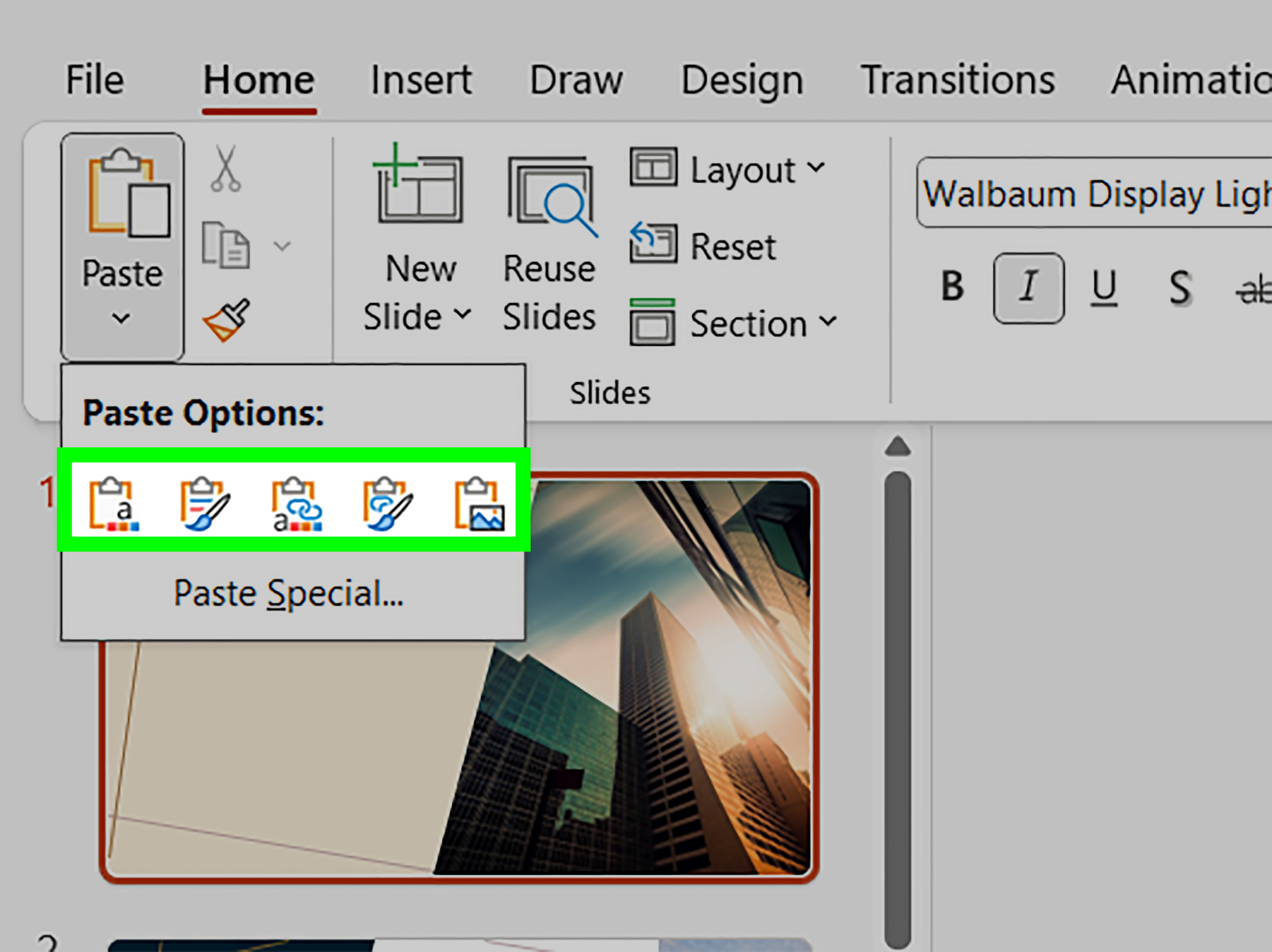
- Go to Home, click the arrow under Paste, and choose Paste Special.
- Select Paste link.
- Choose Microsoft Excel Worksheet Object.
- Click OK.
The selected section appears on the slide as a linked object. When the Excel source changes, the PowerPoint object can be refreshed to show the latest values.
Example: Linking a Monthly Sales Table
Suppose your Excel sheet contains a monthly sales table with regions in rows and months in columns. You only want to show the final quarter. Select the Q4 range, copy it, and paste it into PowerPoint using Paste Special > Paste link. Now, when the sales team updates October, November, or December in Excel, your presentation can reflect the new figures without manual retyping.
This is the sweet spot for many business users. You get a clean slide, a manageable object, and a direct connection to the source data.
Method 3: Link an Excel Chart to PowerPoint
Charts are the celebrity guests of PowerPoint. They get attention, they explain trends faster than text, and they occasionally become dramatic when the source data changes. Linking an Excel chart to PowerPoint lets you keep the chart design while maintaining a connection to the workbook.
Steps to Link an Excel Chart
- Open Excel and click the chart you want to use.
- Copy the chart.
- Open PowerPoint and go to the target slide.
- Use the paste dropdown on the Home tab.
- Choose a link option such as Use Destination Theme & Link Data or Keep Source Formatting & Link Data.
Use Destination Theme & Link Data makes the chart match your PowerPoint theme while staying linked to Excel. Keep Source Formatting & Link Data keeps the chart’s Excel styling and also preserves the connection. Choose the first option when brand consistency matters. Choose the second when the Excel chart already looks exactly right.
When to Refresh a Linked Chart
Sometimes linked charts update when you open the presentation and accept the update prompt. Other times, you may need to select the chart and use Refresh Data. This is normal, especially in decks with several linked objects or files stored in cloud locations. If your chart does not update instantly, do not panic. Check the source workbook, save it, reopen PowerPoint, and refresh the link.
Method 4: Link Raw Data from Excel to PowerPoint
Raw data means the actual cells: numbers, labels, formulas, tables, and values. This is different from linking a finished chart. You might link raw data when you want PowerPoint to display a live KPI score, a cost breakdown, a project tracker, or a simple table that changes every week.
Best Way to Link Raw Data
The safest way to link raw Excel data is to select only the exact cells you need, then use Paste Special > Paste link > Microsoft Excel Worksheet Object. Avoid selecting entire columns unless you truly need them. A smaller range is easier to format, faster to update, and less likely to drag unwanted spreadsheet clutter into your slide.
Example: Linking a Single KPI
Imagine cell B4 in Excel contains this month’s customer retention rate. You can select just the small range containing the KPI label and value, copy it, and paste it as a linked worksheet object in PowerPoint. When the retention rate changes in Excel, the slide can update too.
For executive decks, this is incredibly useful. Nobody wants to discover during a meeting that Slide 3 says revenue grew 8% while the updated spreadsheet says 6.7%. That is how eyebrows happen.
How to Update Excel Links in PowerPoint
To manage linked files, open PowerPoint and go to File > Info. If your presentation contains linked content, you may see an option such as Edit Links to Files. From there, you can update links, change the source file, set links to update automatically, or break links if needed.
If a link breaks, it usually means the Excel file was moved, renamed, deleted, or stored somewhere PowerPoint cannot access. Use Change Source to point PowerPoint back to the correct workbook. If the linked content is no longer needed, remove or break the link.
Common Problems and How to Fix Them
The PowerPoint Link Does Not Update
First, make sure the Excel workbook was saved after the data changed. Then reopen PowerPoint and accept any prompt to update links. If the content still does not refresh, select the linked object or chart and look for a refresh option. Also check File > Info > Edit Links to Files to confirm the source path is correct.
Paste Special Is Missing or Not Working
If Paste Special is unavailable, close and reopen both apps. Make sure you copied actual Excel cells or a chart, not just clicked inside a cell. Add-ins, clipboard managers, protected files, or Office settings can also interfere with paste options. If necessary, start Office in Safe Mode to test whether an add-in is causing the problem.
The Linked File Shows a Security Warning
Office may warn you before updating external links because linked content can pull information from another file. If you trust the workbook and its location, enable the content. If you received the file from an unknown source, do not enable anything blindly. A healthy level of suspicion is not paranoia; it is spreadsheet self-defense.
The Deck Works on Your Computer but Not Someone Else’s
This usually happens because the recipient does not have access to the linked Excel file. When sharing a linked presentation, send the Excel workbook too, keep both files in the same folder, or store them in a shared location where everyone has permission. If the deck must travel alone, consider embedding the content or pasting static images.
Linking vs. Embedding: Which Should You Choose?
Use linked Excel data when accuracy and repeat updates matter. Monthly dashboards, financial decks, sales reports, board presentations, and project status slides are excellent candidates.
Use embedded Excel content when the presentation needs to be self-contained but still editable. This is useful when you want someone to edit a small table in PowerPoint without opening the original workbook.
Use a picture when the content is final and you want the slide to look exactly the same everywhere. Pictures do not update, but they also do not break because a workbook moved to a mysterious folder called “New Folder 7.”
Best Practices for Clean Excel-to-PowerPoint Links
- Keep source files organized: Store Excel and PowerPoint files together.
- Use named ranges: In Excel, named ranges can make source data easier to manage.
- Link only what you need: Smaller ranges are cleaner and more reliable.
- Check links before presenting: Open the deck, update links, and review every linked slide.
- Use consistent formatting: Decide whether PowerPoint or Excel controls the design.
- Create a backup: Save a static PDF before important meetings.
- Do not rename files casually: A renamed workbook can break your links.
Real-World Experience: What Actually Works Best
After working with linked Excel and PowerPoint files, one lesson becomes obvious: the technology is useful, but your file habits matter more than the buttons. The linking process itself is easy. The hard part is keeping your workbook clean, your folder structure stable, and your update routine consistent.
For recurring presentations, I prefer creating a dedicated Excel workbook just for PowerPoint outputs. Instead of linking slides directly to a massive working model with dozens of tabs, I create a clean “presentation data” worksheet. That sheet contains only the final tables, charts, and KPI cells the deck needs. It is like giving PowerPoint a tidy serving plate instead of inviting it into the entire kitchen.
This approach reduces mistakes. If the finance model has hidden rows, helper columns, experimental formulas, and notes from three people named Mike, PowerPoint does not need to know. It only needs the final approved data. A dedicated output sheet also makes it easier to resize tables, standardize chart labels, and confirm that the slide content is pulling from the right place.
Another experience-based tip: test your links before the meeting day. Not five minutes before. Not while someone is connecting the projector. Open the presentation, update all links, and click through the deck. If something looks wrong, check whether the Excel file was moved, whether a sheet name changed, or whether the linked range no longer covers the right cells.
For charts, I usually link when the deck is part of a repeat reporting cycle. Weekly sales dashboards, monthly leadership reports, and quarterly business reviews benefit from linked charts because the structure stays the same while the numbers change. But for a keynote, client pitch, or final board PDF, I often paste charts as pictures after the data is approved. That prevents last-minute formatting surprises and keeps the final version stable.
Raw data links are powerful, but they deserve restraint. A single linked KPI can be elegant. A slide covered in ten linked worksheet objects can become slow, hard to align, and annoying to maintain. When possible, combine related values into one clean Excel range before linking. Your future self will thank you, possibly with coffee.
Cloud storage adds another layer. OneDrive and SharePoint can work well, especially for teams, but permissions must be clear. If your colleague opens the deck without access to the Excel source, the link may not update properly. For important shared decks, keep the workbook and presentation in the same shared folder and confirm that everyone who needs updates can access both.
The best Excel-to-PowerPoint workflow is not the fanciest one. It is the one that updates reliably, explains the data clearly, and does not make you nervous during a presentation. Link what changes often. Embed what needs to travel. Paste as a picture when the numbers are final. That simple rule can save hours of rework and prevent the dreaded “Wait, which version is this?” conversation.
Conclusion
Learning how to link Excel to PowerPoint is a practical skill for anyone who builds data-heavy presentations. You can link a full Excel file, connect a selected section of cells, insert a linked chart, or display raw data that updates from the original workbook. The key is choosing the right method for the job.
Use full file links when the workbook itself matters. Use linked sections for clean tables and KPI blocks. Use linked charts for recurring reports. Use static images when the slide must stay fixed. With a little setup discipline, Excel and PowerPoint can work together smoothly instead of behaving like two coworkers who only communicate through passive-aggressive sticky notes.