Making business cards with GIMP is a little like dressing for a networking event: the details matter, the edges should behave, and nobody wants the final result to look like it was assembled during a power outage. The good news is that GIMP, the free and open-source image editor, gives you enough design control to create a clean, professional business card without paying for expensive software or sacrificing your lunch money to the subscription gods.
In this guide, you will learn how to make business cards with GIMP from start to finish: planning the layout, setting the correct document size, adding bleed and safe margins, designing the front and back, exporting the file, and checking it before sending it to a printer. Whether you are a freelancer, small business owner, student entrepreneur, photographer, consultant, or someone who simply wants a card that does not scream “made in five minutes,” this tutorial will help you build a print-ready design with confidence.
Why Use GIMP for Business Cards?
GIMP is often introduced as a free alternative to Photoshop, but that description is a little too small for what it can do. For business card design, GIMP gives you layers, guides, text tools, alignment controls, color options, image editing features, and export settings. In plain English, it lets you put your name, logo, contact details, and brand style exactly where you want themwithout needing to sell a kidney for design software.
GIMP is especially useful if you already have a logo, headshot, QR code, background texture, or brand colors. You can combine these elements in one layout, adjust spacing, create contrast, and export a high-resolution file for printing. It is not always the first tool professional print designers choose for complex commercial press work, but for standard business cards, it can absolutely get the job done when you set up the file correctly.
Understand the Standard Business Card Size
In the United States, the standard business card size is 3.5 inches wide by 2 inches tall. That is the final trimmed sizethe size people actually hold in their hands, slide into a wallet, or accidentally discover in a jacket pocket six months later.
However, you should not design only at 3.5 by 2 inches if your background color, image, or graphic touches the edge. Printers usually need bleed, which is extra artwork extending beyond the trim line. A common bleed amount is 0.125 inch on each side. That means your full design file is often 3.75 inches wide by 2.25 inches tall.
Recommended GIMP Business Card Setup
For a standard horizontal business card, use these settings:
- Final trim size: 3.5 inches × 2 inches
- Document size with bleed: 3.75 inches × 2.25 inches
- Resolution: 300 pixels per inch
- Pixel dimensions with bleed: 1125 × 675 pixels
- Safe area: keep important text and logos at least 0.125 inch inside the trim line
For a vertical card, simply flip the width and height: 2.25 inches wide by 3.75 inches tall with bleed. The design may be vertical, but your file still needs the same discipline. Bleed is not optional decoration; it is the tiny safety net that keeps your card from getting awkward white edges after trimming.
Step 1: Create a New File in GIMP
Open GIMP and choose File > New. In the new image dialog, change the unit to inches. Set the width to 3.75 inches and the height to 2.25 inches for a horizontal card with bleed.
Next, open the advanced options and set both X resolution and Y resolution to 300 pixels per inch. This matters because business cards are printed objects, not social media graphics. A low-resolution card may look fine on your screen but fuzzy in real life, which is a betrayal with laminated edges.
Set the color space to RGB unless your printer specifically requests another workflow. Many online printers accept RGB files and convert them during production, while others prefer CMYK-ready PDFs or specific color profiles. Always check your printer’s upload requirements before final export.
Step 2: Add Guides for Bleed, Trim, and Safe Area
Guides are non-printing lines that help you place elements accurately. In business card design, they are your best friends. They do not ask for coffee. They just keep your text from falling off the edge.
For a 3.75 × 2.25 inch document at 300 PPI, your canvas is 1125 pixels wide and 675 pixels tall. The trim line sits 0.125 inch from each edge, which equals 37.5 pixels. Since GIMP works in pixels, you can round this to 38 pixels.
Useful Guide Positions
Add vertical guides at:
- 38 px for the left trim line
- 1088 px for the right trim line
- 75 px for the left safe area
- 1050 px for the right safe area
Add horizontal guides at:
- 38 px for the top trim line
- 638 px for the bottom trim line
- 75 px for the top safe area
- 600 px for the bottom safe area
To add guides in GIMP, use Image > Guides > New Guide, then choose horizontal or vertical and enter the pixel position. You can also drag guides from the rulers, but exact numbers are better when preparing artwork for print.
Step 3: Plan the Business Card Layout
Before you start dropping text everywhere like digital confetti, decide what the card needs to accomplish. A business card is small, so every element must earn its tiny piece of real estate.
Most business cards include:
- Your name
- Job title or specialty
- Business name
- Phone number
- Email address
- Website
- Logo
- QR code, if useful
- Social handle, only if relevant
The biggest mistake beginners make is treating the card like a miniature billboard. A business card does not need your entire biography, company manifesto, pet’s Instagram, and three motivational quotes. Keep it focused. The purpose is to help someone remember you and contact you easily.
Step 4: Create a Clean Background
Start with the background layer. If you want a solid color, use the Bucket Fill Tool. If you want a subtle gradient, use the Gradient Tool. If you are using a full-image background, make sure it extends all the way to the outer edge of the bleed area, not just the trim line.
For professional results, keep the background simple. A dark navy card with white text can look elegant. A soft off-white background with black typography can feel refined. A bright color can work if it matches your brand. A neon lightning pattern behind twelve fonts, however, may cause innocent printers to question their life choices.
If your background is a photo, reduce contrast or add a semi-transparent overlay behind the text. Readability wins. Always. Your design can be beautiful, but if people need a microscope to find your email address, the card has failed its one job.
Step 5: Add Your Logo
Use File > Open as Layers to import your logo into the business card file. A transparent PNG works well, while an SVG can be useful if your GIMP version and workflow support it properly. Place the logo within the safe area, not too close to the trim edge.
If the logo has small text, test it at actual size. Many logos look great on a website header but become tiny mysteries on a 3.5-inch card. If the logo is complicated, consider using a simplified mark on the front and placing more details on the back.
Step 6: Add Text with the Text Tool
Select the Text Tool and click inside the safe area. Start with your name, then add your title, business name, and contact information. Use separate text layers for each group so you can move and adjust them easily.
For font size, your name might be around 14 to 18 points, while contact details often work between 7 and 10 points depending on the typeface. Avoid using ultra-thin fonts for small text because they may disappear in print. Also, do not use five different fonts unless your business is “Professional Font Chaos LLC.”
Simple Font Pairing Ideas
Try one of these easy combinations:
- Modern: bold sans-serif for your name, regular sans-serif for details
- Elegant: serif for your name, clean sans-serif for contact text
- Creative: display font for a short brand name, simple font for everything else
Keep contrast strong. Black text on white is classic for a reason. White text on a dark background can also work beautifully. Light gray text on slightly lighter gray paper may look stylish on your monitor but can become invisible after printing.
Step 7: Align and Space Everything
Good business card design often looks effortless because spacing is doing quiet, heroic work. Use GIMP’s alignment and move tools to line up text, logos, and shapes. Leave breathing room around elements. The card should feel organized, not crowded.
A common layout is to place the logo on the left and contact details on the right. Another option is to center the name and title, then place the website and email along the bottom. For a two-sided card, you can put the logo and tagline on the front, then reserve the back for contact information.
Think in visual hierarchy. The viewer should notice your name or brand first, then your role, then your contact details. If everything screams at the same volume, nothing is heard. Design is not karaoke night.
Step 8: Add a QR Code Carefully
A QR code can be helpful if it leads to your portfolio, booking page, digital business card, menu, or contact form. But it needs enough size and contrast to scan reliably. Place it inside the safe area and test it from a printed proof or at least from a full-size preview.
Do not make the QR code too tiny. A good rule is to keep it large enough that a phone camera can scan it quickly without the user doing the awkward “move closer, move farther, question reality” dance. Also, leave a clear quiet zone around it so surrounding design elements do not interfere.
Step 9: Design the Back of the Card
If you want a double-sided business card, create a second GIMP file with the same size, resolution, bleed, and guide setup. The back can include your logo, tagline, appointment reminder, services list, discount code, QR code, or a simple brand pattern.
Do not overload the back just because you paid for two sides. A clean back can make the whole card feel more premium. For example, a photographer might use the front for a logo and website, then the back for contact details and a small camera icon. A hairstylist might use the back for appointment notes. A consultant might use a short value statement, such as “Helping small teams turn messy workflows into calm systems.”
Step 10: Check Color and Contrast
GIMP works naturally in RGB workflows, and many online printers accept RGB uploads. Still, printed colors can look different from screen colors because monitors emit light while paper reflects it. That means your electric blue may calm down on paper, and your deep black may need careful handling depending on the print method.
Use GIMP’s color management and soft-proofing tools if you have a printer profile. If you do not, keep your design practical: avoid extremely subtle color differences, use strong contrast for text, and order a printed proof when possible. A proof is much cheaper than discovering that 500 cards came back looking like they were designed inside a fog machine.
Step 11: Save the Editable GIMP File
Before exporting, save your project as an XCF file using File > Save As. XCF is GIMP’s native format, and it preserves layers, text, guides, and editable elements. This is your master file.
Never rely only on the exported print file. If you later change your phone number, website, job title, or logo, you will want the layered XCF file. Otherwise, you may find yourself trying to edit flattened text like a raccoon trying to open a locked lunchbox.
Step 12: Export the Business Card for Printing
Ask your printer what file type they prefer. Many accept PDF, PNG, TIFF, or high-quality JPEG. If the printer provides a template, use it. If they request a specific color profile, bleed size, or PDF standard, follow their instructions over any general tutorial.
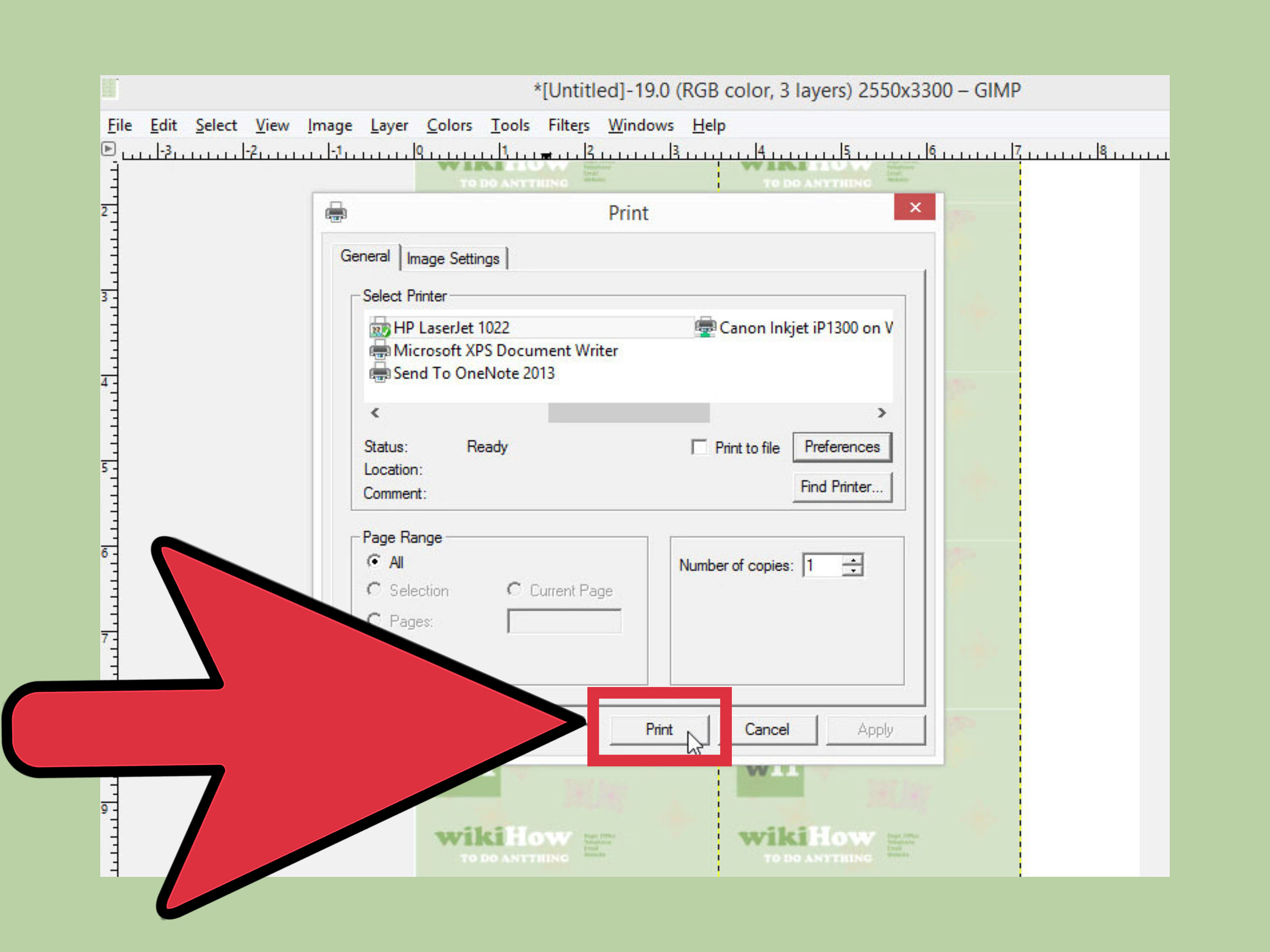
For a simple online print order, a high-resolution PNG or PDF may work well. Choose File > Export As, select the file format, and export. If using JPEG, choose high quality and avoid heavy compression. If using PNG, remember that it is lossless and good for crisp graphics, though some print shops may still prefer PDF.
After exporting, open the final file and inspect it at 100% and actual print size. Check spelling, phone numbers, alignment, logo sharpness, bleed coverage, and whether anything important sits too close to the edge. Read the email address out loud. Yes, out loud. Typos enjoy hiding until after payment.
Business Card Design Tips That Make a Difference
Keep It Readable
A business card is not a treasure map. Use clear fonts, strong contrast, and enough spacing. If a person cannot read your phone number in two seconds, simplify the design.
Use Brand Colors Consistently
If your website uses forest green and cream, your card should not suddenly become purple and neon orange unless you are rebranding as a laser tag arena. Consistency builds recognition.
Leave White Space
White space does not have to be white. It simply means empty breathing room. It makes the card feel calm, professional, and intentional.
Avoid Thin Borders Near the Edge
Thin borders can look uneven after trimming because small cutting shifts are normal. If you want a border, keep it well inside the safe area or make it intentionally thick enough to survive minor movement.
Print a Test Copy
Before ordering a large batch, print a sample at home at actual size. It will not perfectly match professional printing, but it can reveal sizing issues, text that is too small, and awkward spacing.
Common Mistakes to Avoid
The most common mistake is forgetting bleed. If your background stops at the trim line, the final card may show thin white edges. Another mistake is placing text too close to the cut line. Even professional trimming can shift slightly, so the safe area exists for a reason.
Low-resolution logos are another problem. If you use a tiny logo pulled from a website, it may print blurry. Try to use the highest-resolution version available. Also avoid stretching images, because stretched logos make brands look tired before the conversation even starts.
Finally, do not forget to proofread. Business cards are small, but mistakes are huge. A wrong digit in your phone number can send customers to a confused stranger named Greg, and Greg has enough going on.
Experience-Based Advice: What I Learned Making Business Cards with GIMP
After working through business card layouts in GIMP, one lesson becomes obvious fast: the design is only half the job. The setup is the other half, and it is the half that quietly saves you from expensive reprints. A card can look gorgeous on screen, but if the file size, resolution, bleed, and safe area are wrong, the final print may still disappoint. That is why the first five minutes of setup are more important than beginners expect.
One practical experience is that guides make the whole process less stressful. Without guides, you may think your name, logo, and website are comfortably inside the card. Then you add trim and bleed rules and realize your email address is living dangerously close to the edge like it owes someone money. Setting guides early gives you a visual map. Once those lines are in place, you can design with confidence instead of guessing.
Another useful discovery is that simpler cards often look more expensive. It is tempting to add icons, shadows, patterns, slogans, social handles, QR codes, service lists, and maybe a tiny illustration of ambition wearing sunglasses. But a business card has limited space. The strongest cards usually have one clear focal point, one or two fonts, and enough empty space to let the information breathe. The goal is not to prove you know every GIMP tool. The goal is to make someone trust you enough to keep the card.
Text size is also trickier than it looks. On a large monitor, 7-point text may seem readable because you are staring at a zoomed-in canvas. At actual size, it can feel tiny. A smart habit is to zoom out until the design appears close to real business card size, then judge readability again. If you need to squint, your customer will too. And customers rarely squint with joy.
Using layers properly also saves time. Keep the background, logo, name, title, contact details, icons, and QR code on separate layers. Name the layers clearly. A file with layers named “Text,” “Text copy,” “Text copy copy final final maybe” becomes a haunted house very quickly. Organized layers make revisions painless, especially when a client asks to change “just one little thing,” which usually means seven little things and a new tagline.
When exporting, the best habit is to save two versions: the editable XCF file and the printer-ready file. The XCF is your workshop. The exported PDF, PNG, TIFF, or JPEG is your delivery package. If you only keep the flattened export, future edits become annoying. If you keep the XCF, updating a phone number or swapping a logo takes minutes.
It also helps to communicate with the printer before finalizing the design. Different print shops may use slightly different templates, bleed sizes, upload systems, or preferred file formats. Some want PDF. Some accept PNG. Some provide downloadable templates. Matching your GIMP file to the printer’s requirements is not glamorous, but neither is paying for a reprint because the card was two pixels away from disaster.
Finally, always print or preview the card at actual size before placing a large order. This one step catches many problems: text that feels cramped, QR codes that are too small, colors that lack contrast, and logos that look softer than expected. A business card is a physical object, so judge it like one. Hold a test print in your hand, step back, and ask: “Would I keep this?” If the answer is yes, your GIMP business card is ready to go out into the world and network on your behalf.
Conclusion
Learning how to make business cards with GIMP is not difficult once you understand the print basics. Start with the correct size, include bleed, set the resolution to 300 PPI, keep important content inside the safe area, and use guides to stay precise. Then focus on clean design: readable text, strong contrast, balanced spacing, and brand consistency.
GIMP gives you the tools to create a professional business card without expensive software. The secret is not using every effect in the menu. The secret is setting up the file correctly, designing with restraint, checking the details, and exporting according to your printer’s requirements. Do that, and your finished card can look polished, memorable, and ready for real-world handshakes.