
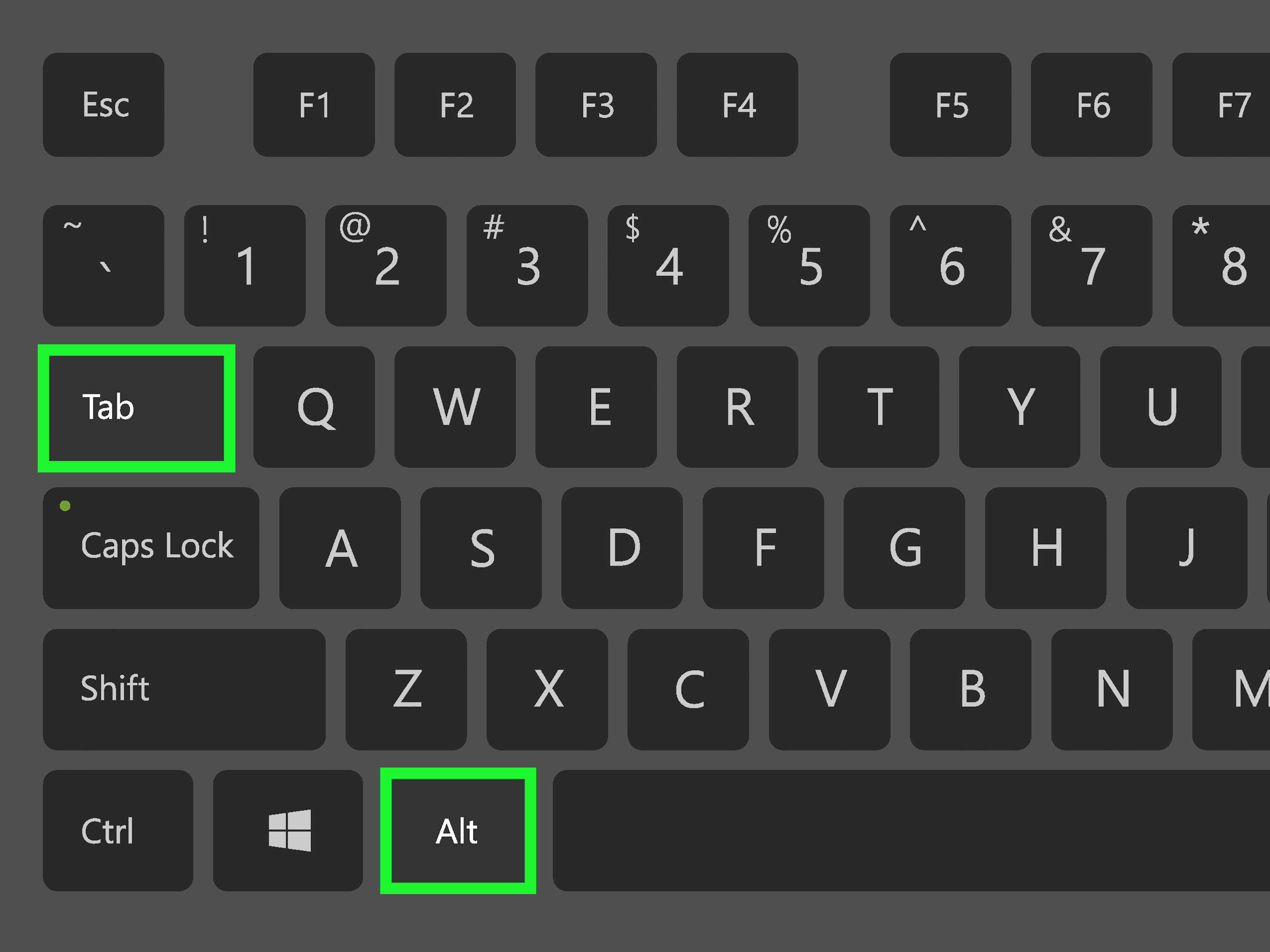
If your Windows key is broken, missing, remapped, or simply living its best life by refusing to cooperate, do not panic. You can still get to the desktop and minimize open windows without smashing random keys like a frustrated pianist. In fact, Windows gives you several mouse-based, touchpad-based, and keyboard-light ways to clear the screen without relying on the Windows logo key at all.
This matters more than people think. Maybe you are using a compact keyboard with no Windows key. Maybe you are on a work laptop where the key is sticky, half-dead, or mysteriously inconsistent. Maybe you are troubleshooting a system and just need your desktop to show up without closing your apps. Whatever the reason, the goal is the same: make the clutter disappear, keep your files open, and get back to work without unnecessary drama.
In this guide, you will learn the easiest ways to minimize all open windows without a Windows key, when each method works best, what changes between Windows 10 and Windows 11, and how to build a smoother workflow if this is a problem you deal with often. Spoiler: the taskbar is about to become your new best friend.
Why You Might Need to Minimize Windows Without the Windows Key
Most people think of Windows + D or Windows + M as the classic shortcuts for getting back to the desktop. They are fast, familiar, and wonderfully efficient. But they are also completely useless when the Windows key is unavailable.
That happens in more real-life situations than you might expect. External keyboards sometimes drop the Windows key altogether. Gaming keyboards may disable it on purpose. Remote desktop sessions can behave oddly. Laptop keyboards can develop hardware issues. And some users remap the key or turn it off to avoid accidental presses during work or gaming.
The good news is that Windows is not a one-trick pony. There are multiple ways to reveal the desktop or minimize windows without ever touching the Windows key. Some are built for speed, some are better for mouse users, and some are excellent fallback options when your keyboard starts acting like it has entered its rebellious teen phase.
The Fastest Way: Click the Show Desktop Button
The easiest answer for most people is also the one hiding in plain sight: the Show Desktop button on the taskbar. It sits at the far right edge of the taskbar, near the system tray area. Click it once, and all open windows are minimized or temporarily hidden so you can see the desktop. Click it again, and your windows return to where they were.
This method is ideal because it requires zero special keys, zero setup in most cases, and zero memorization. If your mouse is working, you are basically done. It is the fastest no-Windows-key solution for everyday use.
On Windows 10, the button is usually visible as a tiny sliver on the far right side of the taskbar. On Windows 11, it can feel more invisible than a coworker on a Friday afternoon, but it is still there. If clicking the far-right corner does nothing on Windows 11, check your taskbar settings and make sure the option to use that corner to show the desktop is enabled.
Why this method works so well
It is quick, reversible, and safe. You are not closing anything. You are simply clearing the visual mess so you can reach the desktop, grab a file, launch a shortcut, or enjoy two glorious seconds of peace before diving back into your tabs.
Method Two: Use the Taskbar Context Menu in Windows 10
If you are using Windows 10, there is another simple option: right-click an empty area of the taskbar and choose Show the desktop. This produces essentially the same result as clicking the Show Desktop button.
This option is especially useful when the tiny button on the far edge of the taskbar is hard to hit, or when you just prefer context menus. It is not flashy, but it gets the job done with the quiet confidence of a reliable office stapler.
One important caveat: this is mostly a Windows 10 trick. In Windows 11, the right-click menu for the taskbar is much more limited, so you should not expect the same old menu to appear there. If you are on Windows 11, stick with the far-right Show Desktop area or the other methods below.
Method Three: Minimize One Window at a Time Without the Windows Key
What if you do not want to minimize everything at once? Maybe you want to keep one app open while clearing the rest. In that case, you can minimize windows individually.
Use the Minimize button
Yes, the obvious answer still counts. Every standard application window has a minimize button in the upper-right corner. Click it, and the active window drops to the taskbar. Repeat as needed.
This is not the fastest method for a screen full of apps, but it is perfect when you only need to clear one or two windows and keep the rest exactly where they are.
Use Alt + Spacebar
If your keyboard works but the Windows key does not, Alt + Spacebar is a surprisingly handy workaround. It opens the shortcut menu for the active window. From there, you can choose Minimize. On many English-language systems, pressing N after Alt + Spacebar will trigger the Minimize command. If you prefer the safer route, use the arrow keys to highlight Minimize and press Enter.
This is one of those old-school Windows tricks that feels delightfully nerdy in the best possible way. It is not as fast as clicking Show Desktop, but it is excellent when you are trying to stay hands-on-keyboard without depending on the Windows key.
Method Four: Swipe Down on a Precision Touchpad
If you are on a laptop with a precision touchpad, you may have an even smoother option: swipe down with three fingers. On supported systems, that gesture shows the desktop without needing the Windows key.
This method feels wonderfully modern. Instead of aiming for a tiny taskbar button, you can simply glide three fingers downward and watch your open windows vanish from view. Swipe back up or reopen what you need, and you are back in business.
Of course, this depends on your hardware and settings. Some touchpad gestures only work on precision touchpads, and some users customize the gesture behavior. Still, if your laptop supports it, this can be one of the cleanest and fastest ways to minimize windows without touching the Windows key.
Best use cases for the touchpad gesture
- Working on a laptop without an external mouse
- Switching quickly between the desktop and a stack of open apps
- Keeping your hands on the touchpad instead of hunting for tiny screen targets
Method Five: Use Title Bar Window Shake as a “Mostly There” Alternative
If your real goal is not “show me the desktop,” but rather “get these other windows out of my face,” Windows has a handy feature called Title Bar Window Shake. When enabled, you can click and shake the title bar of the window you want to keep open, and Windows will minimize the other open windows.
This is not exactly the same as minimizing all open windows, because the active one stays on screen. But it is extremely useful when you want to focus on one app without manually minimizing everything else.
Imagine you are working in a Word document with six browser windows, two PDFs, and one spreadsheet open. Instead of minimizing the document you need, shake its title bar and let the rest disappear. It is a productivity trick with just enough drama to make you feel powerful.
What If the Show Desktop Button Seems Missing?
This is where many people assume Windows has removed the feature. Usually, it has not. It is just hidden, disabled, or so visually subtle that it may as well be wearing camouflage.
On Windows 11
Open Taskbar settings, expand Taskbar behaviors, and make sure the option to use the far corner of the taskbar to show the desktop is turned on. Once enabled, clicking that corner should work again.
On Windows 10
The feature is normally there by default, but some users confuse Show Desktop with Peek. Peek lets you hover over the taskbar corner to preview the desktop without fully minimizing windows. Show Desktop, by contrast, is the actual action of clicking to reveal the desktop. If hover behavior is not working, that is a Peek setting issue. If clicking is not working, the taskbar or Windows Explorer may need a quick restart.
If the taskbar is behaving strangely overall, basic taskbar troubleshooting may help. Sometimes the issue is not the Show Desktop feature itself, but a taskbar glitch that makes the whole interface act like it just woke up from a nap and forgot its responsibilities.
Bonus Workarounds If Your Keyboard Is the Real Problem
If your physical Windows key is broken, not just unavailable, there are a few extra tricks worth knowing.
Use Ctrl + Esc to open Start
Ctrl + Esc opens the Start menu, which can help you navigate to settings or launch tools without needing the Windows key. It does not minimize all windows by itself, but it is a useful workaround for moving around Windows when your keyboard has trust issues.
Use the On-Screen Keyboard
Windows includes an On-Screen Keyboard that can display a virtual Windows key. If your physical key is dead but your mouse works, you can open the virtual keyboard and use its Windows key for shortcuts like Windows + D. It is not the most elegant solution, but it is absolutely practical in a pinch.
Use Mouse Keys if your mouse also fails
If things get truly chaotic and your mouse is unavailable too, Mouse Keys can let you move the pointer with the numeric keypad. This is more of an emergency backup than an everyday workflow, but it is nice to know Windows still has your back when your hardware starts auditioning for a disaster movie.
How to Build a Better No-Windows-Key Workflow
If you frequently work without a Windows key, the smartest move is not to memorize one secret trick. It is to set up a workflow that makes the missing key irrelevant.
Pin your most-used apps to the taskbar
The less time you spend navigating the Start menu, the less you will miss the Windows key. Pinning File Explorer, your browser, your mail app, and your main work tools to the taskbar makes desktop access and app switching much easier.
Keep the Show Desktop corner enabled
If you use Windows 11, verify that the far-corner Show Desktop option stays on. It is the closest thing to a one-click substitute for the missing Windows key.
Learn one mouse method and one keyboard-light method
A good pairing is this: use the Show Desktop taskbar corner when your mouse is available, and use Alt + Spacebar when you are already typing and only need to minimize one active window. That combination covers most everyday situations without overcomplicating your life.
Common Mistakes to Avoid
Do not confuse Peek with Show Desktop. Hover preview is not the same thing as minimizing windows.
Do not assume Windows 10 and Windows 11 behave identically. Taskbar menus and settings differ more than many users expect.
Do not close windows when you only mean to minimize them. This sounds obvious, but under pressure, people click the wrong button all the time. Your browser with 27 tabs would like a word.
Do not forget touchpad gestures. Laptop users often overlook them, even though they can be faster than reaching for the mouse.
Conclusion
If you need to minimize all open windows without a Windows key, the best solution is usually sitting right on the taskbar. Clicking the Show Desktop button in the far-right corner is the fastest, simplest, and most reliable option for most users. If you are on Windows 10, the taskbar’s right-click menu can also help. If you only need to minimize one window, Alt + Spacebar is a surprisingly handy classic. And if you are on a laptop, a three-finger swipe on a supported touchpad can feel like magic.
The real lesson is this: losing access to the Windows key is annoying, but it is not a crisis. Windows gives you several other paths back to the desktop, and once you know them, you can work around a missing key with very little effort. So no, your keyboard is not the boss of you. Not today.
Experiences Related to “How to Minimize All Open Windows Without a Windows Key”
People usually discover this problem in the least convenient moment possible. It is rarely a calm, leisurely afternoon where someone says, “You know what would be fun? Learning alternate desktop navigation methods.” No, this usually happens when the screen is crowded, time is short, and the Windows key suddenly decides it has entered early retirement.
One common experience is the work laptop scenario. You are in the middle of a meeting, screen sharing is about to start, and your desktop is buried under browser tabs, spreadsheets, chat windows, and one mysterious PDF you opened three hours ago for reasons you no longer remember. You instinctively reach for Windows + D, but the key does nothing. In that moment, discovering the tiny Show Desktop button on the far right of the taskbar feels like finding a hidden emergency exit. One click, and the screen becomes respectable again. Crisis averted. Professional reputation preserved.
Another relatable situation happens with older keyboards. Some people use external keyboards for years without realizing one key has quietly stopped working. Everything seems fine until they need a familiar shortcut. At first, it feels oddly irritating, like finding out your favorite coffee mug has a slow leak. But once they learn the taskbar corner trick or the Alt + Spacebar menu, the frustration usually fades. The workflow changes, but it does not collapse.
Laptop users often describe the touchpad gesture as the moment everything “clicked.” A three-finger swipe down feels more natural than hunting for a shortcut, especially when working on the couch, on a plane, or in a classroom. It is one of those features people ignore for years and then wonder how they ever lived without it. The same goes for users who enable Title Bar Window Shake. It is not always the perfect answer, but when someone wants to keep just one window visible, it can feel weirdly satisfying.
There is also the gaming keyboard crowd. Many gaming keyboards disable the Windows key intentionally to prevent accidental interruptions. That is great during gameplay, but less charming when you switch back to regular work and realize your usual desktop shortcuts are gone. These users often end up loving mouse-first methods because they are consistent. The Show Desktop corner does not care whether your keyboard is in gaming mode, office mode, or existential-crisis mode.
Then there are users dealing with accessibility or hardware issues. For them, learning about the On-Screen Keyboard or Mouse Keys is not just a neat trick. It is a meaningful backup plan. It turns a broken key from a hard stop into a manageable inconvenience. That shift matters. Instead of feeling locked out of a routine task, people regain a sense of control.
What stands out across these experiences is how quickly a small workaround becomes a habit. At first, minimizing windows without the Windows key feels like a workaround. After a week or two, it simply feels like another normal way to use Windows. And that is the best kind of tech tip: one that starts as a rescue plan and ends as a smarter routine.














