
Reinstalling Windows 8 without a CD sounds like the kind of task that belongs in a dusty computer repair shop, right between a tower PC full of mystery cables and a drawer labeled “definitely important adapters.” The good news: you do not need an old-school Windows disc to bring a tired Windows 8 or Windows 8.1 computer back to life. In many cases, your PC already has built-in recovery tools, a hidden recovery partition, or the ability to reinstall Windows from a USB drive.
This guide explains how to reinstall Windows 8 without a CD in 12 practical steps. It covers the built-in Reset and Refresh options, Advanced Startup, manufacturer recovery tools, USB recovery drives, product key concerns, backups, drivers, and what to do if Windows asks for missing installation media. The process is not complicated, but it does require patience, a backup plan, and the emotional strength to watch a progress circle sit at 27% for longer than anyone feels is reasonable.
Before you begin, remember one important fact: Windows 8.1 reached the end of Microsoft support on January 10, 2023. That means it no longer receives regular security updates or official technical support. If your computer can run a newer supported version of Windows, upgrading is safer for daily internet use. Still, if you need Windows 8 for an older device, legacy software, offline use, or recovery purposes, the steps below will help you reinstall it properly without a CD.
Before You Reinstall Windows 8 Without a CD
A reinstall can fix slow performance, system corruption, malware damage, failed updates, and weird computer behavior that makes you question whether your laptop has developed a personality. But reinstalling Windows is a serious system-level action. Depending on the method you choose, it may remove apps, settings, personal files, or the entire existing installation.
Understand Your Main Reinstall Options
Windows 8 and Windows 8.1 generally offer a few ways to reinstall without a CD:
- Refresh your PC: Reinstalls Windows while keeping personal files, but removes most desktop programs.
- Reset your PC: Removes everything and reinstalls Windows, similar to a factory reset.
- Advanced Startup recovery: Lets you access recovery tools when Windows is not booting normally.
- Manufacturer recovery partition: Restores the computer to factory condition using files stored on the hard drive.
- USB installation or recovery drive: Reinstalls or repairs Windows without using a CD or DVD.
The easiest method is usually the built-in Windows Reset option. If that fails, your next best option is the manufacturer recovery tool or a bootable USB drive.
How to Reinstall Windows 8 Without a CD: 12 Steps
Step 1: Back Up Your Personal Files
Start by backing up anything you care about: documents, photos, videos, browser bookmarks, school files, work files, saved game folders, tax documents, and that one random folder on your desktop named “New Folder 7” that somehow contains your entire digital life.
Use an external hard drive, USB flash drive, cloud storage, or another computer. If Windows still boots, copy your files from folders such as Desktop, Documents, Downloads, Pictures, Music, and Videos. If you use apps like Outlook, accounting software, design programs, or password managers, export your data before reinstalling.
If you are choosing “Reset your PC” or a manufacturer factory restore, assume your files may be erased. Even if Windows says it can keep some data, a backup is still your safety net.
Step 2: Check Whether You Have Windows 8 or Windows 8.1
Windows 8 and Windows 8.1 are similar, but the recovery menus can look slightly different. To check your version, press Windows + R, type winver, and press Enter. A small window will show your Windows version.
You should also check whether your system is 32-bit or 64-bit. Open Control Panel, go to System and Security, then select System. Under system type, Windows will display whether your PC uses a 32-bit or 64-bit operating system. This matters if you later need to create USB installation media.
Step 3: Plug In Power and Disconnect Unnecessary Devices
If you are reinstalling Windows 8 on a laptop, plug it into power. A reinstall can take a while, and a battery dying halfway through is not a plot twist anyone wants.
Disconnect unnecessary external devices such as printers, scanners, external webcams, game controllers, and extra USB accessories. Keep only what you need: keyboard, mouse, power adapter, network cable if used, and your backup or installation USB if required. This reduces driver conflicts during setup.
Step 4: Open PC Settings
If Windows still starts normally, open the recovery menu from PC Settings. Move your mouse to the right edge of the screen to open the Charms bar, or press Windows + C. Select Settings, then choose Change PC settings.
On Windows 8.1, go to Update and recovery, then select Recovery. On some Windows 8 systems, you may find recovery options under General. The wording varies slightly depending on version and manufacturer customizations.
Step 5: Choose Refresh or Reset
Now choose the reinstall path that matches your goal.
Refresh your PC without affecting your files is best if Windows is unstable, slow, or glitchy, but you want to keep personal files. It reinstalls Windows system files and removes most traditional desktop programs. Windows Store apps may be restored, but desktop apps usually need to be installed again.
Remove everything and reinstall Windows is the stronger option. It removes personal files, apps, and settings, then reinstalls Windows. Choose this if you are selling the computer, giving it away, fixing serious corruption, cleaning up malware damage, or starting fresh.
For a true reinstall Windows 8 without CD process, Reset is usually the closest match. Refresh is more like a repair reinstall with your files preserved.
Step 6: Select the Reset Method
When you choose Reset, Windows may ask whether you want to remove files only or clean the drive fully.
- Just remove my files: Faster and suitable if you are keeping the computer.
- Fully clean the drive: Slower but better if you are selling, donating, or recycling the computer.
The full clean option can take several hours because it makes deleted data harder to recover. If you are simply repairing your own PC, the faster option is usually enough. If the laptop is leaving your hands, choose the more secure drive-cleaning option.
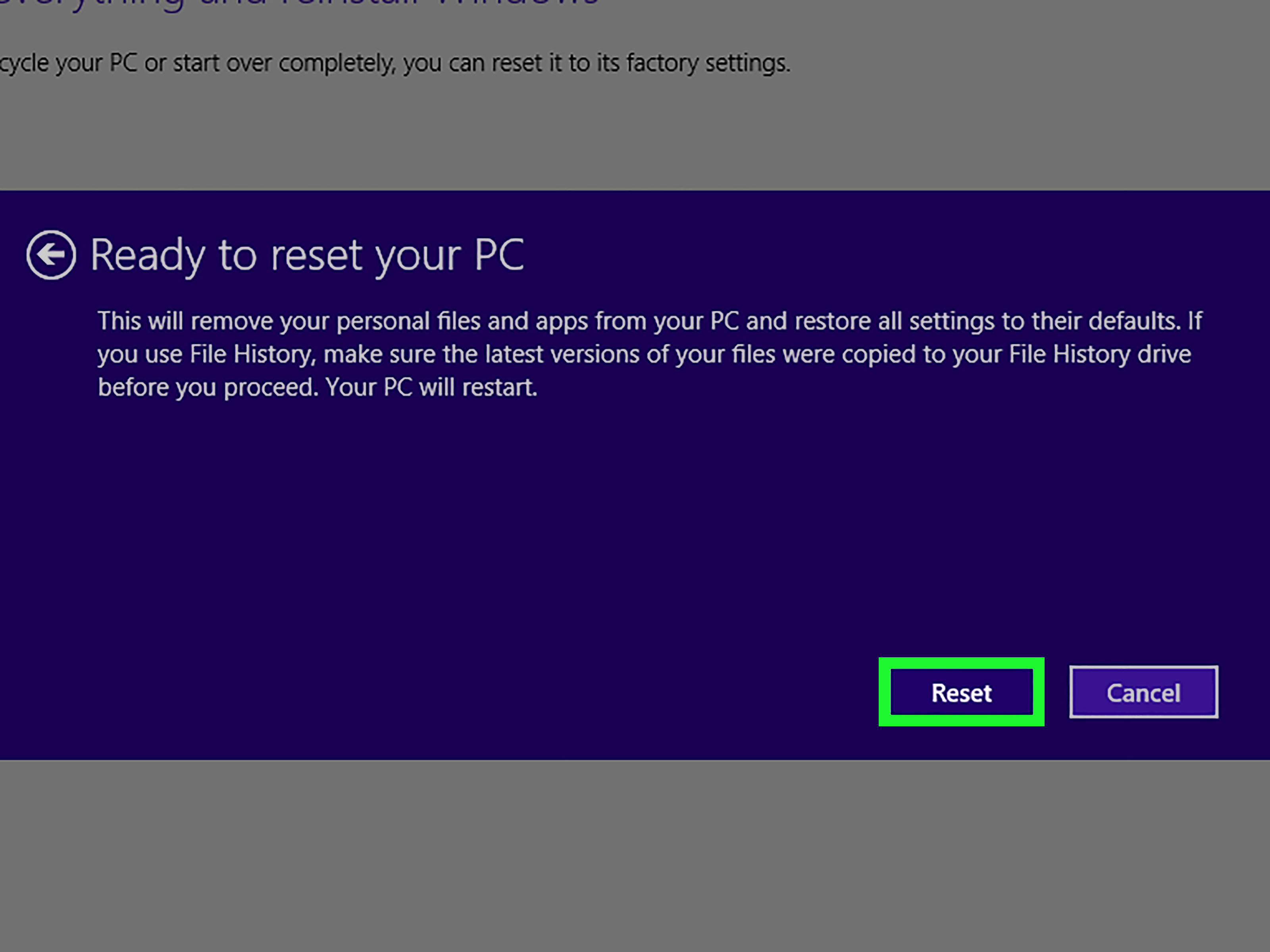
Step 7: Follow the On-Screen Instructions
After confirming your choice, Windows will prepare the reset and restart the computer. The screen may go black, reboot several times, or show progress percentages. This is normal. Do not force shutdown unless the computer is clearly frozen for a very long time.
During the reinstall, Windows may ask for region, language, keyboard layout, license agreement acceptance, account setup, network connection, and privacy settings. If your PC came with Windows 8 preinstalled, activation may happen automatically using the license embedded in the system firmware. If it was a retail installation, you may need your 25-character product key.
Step 8: Use Advanced Startup If Windows Will Not Boot
If you cannot reach the desktop, use Advanced Startup. From the sign-in screen, hold Shift while selecting Power, then Restart. If Windows fails to boot several times, it may automatically enter the recovery environment.
Once you see the recovery screen, choose Troubleshoot. From there, select Refresh your PC or Reset your PC. This allows you to reinstall Windows 8 without a CD even when the normal desktop is unavailable.
If the recovery environment appears, read each option carefully. “System Restore” rolls back system settings to an earlier restore point. “Startup Repair” attempts to fix boot problems. “Reset your PC” is the reinstall option that removes everything and starts over.
Step 9: Try the Manufacturer Recovery Partition
Many Windows 8 computers from brands such as Dell, HP, Acer, ASUS, Lenovo, and Toshiba shipped with a hidden recovery partition. This partition contains factory recovery files, allowing you to restore the system without a CD.
The exact key depends on the manufacturer. Common recovery keys include F8, F9, F10, F11, F12, or a special recovery button such as Lenovo’s Novo button. Restart the computer and press the correct recovery key repeatedly as it powers on.
Look for options such as Factory Image Restore, System Recovery, Recovery Manager, Acer eRecovery, ASUS Recovery, or Dell Factory Image Restore. A factory recovery usually returns the computer to the condition it was in when first purchased, including original drivers and manufacturer software.
Step 10: Create a USB Recovery Drive If Needed
If Windows asks for missing installation media, the recovery files on your hard drive may be damaged or absent. In that case, a USB recovery drive or USB installation media can replace the old CD method.
On a working Windows computer, you can create recovery media using the built-in recovery drive tool or official Windows installation media tools. Use a blank USB flash drive with enough space, commonly 8 GB or larger. Be careful: creating installation media usually erases the USB drive.
If your PC is a Surface or a branded OEM device, the manufacturer may provide a specific recovery image. For older HP, Dell, Acer, ASUS, or Lenovo machines, you may need to use the brand’s recovery media service, support page, or built-in recovery software.
Step 11: Boot From the USB Drive
Insert the USB drive into the Windows 8 computer and restart it. Press the boot menu key as the computer powers on. Common boot menu keys include F12, F11, F10, Esc, or Del. The correct key may briefly appear on screen during startup.
Select the USB drive from the boot menu. If the system does not detect it, you may need to enter BIOS or UEFI settings and adjust boot order, enable USB boot, or temporarily change Secure Boot settings. Do this carefully and write down any changes so you can reverse them later if needed.
Once the Windows setup or recovery screen loads, choose your language and keyboard layout. Then follow the prompts to repair, reset, or reinstall Windows. If performing a clean installation, select the correct Windows edition that matches your license.
Step 12: Reinstall Drivers, Updates, and Apps
After Windows is reinstalled, your job is not completely done. Windows may look fresh, but it still needs drivers, updates, apps, and security settings. Install chipset, graphics, audio, Wi-Fi, Bluetooth, touchpad, and card reader drivers from your PC manufacturer’s support page.
Next, reinstall your essential programs: browser, office suite, printer software, antivirus, backup tool, media apps, and any specialty software you use. Restore your personal files from backup only after Windows is stable.
Because Windows 8.1 is no longer supported, avoid using it for sensitive online activities such as banking, shopping, or storing important personal data unless you understand the risks. If possible, upgrade to a supported Windows version or use the computer offline for legacy tasks.
What If Windows Says “Insert Installation Media”?
One of the most common problems when trying to reinstall Windows 8 without a CD is the message asking you to insert installation or recovery media. This usually means Windows cannot find the files it needs for Reset or Refresh. The recovery partition may have been deleted, corrupted, or separated from the main Windows installation.
If this happens, try these fixes:
- Use Advanced Startup and attempt Reset again.
- Check whether your manufacturer recovery partition is still available.
- Create a USB recovery drive from another compatible Windows PC.
- Download or order official recovery media from the computer manufacturer.
- Use a valid Windows 8.1 USB installer that matches your edition and license.
Do not download random Windows ISO files from unknown websites. Unofficial installers can contain malware, modified system files, or activation problems. A reinstall should make your computer healthier, not introduce a digital raccoon into the vents.
Do You Need a Product Key?
Maybe. Many Windows 8 laptops and desktops came with the product key embedded in the UEFI firmware instead of printed on a sticker. During reinstall, Windows may detect the key automatically. This is common with OEM machines from major manufacturers.
However, you may need a key if you installed Windows from retail media, changed editions, replaced major hardware, or used installation media that does not match the original license. The edition matters. A Windows 8 Core license will not activate Windows 8 Pro, and Windows 8 Pro will not activate Enterprise.
Before reinstalling, look for your original purchase email, product card, manufacturer documentation, or recovery information. If the computer still boots, you can also check activation status under system settings.
Refresh vs. Reset: Which One Should You Choose?
Choose Refresh if your computer is slow, buggy, or unstable but you want to preserve personal files. It is less destructive, but you will still need to reinstall many desktop programs.
Choose Reset if you want a clean start, are giving the computer to someone else, or suspect serious system damage. Reset is more thorough and closer to a full reinstall.
Choose a USB reinstall if the built-in recovery tools fail, the recovery partition is missing, Windows will not boot, or you replaced the hard drive. A USB drive is the modern replacement for a CD or DVD.
Common Mistakes to Avoid
Skipping the Backup
Never assume Windows will preserve everything. Back up first, reinstall second, celebrate third.
Using the Wrong Windows Edition
Make sure your installation media matches your license. Installing the wrong edition can create activation problems.
Deleting Recovery Partitions Too Early
Do not delete recovery partitions unless you are completely sure you have working installation media and backups.
Forgetting Drivers
After reinstalling Windows 8, missing Wi-Fi or graphics drivers can make the computer feel broken. Download drivers from the manufacturer before you start if possible.
Ignoring End-of-Support Risks
Windows 8.1 can still run, but it is no longer a secure daily-use operating system for most people. Treat it as a legacy system unless you have a specific reason to keep using it.
Extra Experience Notes: Real-World Lessons From Reinstalling Windows 8 Without a CD
Reinstalling Windows 8 without a CD is usually easier than people expect, but the experience can vary wildly depending on the computer. On one machine, the Reset button works perfectly, Windows reinstalls itself, and everything feels smooth enough to make you wonder why you waited so long. On another machine, Windows asks for installation media, the recovery partition is missing, and the laptop behaves like it has joined a tiny rebellion.
The first practical lesson is to check the recovery partition before you need it. Many Windows 8 laptops shipped with hidden factory recovery files, but users sometimes deleted them while trying to “free up space.” This is understandable because old laptops often have small drives, but deleting that partition can remove your easiest reinstall option. If the recovery partition is intact, reinstalling without a CD may take only a few clicks. If it is gone, you will probably need USB recovery media.
The second lesson is that manufacturer recovery tools can be both helpful and slightly dramatic. Dell, HP, Acer, ASUS, and Lenovo systems often include branded recovery environments. These tools can restore original drivers and factory software, which is convenient if you want the laptop exactly as it came from the box. The downside is that factory recovery may also reinstall trial software, old utilities, and apps you forgot existed. After recovery, spend time uninstalling unnecessary programs and updating drivers.
The third lesson is to prepare for Wi-Fi driver problems. After a clean Windows 8 reinstall, some laptops cannot connect to the internet because the wireless driver is missing. That creates a funny but annoying loop: you need the internet to download the driver, but you need the driver to access the internet. The easy fix is to download network drivers in advance and save them to a USB drive. At minimum, download the Wi-Fi, Ethernet, chipset, and graphics drivers from the manufacturer’s support page before reinstalling.
The fourth lesson is to be patient with progress screens. Windows reinstall processes are not always honest in a human-friendly way. A reset may sit at the same percentage for a long time, then suddenly jump forward. Unless the computer has been frozen for hours with no disk activity, give it time. Restarting too early can interrupt the installation and create more work.
The fifth lesson is to think carefully before using Windows 8.1 online. A freshly reinstalled system may feel clean and fast, but it is still an unsupported operating system. For offline writing, old software, retro games, testing, or hardware that cannot handle newer versions, Windows 8 may still be useful. For daily browsing, banking, email, and shopping, a supported operating system is strongly recommended.
Finally, keep your recovery plan simple. Store your important files in at least two places, keep a USB recovery drive labeled clearly, save your product key or license information when available, and write down the boot menu key for your computer. Future you will appreciate this. Future you may even call present you a genius, which is always nice, even if it is only happening inside your own head.
Conclusion
Learning how to reinstall Windows 8 without a CD is mostly about choosing the right recovery path. If Windows still works, use PC Settings and choose Refresh or Reset. If Windows will not boot, use Advanced Startup. If the built-in tools fail, try your manufacturer recovery partition or create USB recovery media. The CD may be gone, but your options are not.
The most important steps are simple: back up your files, understand whether you want Refresh or Reset, keep your laptop plugged in, use official recovery tools, and reinstall drivers afterward. And because Windows 8.1 is no longer supported, consider upgrading to a newer Windows version if the computer will be used online.













