
If your Discord sidebar is starting to look like a digital junk drawer, you are not alone. Maybe you created a server for a game night that lasted exactly one weekend. Maybe you joined a community that now posts 900 notifications before breakfast. Or maybe you built a server, nurtured it, and finally decided it is time to hand over the keys or turn off the lights.
That is where this guide comes in. If you are trying to figure out how to remove a Discord server, the first thing to know is that remove can mean two different things. You can delete a server you own, or you can leave a server you joined. Those are not the same action, and Discord treats them very differently.
In this quick and easy guide, you will learn exactly how to delete a Discord server, how to leave one without drama, what happens after removal, what to do if you are the owner, and a few smart precautions to take before you click the big scary button. Let’s save you from accidental chaos.
Delete vs. Leave: Know Which Discord Move You Actually Need
Before you touch anything in Server Settings, pause for five seconds and ask yourself one question: Do I own this server?
If the answer is yes, you can permanently delete it. If the answer is no, you can only leave it.
Delete a Discord server
Deleting a server is for server owners. This permanently removes the server, its channels, and its content from your side as a functioning server space. In plain English: once it is gone, it is gone.
Leave a Discord server
Leaving a server simply removes you from it. The server stays active for everyone else. This is the right move when you are tired of the server, but the server itself is still alive and well.
Transfer ownership
If you own the server but do not want to run it anymore, you do not have to delete it. You can transfer ownership to another trusted member instead. This is often the smartest choice for gaming groups, class communities, fandom spaces, work-related chats, or any server that still has active members.
How to Delete a Discord Server on Desktop or Web
If you created the server or currently own it, here is how to delete a Discord server on the desktop app or browser version:
- Open Discord and select the server you want to remove.
- Click the server name at the top-left area of the screen.
- Choose Server Settings.
- Scroll down the left menu until you see Delete Server.
- Click it.
- Confirm the action by entering the required prompt. Depending on your security settings, Discord may ask for the server name or your 2FA/MFA code.
- Click Delete Server again to finish.
That is it. No confetti. No emotional support popup. Just digital finality.
One important detail: administrators and moderators with powerful permissions still cannot delete the server unless they are the actual owner. On Discord, the crown matters.
How to Delete a Discord Server on Mobile
If you are using the Discord mobile app on iPhone or Android, the process is still pretty simple, though the buttons live in slightly different places.
- Open the Discord app and go to the server you want to delete.
- Tap the three dots or open the server menu near the server name.
- Tap Settings.
- Choose Overview.
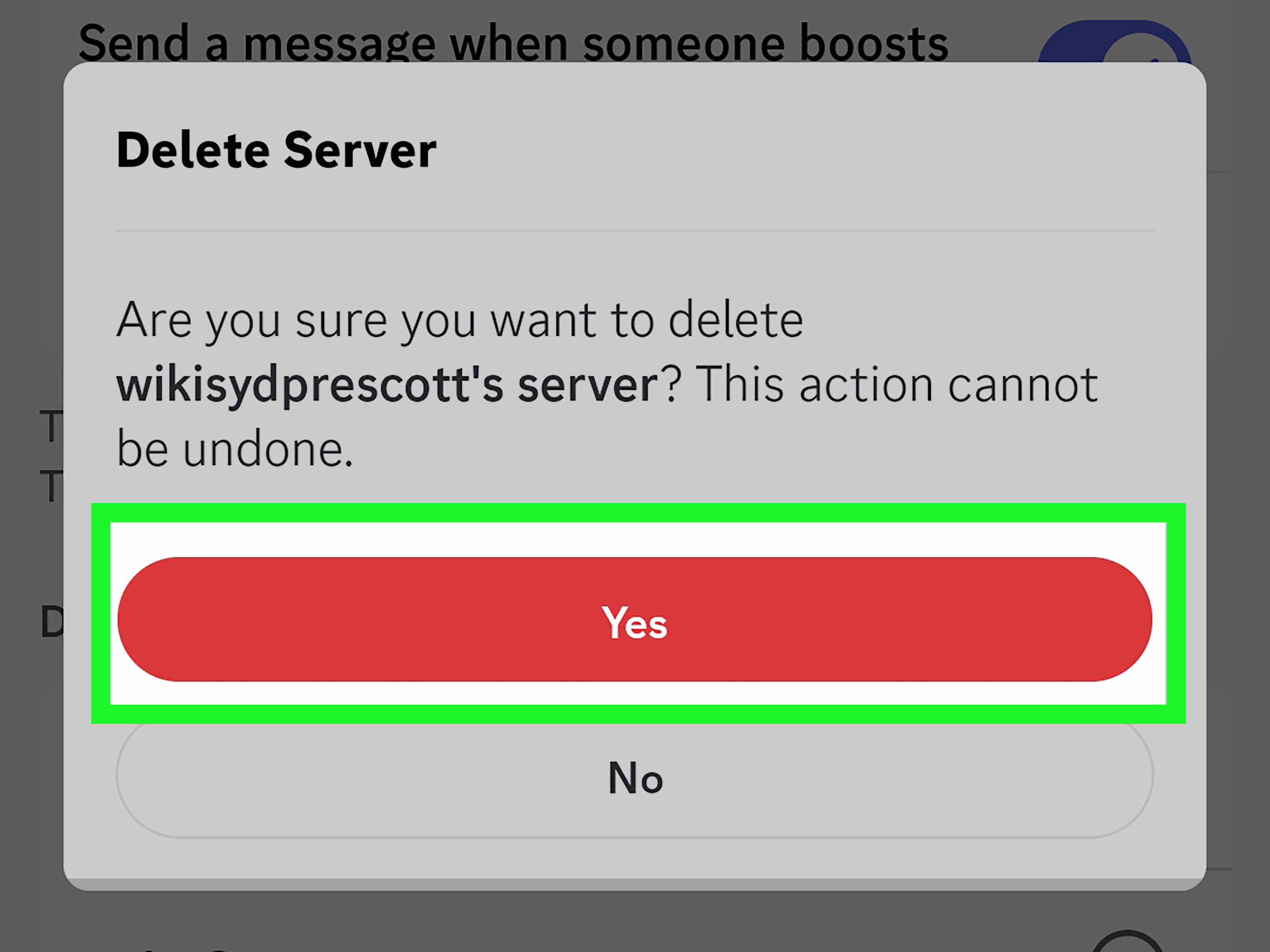
- Scroll down until you find Delete Server.
- Confirm the deletion.
- If you use two-factor authentication, enter your code when prompted.
On mobile, the flow feels a little more hidden, which is probably a good thing. Nobody wants to delete a whole community because of one clumsy thumb and a coffee-fueled mis-tap.
How to Leave a Discord Server You Do Not Own
If you are not the owner, you are not deleting anything. You are just making a graceful exit.
On desktop or web
- Open Discord and click the server you want to leave.
- Click the server name at the top.
- Select Leave Server.
- Confirm your choice.
On mobile
- Open the server in the Discord app.
- Tap the three dots near the server name.
- Scroll down and tap Leave Server.
- Confirm.
Once you leave, the server disappears from your list, you stop receiving notifications from it, and your name is removed from the member list. If it is a private server, you will usually need a fresh invite to get back in. If it is public, rejoining is easier.
What Happens When You Delete a Discord Server?
This is the part people should read before acting like they are cleaning out old screenshots.
- The server is permanently removed.
- Channels, message history, and server structure are not restorable through normal user controls.
- You cannot recover the server later just because regret showed up at 2 a.m.
- Members lose access immediately.
- If you had resources, announcements, or files in that server, you should save anything important first.
In other words, deleting a Discord server is not like archiving a folder. It is much closer to shredding the folder and then shredding the shredder.
What Happens When You Leave a Discord Server?
Leaving is far less dramatic.
- The server remains active for everyone else.
- You lose access to the channels and conversations.
- You stop getting messages and notifications from that server.
- Your roles in that server no longer apply because you are no longer a member.
- You may be able to rejoin later, depending on whether the server is private or public.
If you simply want peace and quiet, leaving is usually the better move. Deletion is for owners who truly want the server gone.
Should You Delete the Server or Transfer Ownership?
This is where common sense saves the day.
You should probably delete the server if:
- it was a temporary project server,
- nobody uses it anymore,
- you do not need the content,
- or you made it by accident and want to clean up your account.
You should probably transfer ownership if:
- the server still has an active community,
- members rely on it,
- another moderator is ready to take over,
- or you are leaving Discord but do not want to destroy the server.
Ownership transfer is especially useful for gaming clans, creator communities, study groups, and club servers. It is the polite version of leaving the party without unplugging the speakers.
How to Transfer Ownership of a Discord Server
If you want out but want the server to survive, here is the usual path:
- Open the server you own.
- Go to Server Settings.
- Open Members.
- Find the person you trust.
- Select their member options.
- Choose Transfer Ownership.
- Confirm the transfer, and enter your MFA code if requested.
After that, you are no longer the owner. You may remain in the server as a regular member or admin, depending on your role setup. If you later want to leave, you can do that normally.
Common Reasons People Remove a Discord Server
People rarely wake up and think, “Today feels like a great day to delete a digital community.” Usually, there is a reason. Here are the most common ones:
- The server is inactive. It had energy once. Now it has tumbleweeds.
- Too many unused servers. Your sidebar starts looking like a museum of abandoned hobbies.
- Privacy or cleanup concerns. You want a cleaner account and fewer lingering spaces.
- You are quitting Discord. If you own servers, you must delete or transfer them before deleting your account.
- The community has moved elsewhere. Maybe to a new server, another platform, or the mysterious place where old group chats go to die.
Tips Before You Remove a Discord Server
Before you delete or leave, do a quick reality check.
1. Save anything important
If the server contains guides, rules, event info, shared files, or sentimental posts, save them first. Server deletion is not the time to suddenly remember that your tournament schedule lived in Channel 7.
2. Warn active members
If real people still use the server, tell them what is happening. A short announcement prevents confusion, panic, and the classic “Wait, where did everything go?” message in your DMs.
3. Consider muting instead of leaving
If the main issue is notifications, muting the server may solve your problem without making a full exit.
4. Transfer ownership if the server still matters
Deleting an active server can feel efficient in the moment and wildly unnecessary five minutes later. If others still value it, pass it on.
5. Double-check the server name
If Discord asks you to type the server name, slow down and read carefully. This extra step exists for a reason.
Why You Might Not See the Delete Server Option
If you are hunting for the Delete Server button like it owes you money, one of these is usually the reason:
- You are not the server owner.
- The app interface has moved slightly, and you need to look under Server Settings or Overview.
- Your server or account security settings may require 2FA/MFA before deletion.
- You may need to update the app if the interface is not behaving normally.
If you own the server and still cannot delete it, check your authentication setup first. That solves the mystery more often than people expect.
Can You Recover a Deleted Discord Server?
No. That is the short, painful truth.
If a Discord server is deleted, there is no standard undo button waiting in the background. That is why Discord puts confirmation steps in front of the action. Once you confirm, the platform treats the decision as final.
So if you are even slightly unsure, do not delete it yet. Transfer ownership, archive important content elsewhere, or sleep on it for a day. Future you may be less dramatic and more grateful.
How Removing a Server Fits Into Overall Discord Account Cleanup
Some users land on this topic because they are not just cleaning up one server. They are cleaning up everything.
If you plan to delete your Discord account, remember this: you cannot complete account deletion while you still own servers. Discord requires you to either transfer ownership or delete those servers first.
That makes server cleanup an important part of broader Discord account management. Think of it as tying up loose ends before closing the book.
Real-World Experiences With Removing a Discord Server
One of the most common experiences people have with deleting a Discord server is realizing that the decision is usually less technical than emotional. The actual steps are quick. The hesitation comes from what the server represents. A tiny private server might hold inside jokes, game strategies, study notes, or years of random late-night conversations. So even though the process takes less than a minute, many users spend much longer deciding whether they should delete, leave, or transfer ownership.
A typical example is the small gaming server that was built for one title, one season, or one friend group. At first, it is active every day. Then life happens. People switch games, schedules stop matching, and the once-busy voice channels go silent. The owner opens Discord, sees the dead server sitting there week after week, and finally decides to clean house. In many cases, deleting that server feels surprisingly satisfying. It declutters the sidebar and removes a space that no longer serves a purpose.
Another common experience happens when the owner should not delete the server but thinks about doing it anyway. This usually happens with club servers, fan communities, creator groups, or school projects. The owner is tired, busy, or simply moving on, but the server still has active members. In that situation, people often report that transferring ownership was the better choice. It lets the community keep going without forcing the original owner to keep managing channels, permissions, and endless pings. Translation: no guilt, less stress, and nobody loses the server overnight.
There is also the very relatable experience of joining too many servers and later wanting a simpler Discord life. In that case, leaving servers becomes the real hero. People often discover that they do not need to delete anything dramatic; they just need fewer distractions. Leaving old servers can reduce noise, improve focus, and make Discord feel useful again instead of overwhelming.
Then there is the classic regret scenario: the user deletes first and remembers important content second. Maybe there were custom rules, templates, resource links, or conversation history they thought they would never need. This is why experienced Discord users often recommend doing a quick scan before removal. If the server contains anything valuable, save it first. Five extra minutes can prevent a whole lot of “well, that was not my brightest moment” energy later.
Overall, the most consistent real-world lesson is simple: removing a Discord server is easy, but choosing the right kind of removal matters. Delete when the server is truly finished. Leave when you only want out. Transfer ownership when the community still has life left in it. That one distinction saves people more headaches than any button-by-button tutorial ever could.
Final Thoughts
If you were searching for how to remove a Discord server, the answer depends on your role. If you own it, you can delete it. If you do not, you can leave it. And if you own a server that others still care about, transferring ownership is often the best middle ground.
The actual steps are fast. The real trick is choosing the right action before you click anything permanent. Clean up wisely, save what matters, and remember: not every old server needs a dramatic ending. Sometimes it just needs a quiet exit.














