
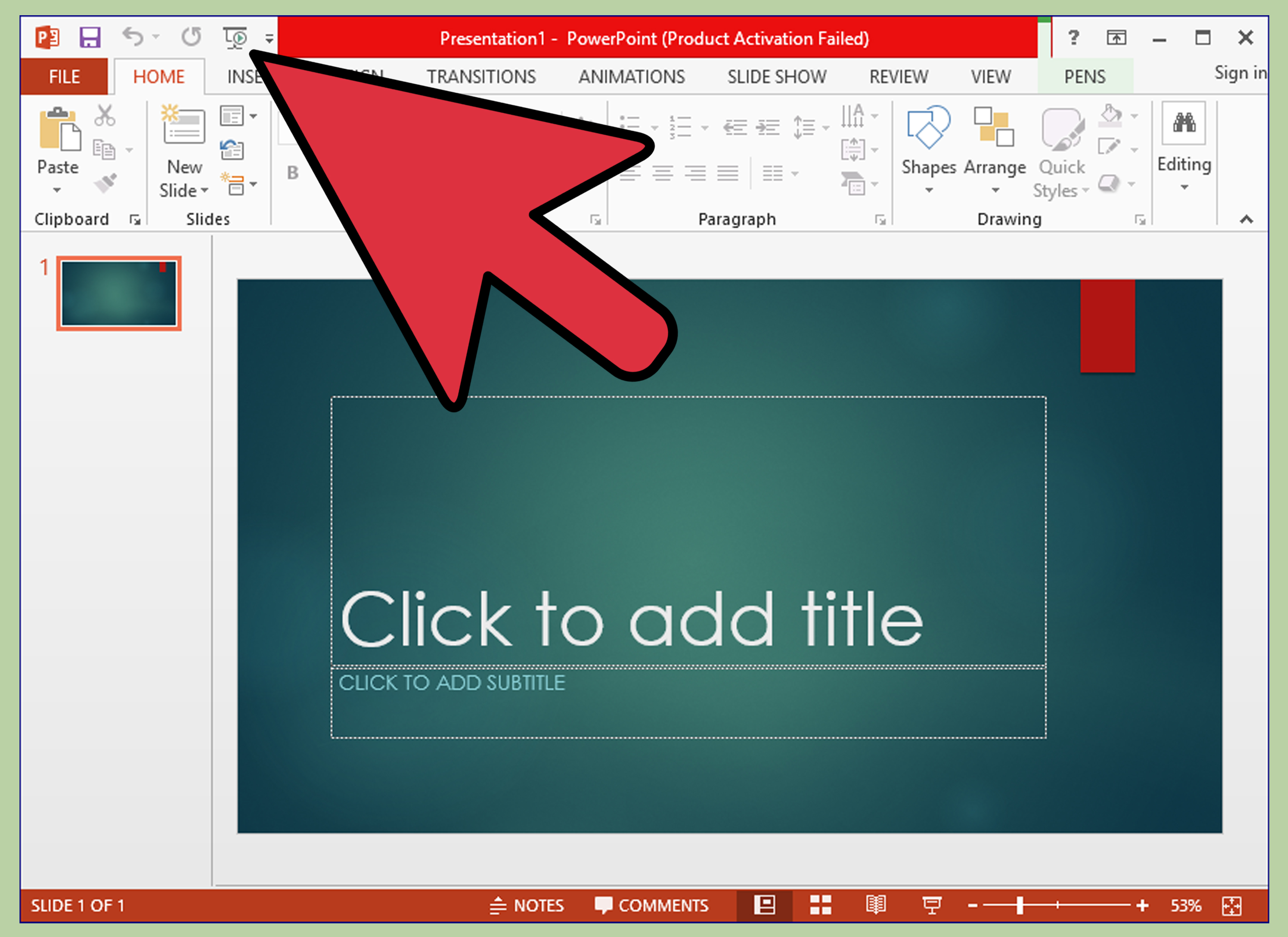
Setting up a wireless presentation used to sound like a luxury reserved for futuristic conference rooms, shiny startup offices, and people who say “circle back” without laughing. Today, it is much more practical. Whether you are presenting in a classroom, pitching a client, leading a hybrid meeting, or trying to show vacation photos without making everyone crowd around a laptop, wireless presentation technology can save time, reduce cable chaos, and make the whole room feel more professional.
The basic idea is simple: instead of plugging your laptop, tablet, or phone directly into a projector or display with an HDMI cable, you send your screen wirelessly to a receiver connected to the screen. That receiver might be an Apple TV, a Chromecast-enabled device, a smart TV, a wireless projector, a Miracast adapter, a conference-room system, or a dedicated wireless presentation solution such as a ClickShare-style button system, BenQ InstaShow, Crestron AirMedia, or ScreenBeam.
The tricky part is that “wireless presentation” does not mean one single setup. It is more like ordering coffee. There is the simple version, the business version, the secure enterprise version, and the “why are there twelve adapters in this drawer?” version. This guide explains how to choose the right method, connect your devices, reduce lag, avoid security problems, and troubleshoot common issues before your audience starts politely checking email.
What Is a Wireless Presentation?
A wireless presentation is a setup that lets you display slides, documents, websites, videos, dashboards, or your full device screen on a larger display without using a direct video cable from your device to the screen. The presenter connects through Wi-Fi, a local network, Bluetooth-assisted discovery, a casting protocol, or a dedicated receiver.
Common wireless presentation methods include AirPlay for Apple devices, Miracast for many Windows PCs and compatible displays, Google Cast from Chrome or Android devices, projector-specific apps, and professional meeting-room systems. Some setups require everyone to be on the same Wi-Fi network. Others create a direct device-to-receiver connection. Business-grade systems may use a room code, guest network, USB-C button, or browser-based connection to make sharing easier and more controlled.
Choose the Right Wireless Presentation Method
Before buying hardware or downloading apps, decide what kind of room and audience you are working with. A home office, classroom, hotel meeting room, and corporate boardroom have different needs. The right setup depends on who presents, what devices they use, how secure the network must be, and whether video playback matters.
Option 1: AirPlay for Apple Devices
If your presenters mostly use iPhones, iPads, or Macs, AirPlay is one of the smoothest options. You can mirror a device screen or stream supported content to an Apple TV, AirPlay-compatible smart TV, or a Mac configured to receive AirPlay. For a simple setup, connect the Apple TV or compatible display to the same Wi-Fi network as the presenter’s device, open Screen Mirroring, choose the room display, and enter the passcode if one appears.
AirPlay is excellent for Apple-heavy environments, creative teams, classrooms with iPads, and home setups. It is less ideal if many presenters use Windows laptops or Android devices unless the room has additional support.
Option 2: Miracast for Windows PCs
Miracast is a common wireless display option for Windows laptops and compatible TVs, projectors, or adapters. On Windows, the usual shortcut is Windows key + K, then selecting the wireless display from the list. If your display supports Miracast or you have a Miracast receiver plugged into HDMI, this can be a fast way to project without installing extra software.
Miracast is useful for offices, classrooms, and training rooms where Windows laptops are the standard. However, compatibility can vary by device, graphics driver, Wi-Fi adapter, and display firmware. In plain English: it usually works, but when it does not, it may blame three different things and none of them will look guilty.
Option 3: Google Cast and Chrome Casting
Google Cast works well when presenters use Chrome, Chromebooks, Android devices, Chromecast, Google TV, or compatible smart displays. From Chrome, you can cast a browser tab, a desktop, or supported media to the display. This is especially handy for Google Slides, websites, dashboards, and browser-based demos.
For best results, use a strong Wi-Fi connection and choose the correct casting source. Casting a single tab is often smoother than casting the entire desktop. If you need to show presenter notes, private browser tabs, or internal dashboards, double-check what is actually being shared before you begin. Nothing spices up a quarterly review like accidentally projecting your lunch order.
Option 4: Wireless Projector Apps
Many projector brands offer their own wireless apps. Epson iProjection, for example, supports wireless projection from mobile devices, Chromebooks, PCs, and Macs on compatible projectors. These apps can be helpful in classrooms, training spaces, and small offices where the projector is already the centerpiece of the room.
The key is to confirm compatibility before the presentation. Some projectors need a separate wireless module, while others have built-in networking. You may also need to switch the projector input to LAN or network mode before the app can find it.
Option 5: Dedicated Wireless Presentation Systems
Dedicated systems such as BenQ InstaShow, Crestron AirMedia, ScreenBeam, and similar professional products are designed for meeting rooms where multiple people present often. These systems usually connect to the display through HDMI and let users share from laptops, phones, tablets, or a browser. Some use a USB-C or HDMI button. Others use a room code or app.
This is the most polished choice for conference rooms, client-facing spaces, universities, and hybrid workplaces. It reduces the “who has the adapter?” problem and gives IT teams more control over updates, access, guest sharing, and network security.
Wireless Presentation Equipment Checklist
Before setting up, gather the basics. You do not need a NASA control room, although a label maker may make you feel pleasantly powerful.
- A display, TV, monitor, or projector with HDMI or built-in wireless display support
- A wireless receiver such as Apple TV, Chromecast, Miracast adapter, AirMedia, ScreenBeam, or InstaShow receiver
- A laptop, tablet, or phone for presenting
- A reliable Wi-Fi network or direct wireless connection
- Power outlets for the display and receiver
- HDMI cable from receiver to display, unless wireless support is built in
- Remote, display controls, or touch panel access
- Backup HDMI cable, because technology respects people who prepare
How to Set Up a Wireless Presentation Step by Step
Step 1: Confirm Your Display and Presenter Devices
Start by identifying the display and the devices presenters will use. Is the screen a smart TV, projector, interactive display, or conference-room monitor? Are presenters using MacBooks, Windows laptops, iPads, Android phones, Chromebooks, or a mix?
This matters because AirPlay, Miracast, and Google Cast are not identical. A MacBook naturally prefers AirPlay. A Windows laptop may use Miracast. A Chromebook may work best with Google Cast or a projector app. A professional room may support several methods at once.
Step 2: Connect the Wireless Receiver to the Display
If your display does not have built-in wireless presentation support, connect a receiver to the screen. Plug the receiver into an HDMI port on the TV, monitor, or projector. Then connect power. Some receivers use USB power from the display, while others need a wall adapter.
After that, switch the display input to the correct HDMI source. This step sounds obvious, but it is responsible for roughly 47% of all meeting-room panic. If the receiver welcome screen appears, you are on the right input.
Step 3: Connect the Receiver to the Network
Most wireless presentation devices need network access. For homes and small offices, connecting the receiver and presenter device to the same Wi-Fi network is usually enough. For business rooms, Ethernet is often better for the receiver because it gives the display side a more stable connection.
If guests will present, create a clear guest-sharing process. That might mean a guest Wi-Fi network, a room code, a browser link, or a USB-C sharing button. Avoid giving visitors full access to your private business network just so they can show six slides and a chart shaped like optimism.
Step 4: Update Firmware and Apps
Before relying on the room, update the receiver firmware, display firmware, laptop operating systems, browser, and any required presentation apps. Firmware updates can improve compatibility, fix bugs, patch security issues, and reduce strange connection behavior.
This is especially important in business environments. Network-connected AV devices should be treated like real technology assets, not mysterious boxes zip-tied behind a display and forgotten until they cause trouble.
Step 5: Set a Room Name and Access Code
Give the receiver a clear room name, such as “Conference Room A,” “Training Room 2,” or “Marketing Display.” Avoid vague names like “TV,” “Display,” or “Bob.” Bob may be a lovely person, but he is a terrible device label.
For shared spaces, enable an on-screen PIN or room code. This prevents people in nearby rooms from accidentally casting to the wrong screen. It also helps presenters confirm they are connecting to the correct display before their desktop appears in front of thirty people.
Step 6: Test Screen Mirroring
Now test the actual presentation connection. On a Mac or iPhone, use AirPlay or Screen Mirroring. On Windows, press Windows key + K and select the wireless display. In Chrome, use Cast and choose whether to share a tab or desktop. In a projector app, search for the projector and select the content you want to show.
Test both slides and motion. A static PowerPoint deck may work perfectly, while a video-heavy demo may reveal lag, audio delay, or choppy playback. If video quality matters, test the exact file or platform you plan to use.
Step 7: Check Audio Output
Wireless presentation is not only about the picture. If your presentation includes video, music, or sound effects, confirm where the audio is playing. It may come from the laptop, TV speakers, projector speaker, soundbar, or conference-room audio system.
In a small room, display speakers may be fine. In a larger room, route audio through a proper sound system. If you are presenting over a video meeting at the same time, test both local room audio and remote meeting audio so your audience does not hear a dramatic echo of your own voice.
Best Practices for a Smooth Wireless Presentation
Use a Strong, Clean Wi-Fi Signal
Wireless presentation depends heavily on network quality. Weak Wi-Fi can cause delay, blurry video, dropped connections, or frozen slides. Place the access point where the room gets strong coverage. Avoid overcrowded networks when possible. If the receiver supports Ethernet, use it for the receiver and leave Wi-Fi for presenter devices.
Close Unnecessary Apps
Before presenting, close apps you do not need. This improves performance and protects privacy. Email alerts, chat messages, calendar reminders, and browser tabs can all appear at the worst possible time. Your slides should be the star of the show, not a notification asking whether you still want 20% off socks.
Use Presenter Mode Carefully
Many presentation tools offer presenter view, speaker notes, or extended display mode. These are useful, but only if your wireless setup supports extended display properly. Test it before the meeting. If extended mode is unreliable, use a printed outline, a tablet with notes, or a simplified slide deck.
Prepare a Backup Plan
Even excellent wireless systems can fail because of network changes, firmware bugs, power issues, or plain old bad luck. Keep a short HDMI cable, USB-C adapter, or exported PDF version of your slides ready. A backup plan is not pessimism. It is professionalism with pockets.
Wireless Presentation Security Tips
Security matters, especially in offices, schools, healthcare spaces, government buildings, and client-facing conference rooms. A wireless presentation system is part of your networked AV environment, so it should not be treated as a toy.
Separate Guest and Internal Access
Use a guest network for visitors whenever possible. If your organization has IT support, ask about using a separate VLAN or subnet for AV devices. This helps limit what guests and display devices can access.
Change Default Passwords
Do not leave admin passwords at factory defaults. Change them during setup, store them securely, and limit who can access device settings. Default credentials are convenient for installers, but they are also convenient for people you definitely did not invite.
Keep Devices Updated
Schedule regular firmware checks for receivers, projectors, smart displays, and control panels. Updates can improve stability and close security gaps. If a device is no longer supported by the manufacturer, plan to replace it rather than letting it quietly become the weakest link in the room.
Common Wireless Presentation Problems and Fixes
The Display Does Not Appear
Make sure the receiver is powered on, the display is set to the correct input, and both devices are on the correct network. Restarting the receiver can also help. If using Windows, confirm the device supports Miracast. If using AirPlay, verify that the Apple device and receiver are compatible and nearby.
The Connection Drops
Dropped connections usually point to weak Wi-Fi, network congestion, outdated firmware, or distance from the access point. Move closer, reduce bandwidth-heavy activity, restart the receiver, or use Ethernet for the receiver if possible.
Video Is Laggy
Wireless presentations are best for slides, documents, dashboards, and light media. High-resolution video, animation-heavy slides, and live demos can demand more bandwidth. Try casting a browser tab instead of the full desktop, lowering video resolution, closing background apps, or using a wired connection for video-heavy sessions.
Audio Plays From the Wrong Device
Check the audio output settings on the laptop or mobile device. Select the display, receiver, or room audio system as the output. Then test volume from both the presenter device and the display system.
Best Wireless Presentation Setup by Use Case
For Home Offices
A smart TV with AirPlay, Chromecast, or Miracast support is often enough. Keep the TV and laptop on the same Wi-Fi network, use screen mirroring, and keep an HDMI cable nearby for backup.
For Classrooms
A wireless projector app, interactive display, Apple TV, Chromecast, or education-friendly wireless receiver can work well. Teachers should prioritize simple connection steps, student sharing controls, and reliable audio.
For Conference Rooms
Use a dedicated wireless presentation system with room codes, device management, firmware update controls, and guest access. Business rooms benefit from consistency. People should walk in, connect, present, and leave without performing a small technology ritual.
For Hybrid Meetings
Choose a setup that works with your video conferencing platform, camera, microphone, and room speakers. Wireless content sharing is only one part of the room. The remote audience also needs to see and hear clearly.
Real-World Experiences: What Actually Makes Wireless Presentations Work Better
After working with wireless presentation setups in offices, classrooms, training spaces, and casual meeting rooms, one lesson stands out: the best system is not always the fanciest system. The best system is the one people can use in under one minute without needing to call “the tech person,” who is usually trying to eat lunch in peace.
The first real-world experience worth mentioning is the importance of labeling. A room with three displays, two receivers, and five possible inputs can become confusing fast. Clear labels on the display input, receiver name, remote control, and backup cable make a huge difference. When the on-screen name matches the room name, people connect with confidence. When the display says “RX-793-B,” everyone begins their journey into despair.
Another practical lesson is that guest presenters need a separate path. Employees may already know the Wi-Fi password, have the required app installed, or understand the room system. A visitor does not. If you host clients, vendors, interview candidates, or guest speakers, create a simple instruction card: connect to this network, open this sharing link, enter this code, press this button. Keep the steps visible near the display. A tiny laminated card can save ten minutes of awkward silence.
Wireless presentation also works better when people understand what should and should not be shared wirelessly. Slide decks, PDFs, websites, spreadsheets, and dashboards usually work beautifully. Fast gaming footage, 4K video editing previews, high-frame-rate product demos, and anything requiring perfect timing may be better with a cable. Wireless is convenient, but physics still has a vote.
One surprisingly common issue is notification embarrassment. Presenters often mirror their entire screen and forget that chat apps, email previews, calendar reminders, and browser suggestions are part of that screen. The easiest fix is to turn on Do Not Disturb or Focus mode before presenting. Better yet, present from a clean desktop or share only the specific window when the system allows it. Your audience came for the strategy deck, not a live tour of your inbox.
In business settings, the most reliable rooms usually have three things: a wired network connection for the receiver, a dedicated guest-sharing method, and a tested backup cable. That combination gives presenters the freedom of wireless without turning the meeting into a troubleshooting workshop. It also keeps IT happier because the system is easier to manage, update, and secure.
Finally, the best wireless presentation habit is testing before the room fills up. Arrive five minutes early, connect your device, open the presentation, check audio, and move through a few slides. This small ritual prevents big problems. It also gives you time to discover whether the projector remote has disappeared into the same dimension as missing socks and USB adapters.
Conclusion
Learning how to set up a wireless presentation is really about building a reliable path between the presenter and the screen. The technology may vary, but the process stays consistent: choose the right sharing method, connect the receiver properly, use a stable network, update devices, secure access, test audio and video, and keep a backup plan nearby.
For Apple-heavy rooms, AirPlay can be elegant and quick. For Windows environments, Miracast may be a practical choice. For browser-based presentations and Chromebooks, Google Cast is convenient. For classrooms, wireless projector apps can be enough. For professional conference rooms, dedicated wireless presentation systems offer the best combination of simplicity, control, and security.
The ultimate goal is not to impress people with technology. It is to make the technology disappear so your message can take center stage. When a presenter can walk in, connect, and start smoothly, the room feels smarter, the meeting feels calmer, and nobody has to crawl behind a display whispering things that should not be repeated in a workplace.













