Sharing a Facebook post to Instagram sounds like it should be as easy as pressing one shiny button labeled “Make Me Famous Everywhere.” In reality, Meta gives you several ways to do it, but the right method depends on what you are sharing, which type of account you use, and whether the post has already been published.
The good news: you do not need to be a social media wizard, own twelve ring lights, or speak fluent algorithm. Once your Facebook and Instagram accounts are connected properly, you can share certain posts, stories, and reels across both platforms with much less copy-paste chaos.
This easy guide explains how to share a Facebook post to Instagram, how to set up automatic sharing, what to do if the option is missing, and how to make your cross-posted content look natural on Instagram instead of like a Facebook post wearing sunglasses indoors.
Can You Share a Facebook Post to Instagram?
Yes, but with a few important limits. Meta allows Facebook and Instagram accounts to work together through Accounts Center, the hub where connected experiences are managed. When your accounts are added to the same Accounts Center, you can control sharing across profiles, including posts, stories, and in some cases reels.
However, the phrase “share a Facebook post to Instagram” can mean two different things. You might want to share a new Facebook post to Instagram at the same time you publish it. Or you might want to take an old Facebook post that is already live and push it to Instagram afterward. Those two scenarios are not the same.
For many users, the easiest path is to turn on automatic sharing before publishing. If a post is already published on Facebook, Instagram usually will not offer a magical “send this old post to Instagram” button. In that case, the practical workaround is to recreate the post on Instagram manually or repost the content using Meta Business Suite if you manage business accounts.
Before You Start: Check These Requirements
Before tapping through settings like you are defusing a tiny digital bomb, check the basics. Most sharing problems happen because one of these requirements is missing.
1. Your Facebook and Instagram Accounts Must Be Connected
Your Facebook and Instagram accounts need to be added to the same Meta Accounts Center. This connection allows Meta to offer features such as sharing across profiles, synced profile information, and other connected experiences.
2. You Must Use the Correct Account Type
Personal profiles and business Pages do not always behave the same way. Meta’s current guidance says Facebook posts and stories shared to Instagram through Accounts Center are tied to personal profiles, while Facebook business Pages have limitations for automatic Page-to-Instagram sharing. Businesses often get better results by using Meta Business Suite to create a post for both Facebook and Instagram as separate publishing destinations.
3. The Post Format Must Be Compatible
Instagram is a visual-first platform. A text-only Facebook update, a link preview, or a post with an unsupported format may not cross-post cleanly. Photos, short videos, stories, and reels are more likely to work because they fit Instagram’s content style.
4. You Need the Latest App Version
Facebook and Instagram features move around more often than your TV remote. Update both apps before troubleshooting. If your app is outdated, the sharing toggle may be missing, renamed, or hiding somewhere like it owes you money.
How to Connect Facebook and Instagram in Accounts Center
The most important step is connecting your accounts. Once they live in the same Accounts Center, you can manage sharing across profiles.
Step-by-Step Setup
- Open the Facebook app or Instagram app.
- Go to your profile menu.
- Tap Settings and privacy, then choose Settings.
- Find and open Accounts Center.
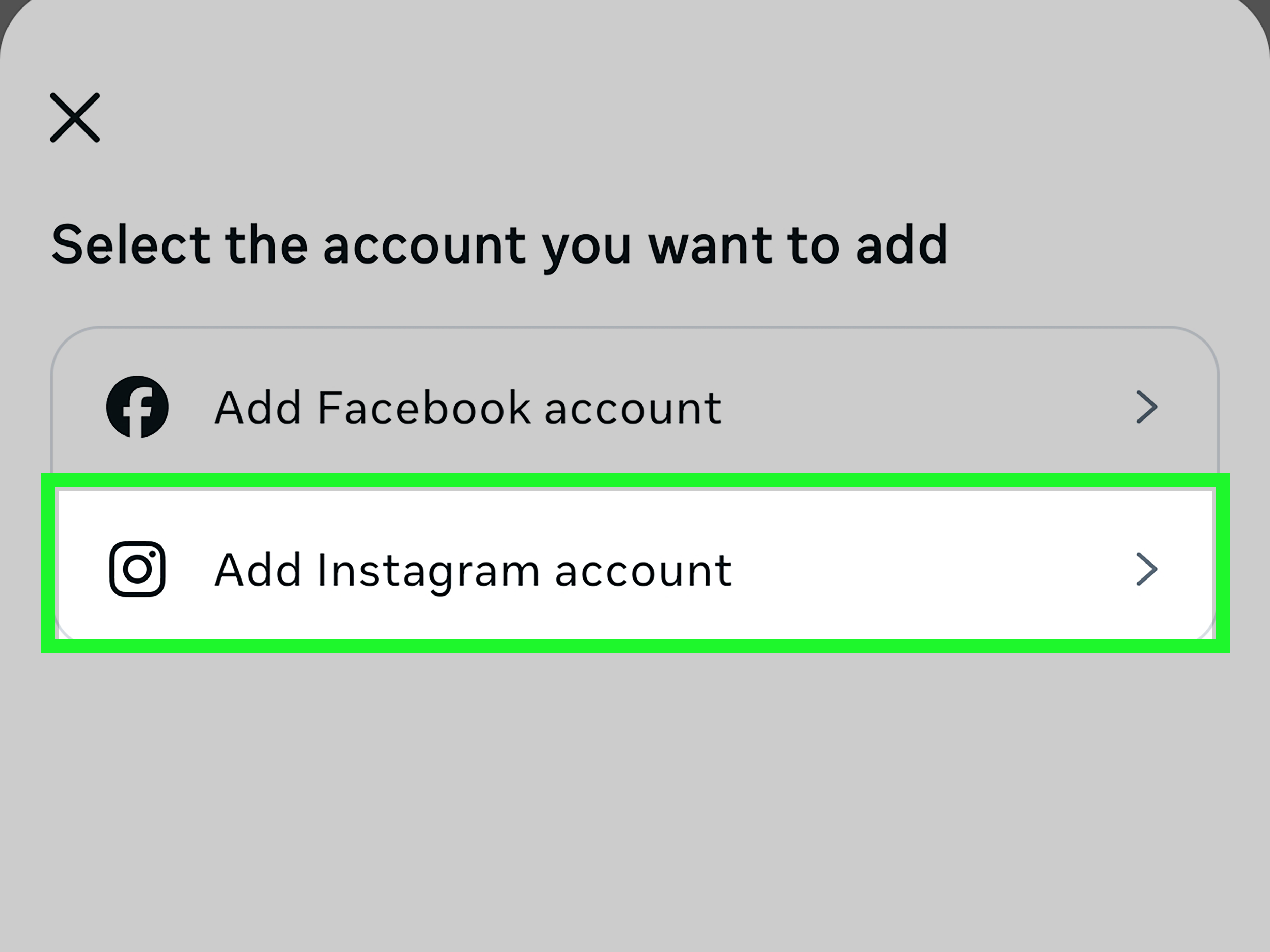
- Tap Accounts or Manage accounts.
- Select Add accounts.
- Log in to the Instagram or Facebook account you want to connect.
- Follow the prompts to confirm the connection.
After that, return to Accounts Center and look for Connected experiences. This is where you manage sharing across profiles. Think of it as the control room where Facebook and Instagram decide whether to cooperate or silently judge each other.
How to Share Facebook Posts to Instagram Automatically
Automatic sharing is useful when you want eligible Facebook posts to publish on Instagram without rebuilding everything from scratch. The exact wording may vary by app version, but the general path is similar.
Turn On Sharing Across Profiles
- Open Facebook or Instagram.
- Go to Settings and privacy.
- Tap Accounts Center.
- Choose Connected experiences.
- Tap Sharing across profiles.
- Select the Facebook profile you want to share from.
- Select the Instagram account you want to share to.
- Under Automatically share, turn on sharing for posts, stories, or reels if available.
Once this is enabled, new eligible content may share from Facebook to Instagram automatically. If you do not want every post to cross-post, leave automatic sharing off and use manual sharing options when they appear during publishing.
How to Share a New Facebook Post to Instagram Manually
If you prefer control, manual sharing is usually smarter than automatic sharing. This lets you decide which posts deserve to live on Instagram and which ones should stay safely on Facebook, where your aunt can comment “beautiful” on a photo of your lunch.
Manual Cross-Posting Steps
- Create a new post in Facebook.
- Add your photo, video, reel, or story content.
- Look for an Instagram sharing option before publishing.
- Toggle Instagram on if the option is available.
- Edit the caption so it fits Instagram.
- Publish the post.
If the Instagram option does not appear, the post may not be eligible. Common causes include unsupported media, disconnected accounts, Page restrictions, app bugs, or content that Instagram cannot display properly.
Can You Share an Existing Facebook Post to Instagram?
Usually, not directly. This is where many users get stuck. Facebook often does not let you take a post that has already been published and send it to Instagram later. The sharing option usually needs to be selected before or during publishing.
If you already posted something on Facebook and now want it on Instagram, you have three realistic options:
- Recreate it manually: Copy the caption, download or re-upload the image or video, and create a fresh Instagram post.
- Use Meta Business Suite: If you manage business accounts, create a new post and select both Facebook and Instagram as destinations.
- Delete and repost: If the Facebook post is brand new and has no engagement yet, you can delete it and republish with Instagram sharing enabled.
Manual reposting may sound old-school, but it often produces a better Instagram post because you can adjust the caption, crop, hashtags, and call to action.
How Businesses Can Post to Facebook and Instagram Together
If you manage a brand, creator profile, shop, restaurant, local service, or community organization, Meta Business Suite is often the cleaner solution. Instead of “sharing” a Facebook post to Instagram, you create one piece of content and publish it to both platforms.
Using Meta Business Suite
- Open Meta Business Suite on desktop or mobile.
- Make sure your Facebook Page and Instagram professional account are connected.
- Choose Create post.
- Select Facebook and Instagram as publishing destinations.
- Add your media, caption, and any platform-specific edits.
- Publish immediately or schedule for later.
This is especially helpful for businesses because it keeps content planning organized. You can schedule posts, review drafts, and avoid the “Did I already post this?” panic that usually arrives right after coffee number three.
Best Content Types for Facebook-to-Instagram Sharing
Not every Facebook post belongs on Instagram. The best cross-posts are visual, simple, and easy to understand without extra context.
Great Candidates for Instagram
- Product photos
- Behind-the-scenes videos
- Event announcements with strong visuals
- Short reels
- Customer testimonials turned into graphics
- Before-and-after images
- Promotional stories with clear calls to action
Posts That Usually Need Editing
- Long Facebook captions
- Text-only updates
- Link-heavy posts
- Shared articles with preview cards
- Posts written for Facebook groups
- Inside jokes that require Facebook comments for context
Instagram does not treat clickable links in captions the same way Facebook does. If your Facebook post says “click the link below,” Instagram users may stare at it like it is a locked treasure chest. For Instagram, direct people to your bio link, sticker link, shop, DM, or comment keyword instead.
How to Optimize a Facebook Post for Instagram
Cross-posting saves time, but copy-and-paste content can feel lazy if you never adapt it. A few small edits can make your post look native to Instagram.
Shorten the Caption
Facebook users may tolerate longer updates, especially for community posts or personal stories. Instagram users often scan quickly. Keep the first sentence strong, clear, and visual. Put the main point early, not after a five-paragraph warm-up act.
Use Better Visual Formatting
Instagram rewards scroll-stopping visuals. Use high-quality images, vertical video, clean graphics, and readable text overlays. Avoid tiny text that requires readers to zoom in like detectives studying a ransom note.
Adjust Hashtags
Facebook hashtags are optional and often less important. Instagram hashtags can still help with context, discovery, and categorization when used naturally. Choose a few relevant hashtags instead of dumping thirty tags like confetti at a parade.
Check the Crop
A Facebook image may look fine in the feed but awkward on Instagram. Before posting, preview the crop. Make sure faces, products, logos, and text are not chopped off. Nobody wants a motivational quote that reads “Believe in yo” because the crop got hungry.
Why the Instagram Sharing Option Is Missing
If you do not see the option to share from Facebook to Instagram, do not panic. It does not necessarily mean you did anything wrong. Meta settings can be picky.
Common Reasons
- Your Facebook and Instagram accounts are not in the same Accounts Center.
- You are trying to share from a Facebook Page instead of a personal profile.
- The post type is not supported.
- Your Instagram account is not professional when a business workflow requires it.
- You do not have the right Page permissions.
- Your app is outdated.
- The feature is not available in your region or account yet.
- Meta temporarily changed the interface.
Quick Fixes
- Update Facebook and Instagram.
- Log out and log back in.
- Check Accounts Center and reconnect your accounts.
- Confirm you are using the correct Instagram account.
- Try posting from Meta Business Suite instead of the regular Facebook app.
- Recreate the post as an Instagram-native post if cross-posting fails.
Facebook Posts, Stories, and Reels: What Changes?
Sharing options vary by format. Stories are designed for quick, temporary updates, so they often move more naturally between Facebook and Instagram. Reels are also a major focus across Meta platforms, especially as Facebook has continued shifting video uploads toward the Reels experience.
For regular feed posts, the best results usually come from single images, simple carousels, or short video content that looks good on Instagram. For stories, vertical creative works best. For reels, make sure the video has strong opening movement, readable captions, and a format that makes sense with or without sound.
Should You Automatically Share Everything?
Automatic sharing is convenient, but convenience is not the same as strategy. Posting everything everywhere can make your content feel repetitive. It can also create awkward moments, such as a Facebook post that mentions “see the link in this post” appearing on Instagram with no clickable link in sight.
A better approach is selective cross-posting. Share content across both platforms when the message, format, and audience match. Customize when needed. Skip cross-posting when the post is too platform-specific.
A Simple Rule
If the post is visual, evergreen, and useful to both audiences, cross-post it. If it depends on a Facebook link, a group discussion, or a long comment thread, rewrite it for Instagram.
Examples of Smart Facebook-to-Instagram Sharing
Example 1: Local Restaurant
A restaurant posts a Facebook update: “Tonight only: spicy honey chicken sandwich, crispy fries, and house-made ranch.” This works perfectly on Instagram if paired with a vertical photo or reel. The Instagram caption can be shorter: “Tonight’s special: spicy honey chicken sandwich. Warning: napkins will be necessary.” Add location tags and a story version for extra visibility.
Example 2: Fitness Coach
A coach shares a Facebook post about a new six-week challenge. For Instagram, the same content should become a carousel: slide one announces the challenge, slide two lists benefits, slide three shows dates, and slide four gives a call to action. Same idea, better format.
Example 3: Online Store
A store shares a Facebook product launch with a link. On Instagram, the caption should not depend on that link. Instead, use product tags, “link in bio,” or a story sticker. The message stays consistent, but the action fits Instagram behavior.
Privacy and Audience Settings to Review
Before sharing across platforms, review who can see your content. Facebook and Instagram may have different audiences. Your Facebook post might be intended for friends, while your Instagram account may be public. That difference matters.
Check your audience settings, tagged people, location, and sensitive details. If a post includes private family information, workplace updates, children’s images, or location-specific details, think twice before sending it across platforms automatically.
500-Word Experience Section: Lessons from Actually Sharing Facebook Posts to Instagram
The first lesson from sharing Facebook posts to Instagram is simple: the fastest method is not always the best-looking method. Automatic sharing is great when you are posting a clean image, a simple caption, or a quick story. But when the Facebook post is long, link-heavy, or written for a very specific audience, it often needs a little tailoring before Instagram users will care.
In real use, the most common frustration is not the setup. Connecting accounts through Accounts Center is usually straightforward. The bigger issue is expectation. Many people assume every Facebook post can be pushed to Instagram after it is already published. Then they open the menu, tap around, sigh loudly, question technology, and eventually realize the option is not there. That is why it helps to plan cross-posting before publishing.
Another experience-based tip: always preview the Instagram version. A square image that looks fine on Facebook may crop strangely on Instagram. A horizontal video may feel tiny in Reels. A caption that sounds friendly on Facebook may feel like a novel on Instagram. Even two minutes of editing can make the final post feel intentional instead of recycled.
For small businesses, Meta Business Suite is usually worth learning. It may not be glamorous, but it reduces mistakes. You can create one post, select Facebook and Instagram, schedule it, and review how it will appear. This is much better than posting to Facebook, forgetting Instagram, remembering later, and then creating a rushed post while standing in line for coffee.
For creators, the best workflow is often Instagram-first. Create the strongest visual version for Instagram, then share or adapt it to Facebook. Instagram tends to demand cleaner visuals, shorter hooks, and stronger formatting. If your content works there, it usually adapts well to Facebook. The reverse is not always true.
One practical habit is to keep a small cross-posting checklist. Before publishing, ask: Is the image clear? Is the caption too long? Does the call to action work on Instagram? Are the accounts connected? Is the right Instagram profile selected? Are hashtags relevant? Is the post public or private? This checklist takes less than a minute and prevents most embarrassing “oops” moments.
The final lesson is to respect the audience. Facebook and Instagram overlap, but they are not identical rooms. Facebook is often better for discussion, links, community updates, and longer explanations. Instagram is better for visual storytelling, quick inspiration, product discovery, reels, and lifestyle-driven content. Sharing across both platforms works best when you keep the message consistent but adjust the presentation. In other words, do not just throw the same post over the fence and hope Instagram catches it gracefully. Give it a quick polish first.
Conclusion
Sharing a Facebook post to Instagram is easy once you understand the system. First, connect your Facebook and Instagram accounts in Meta Accounts Center. Then use Sharing across profiles for eligible automatic sharing, or choose Instagram manually when creating a new post. If you manage a business, Meta Business Suite is often the better tool because it lets you publish or schedule content for both platforms from one place.
The biggest thing to remember is that not every Facebook post can be shared to Instagram after it is already live. Plan ahead, choose the right format, and adapt your caption and visuals for Instagram. Cross-posting should save time, not make your brand look like it got dressed in the dark.
Use automatic sharing for simple, visual content. Use manual editing for important posts. Use Meta Business Suite for business workflows. And when in doubt, make the Instagram version more visual, more concise, and more action-focused.