Sharing a file through Google Drive should be simple: choose a file, invite someone, and get back to your day. Yet one innocent click can accidentally turn a private budget into a public attractionor leave your coworker staring at the dreaded “You need access” screen five minutes before a meeting.
This guide explains how to share files on Google Drive from a desktop computer, Android device, iPhone, or iPad. You will also learn how Google Drive permissions work, how to share folders, how to create secure links, and how to fix the most common access problems.
Understand Google Drive Sharing Permissions First
Before sending a Google Drive sharing link, decide what the recipient should be allowed to do. Google Drive generally offers three permission levels:
- Viewer: The person can open and read the file but cannot change its contents.
- Commenter: The person can leave comments and suggestions without directly editing the original material.
- Editor: The person can modify the file and may also be able to organize, share, or manage it, depending on the file type and owner settings.
For a final report, a résumé, or a family photo album, Viewer access is usually enough. Commenter access works well for reviews and approvals. Editor access is best for active collaboration, but it should not be handed out like free samples at a grocery store.
Restricted Access vs. Anyone With the Link
Google Drive also asks who should be able to open the file:
- Restricted: Only specifically invited people can access it.
- Anyone with the link: Anyone who receives the URL can open it with the permission you selected.
Restricted sharing is the safer choice for contracts, internal documents, customer information, financial files, and unfinished work. “Anyone with the link” is convenient for public handouts, event schedules, menus, portfolios, or resources intended for a broad audience.
Remember that a link can travel much farther than expected. You may send it to one person, who sends it to a team chat, which reaches another department, where someone bookmarks it for a future employee who has not even been hired yet. Links have surprisingly active social lives.
How to Share Files on Google Drive From a Desktop
The desktop version provides the most complete set of sharing controls. These instructions work in major browsers on Windows, macOS, ChromeOS, and Linux.
Share a File With Specific People
- Open Google Drive in your web browser and sign in.
- Locate the file you want to share.
- Right-click the file and select Share. You can also select the file and click the Share icon near the top of the page.
- Enter the recipient’s name, Google Group, or email address.
- Choose Viewer, Commenter, or Editor.
- Add an optional message explaining what you are sending.
- Leave the notification option enabled when you want Google Drive to email the recipient.
- Click Send.
Adding a short message is more useful than it appears. “Please review sections two and three by Thursday” is considerably better than sending a mysterious spreadsheet with no context. Your collaborators should not need detective training.
Share a File With a Link
- Right-click the file and choose Share.
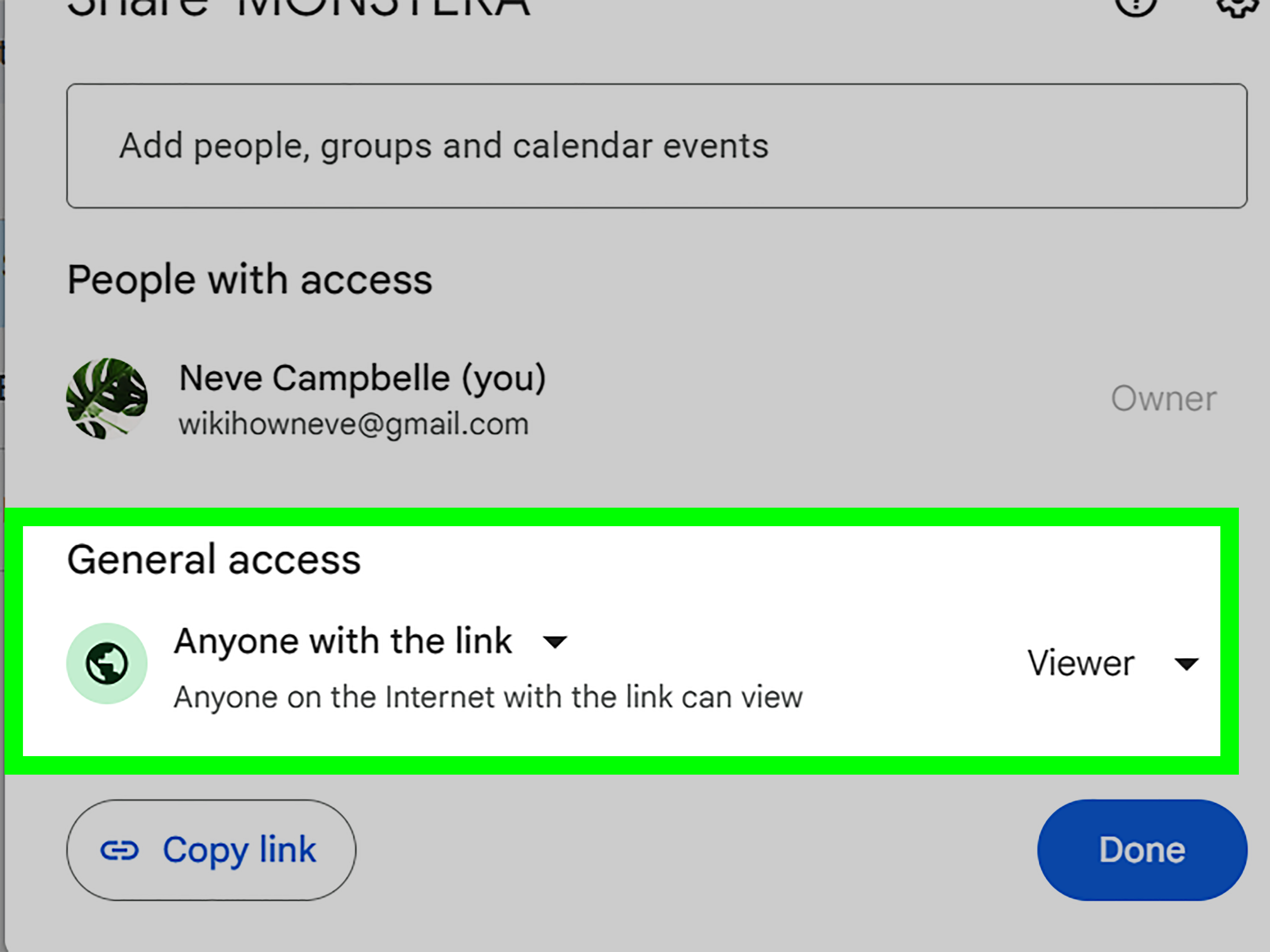
- Find the General access section.
- Open the drop-down menu and select Anyone with the link, if that option is available.
- Choose the appropriate role, such as Viewer, Commenter, or Editor.
- Click Copy link.
- Select Done.
- Paste the URL into an email, text message, project-management tool, or chat.
Work and school accounts may have additional restrictions. An organization’s administrator can limit external sharing, disable public links, or restrict sharing to approved audiences. If the option you expect is missing, the administrator may be responsiblenot a tiny gremlin hiding in your browser.
Share From Google Docs, Sheets, or Slides
When a Google Docs, Sheets, Slides, or Vids file is already open, click the Share button in the upper-right corner. From there, invite specific people or adjust the General access setting. Changes are saved to the same Drive sharing system, so you do not need to return to the main Drive page.
How to Share Files on Google Drive From Android
The Google Drive Android app lets you share documents, images, videos, PDFs, and folders while away from your computer.
- Open the Google Drive app.
- Find the file you want to share.
- Tap the three-dot More icon beside the file.
- Tap Share.
- Enter the recipient’s email address or name.
- Select the desired permission.
- Add a message if necessary.
- Tap the Send button.
To create a shareable link, open the file’s menu and select Manage access. Under General access, tap Change, select the available audience and permission, and then use Copy link. Menu wording may vary slightly with app updates and account type, but the sharing logic remains the same.
Upload a File Before Sharing It on Android
When the file is still stored only on your phone:
- Open Google Drive.
- Tap the plus button.
- Select Upload.
- Choose the document, image, audio file, or video.
- Wait for the upload to finish.
- Open the new file’s menu and follow the sharing steps above.
Android users can also choose whether Drive transfers files only over Wi-Fi. This is helpful when sharing large videos and less helpful when you are trying to test the limits of your cellular data plan.
How to Share Files on Google Drive From iPhone or iPad
The sharing process on iOS and iPadOS closely resembles the Android workflow.
- Open the Google Drive app.
- Locate the file or folder.
- Tap the three-dot More icon beside its name.
- Tap Share.
- Enter a name, email address, or Google Group.
- Choose Viewer, Commenter, or Editor access.
- Decide whether to notify the recipient.
- Send the invitation.
For link sharing, open the item’s access-management controls, change General access when permitted, select the role, and copy the link. You can then paste it into Messages, Mail, Slack, or another app.
Upload an iPhone or iPad File to Drive
- Open the Google Drive app.
- Tap Add.
- Choose File upload.
- Select the file you want to upload.
- Choose the destination folder if necessary.
- After uploading, open the file’s menu to share it.
This method is useful for PDFs saved in the Files app, images from your photo library, scanned paperwork, and documents downloaded from email.
How to Share an Entire Google Drive Folder
Folder sharing is useful when several related files need the same audience. Instead of sending twelve links and wondering whether you forgot number seven, share the parent folder once.
Share a Folder on Desktop
- Open Google Drive.
- Right-click the folder.
- Select Share.
- Add people or change General access.
- Choose the appropriate permission.
- Send the invitation or copy the folder link.
Share a Folder on Mobile
- Open the Google Drive app.
- Tap the three-dot menu beside the folder.
- Select Share or Manage access.
- Add recipients or configure link access.
- Choose the permission level and send or copy the link.
Files placed inside a shared folder generally inherit access from that folder. Google Drive also supports limited-access folders in eligible situations, allowing access to certain subfolders or files to be narrowed. This is useful when a large project folder contains a confidential section for managers or finance staff.
How to Change or Remove Google Drive Access
Sharing is not permanent. You can upgrade someone from Viewer to Editor, reduce an Editor to Viewer, or remove access completely.
- Open the file or folder’s Share window.
- Find the person whose access you want to change.
- Open the permission menu beside that person.
- Select a new role or choose Remove access.
- Save or confirm the change.
To turn off a public link, change General access from Anyone with the link to Restricted. Anyone who was relying only on the link will lose access.
One complication is inherited access. If someone can open a file because they have access to its parent folder, removing them from the individual file may not be enough. You may need to change their folder permission or move the file into a restricted location.
Limit Downloading, Printing, and Copying
File owners can use sharing settings to hide download, print, and copy options from viewers and commenters. Owners may also prevent editors from changing permissions or sharing the file with others.
These controls reduce casual redistribution, but they are not absolute digital-rights protection. Someone may still photograph a screen, rewrite information, or capture it through another method. Do not share highly sensitive material solely because a download button has been hidden.
How to Transfer Ownership of a Google Drive File
Ownership transfer is useful when an employee changes roles, a project changes hands, or a file was created under the wrong personal account.
- Share the file with the future owner first.
- Open the Share window.
- Open the permission menu beside that person.
- Select Transfer ownership.
- Confirm the request.
For personal accounts, the recipient may need to accept the ownership transfer. Until acceptance, the original owner remains responsible for the file. Work and school accounts have additional organizational restrictions, and ownership generally cannot be transferred freely across unrelated organizations. Transferring a folder does not automatically transfer ownership of every file inside it.
Common Google Drive Sharing Problems
The Recipient Sees “You Need Access”
Confirm that you invited the correct email address. Many people have personal, work, and school Google accounts open at the same time. The invitation may belong to one account while the browser is signed into another.
You can also reopen the sharing window and verify that the recipient appears under People with access. For a public resource, check whether General access is still Restricted.
The Share Button or Link Option Is Missing
You may not own the file, or your organization may prohibit external sharing. Ask the owner to change the settings or contact the Google Workspace administrator.
A Collaborator Cannot Edit
Check whether the person is listed as a Viewer or Commenter. Change the role to Editor when editing is appropriate. Also verify that the file itself is editable; a scanned PDF does not suddenly become a collaborative spreadsheet merely because everyone believes in it.
Someone Still Has Access After Being Removed
The person may have access through a shared folder, Google Group, shared drive, or another account. Review the parent folder and the full list of people and groups with access.
The File Does Not Appear on the Desktop
When using Google Drive for desktop, files appear through File Explorer on Windows or Finder on macOS. A file shared by another person may need to be accessed through Shared with me or added as a shortcut before it fits neatly into your normal folder structure.
Google Drive File-Sharing Security Tips
- Use Restricted access by default. Expand access only when there is a clear reason.
- Give the lowest necessary permission. A person who only needs to read a document does not need Editor privileges.
- Review access regularly. Remove former contractors, clients, classmates, or employees.
- Avoid public links for sensitive files. Public convenience can create private regret.
- Name files clearly. “Approved_Contract_2026.pdf” is more useful than “Document-final-FINAL-actually-final-7.pdf.”
- Explain what recipients should do. Include a deadline, requested action, or relevant section in the notification.
- Confirm access before important meetings. Open the link in a private browser window or test it with the intended account type.
Practical Experiences and Lessons From Real-World Sharing
One of the most common file-sharing experiences begins with a simple request: “Can you send me the document?” The sender copies the browser address, pastes it into a message, and assumes the job is finished. The recipient clicks it and discovers that the link points to a private file. A second message follows. Then an access request. Then the sender approves the wrong account. A task that should take thirty seconds becomes a small administrative miniseries.
The better habit is to configure access before copying the link. Open the Share window, confirm the audience, choose a role, and only then send the URL. For important documents, test the link in an incognito or private browser window. This reveals whether the file truly works for someone outside your signed-in account.
Another recurring lesson appears during team projects. Giving everyone Editor access feels efficient at first, but it can create accidental deletions, reorganized folders, and mysterious formatting changes. A cleaner system separates responsibilities. Core team members receive Editor access, reviewers receive Commenter access, and stakeholders who only need updates receive Viewer access. The project becomes easier to manage because permission levels match actual responsibilities.
Folder structure also matters. Imagine sharing a client folder containing proposals, meeting notes, invoices, drafts, and internal pricing calculations. Sharing the entire folder may expose more than intended. A safer approach is to create a dedicated client-facing folder and place only approved materials inside it. Internal working files remain somewhere else. This reduces the need for complicated permission exceptions and makes the shared space easier for the client to understand.
Mobile sharing introduces another practical challenge: people often act quickly. A photo is uploaded, the first available sharing option is selected, and the link is dropped into a group chat. Before doing that, pause long enough to check General access. A family vacation album may be fine with broad link access. A photograph of an identification document, medical form, or signed agreement should be restricted to named recipients.
Large video files offer a different lesson. Uploading may continue in the background, especially on a mobile connection. Sending the link before the upload is complete can confuse recipients when the file does not open or preview properly. Wait until Drive confirms the upload, then open the file once before sharing it. On mobile, consider Wi-Fi for large transfers to avoid slow uploads and surprise data usage.
Teams also benefit from scheduled access reviews. At the end of a project, open the main folder’s sharing panel and inspect every person, group, and link. Remove temporary collaborators and change public links back to Restricted. This cleanup takes only a few minutes and prevents forgotten project files from remaining accessible for years.
Finally, communication is part of secure sharing. A Drive notification without context can look suspicious or unimportant. Include a clear message such as, “Please comment on the draft by Friday,” or “This folder contains the approved event photos.” The recipient immediately knows why the file arrived, what permission was granted, and what action is expected. Technology handles the link; good communication handles everything around it.
Conclusion
Learning how to share files on Google Drive is mostly about making three decisions: who needs access, what they should be allowed to do, and how long that access should remain. Desktop users can right-click a file and open Share, while Android and iPhone users can access the same controls through the three-dot menu.
Use specific invitations for private material, link sharing for broadly distributed resources, and the lowest permission level that still allows people to complete their work. Review folder inheritance, organizational restrictions, and ownership settings when access does not behave as expected. With a few deliberate clicks, Google Drive becomes a practical collaboration tool instead of a factory for “Please grant me access” emails.
Note: This article reflects Google Drive’s official desktop, Android, iPhone, iPad, folder-sharing, ownership, upload, access-management, and security guidance available in July 2026. Interface labels may vary slightly by device, app version, account type, and Google Workspace administrator settings.