Dropbox is one of those tools that seems almost suspiciously simple at first: put a file in one place, open it somewhere else, and suddenly you feel like a minor wizard. But once you understand how syncing, sharing, storage, and security work together, Dropbox can become far more than a digital junk drawer for screenshots and mystery PDFs.
Whether you want to keep work documents available on every device, back up photos from your phone, share files with clients, or stop emailing yourself attachments like it is 2009, this beginner-friendly guide will show you how to start using Dropbox the smart way.
What Is Dropbox and How Does It Work?
Dropbox is a cloud storage and file-sharing service. It stores copies of your files online so you can access them from a web browser, desktop computer, phone, or tablet. When you install the Dropbox app on your computer, it creates a Dropbox folder that works much like any other folder on your device.
The difference is that files placed in that folder can sync to your Dropbox account and appear on your other connected devices. Edit a document on your laptop, and the updated version can appear on your phone or desktop computer once syncing finishes. It is like having a very organized assistant moving files between your devicesexcept this assistant does not drink coffee or complain about Monday meetings. Dropbox Basic currently includes 2 GB of free storage and can connect up to three devices.
You can use Dropbox in three main ways:
- On the web: Visit Dropbox in your browser to upload, organize, download, and share files.
- On a computer: Install the desktop app to sync files through a Dropbox folder in File Explorer or Finder.
- On a phone or tablet: Use the mobile app to view files, upload photos, scan documents, and make important files available offline.
Step 1: Create Your Dropbox Account
Start by visiting Dropbox and creating an account with your email address and a strong password. You may also have the option to sign in through an existing account provider, depending on your device and region.
For most beginners, the free Dropbox Basic plan is enough to test the service. Two gigabytes is not huge, especially if you plan to store lots of videos, but it can hold a healthy collection of documents, spreadsheets, PDFs, and carefully curated photos of your dog looking mildly offended.
Use an email address you check regularly. Dropbox may send security alerts, sharing invitations, account notices, and storage-related messages there. A cloud account is only helpful if you can still get into it when you need that tax form from three years ago at 11:47 p.m.
Choose a Strong Password From the Beginning
Do not recycle the password you use for every shopping site, streaming account, and forgotten forum from 2014. Use a long, unique password stored in a reputable password manager. Dropbox recommends enabling two-step verification because it adds another layer of protection beyond your password.
Once your account is created, go to your account settings and turn on two-factor authentication. This means that even if someone gets your password, they still need a second verification method to sign in. It is not glamorous, but neither is trying to explain to your coworkers why your shared project folder suddenly contains cryptocurrency spam.
Step 2: Install Dropbox on Your Devices
You can use Dropbox without installing anything by logging in through a browser. That is useful when you are on a borrowed computer or need to download one file quickly. However, the desktop app is where Dropbox becomes much more convenient.
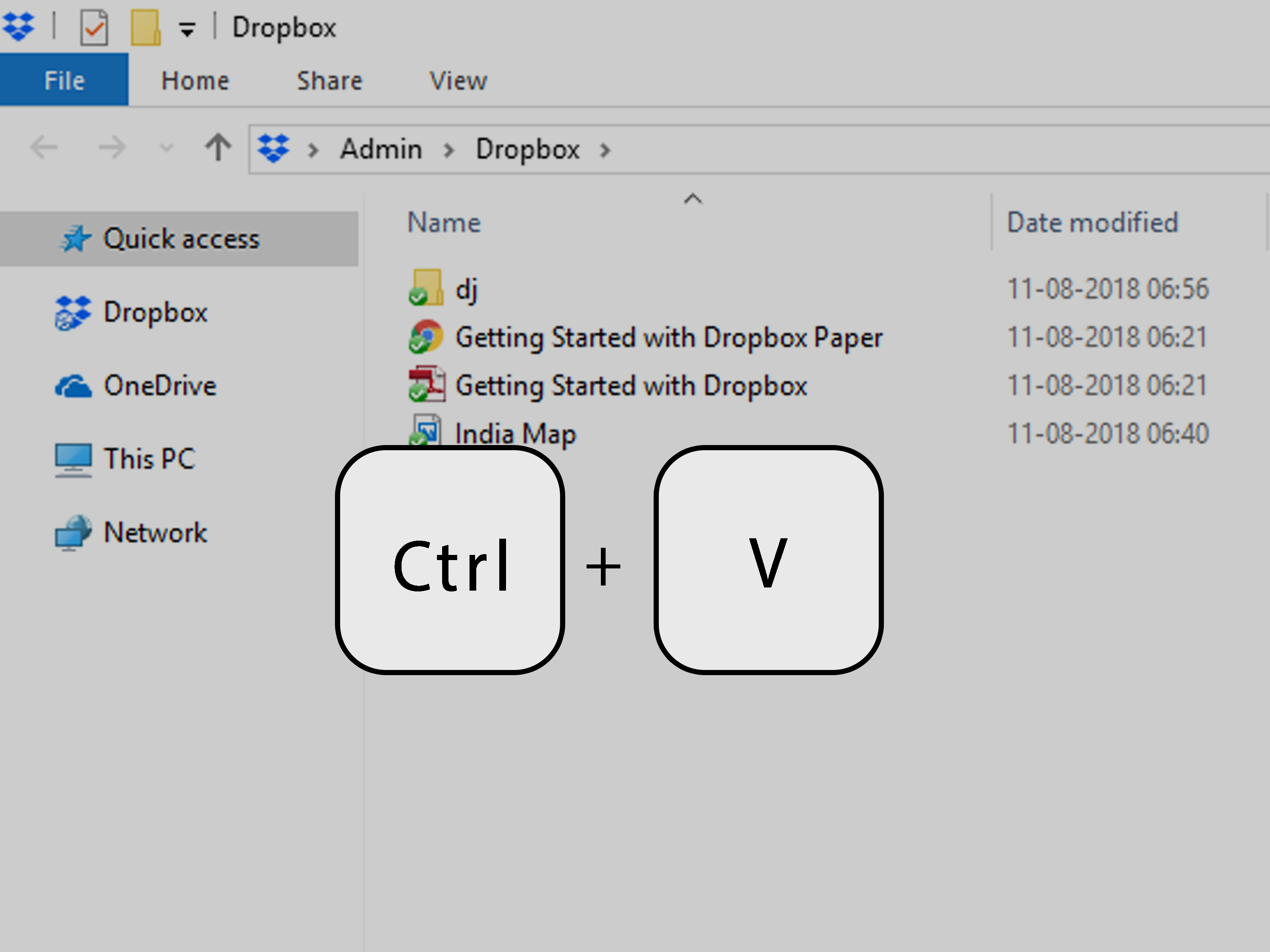
After installing the Dropbox desktop app on Windows or Mac, you will see a Dropbox folder in File Explorer or Finder. Anything placed in that folder can sync automatically to your Dropbox account. The desktop app lets you save, view, access, and share stored files directly from your computer.
Set Up Dropbox on a Computer
- Download and install the Dropbox desktop app.
- Sign in with the same Dropbox account you created online.
- Locate the new Dropbox folder in File Explorer or Finder.
- Drag a few test files into the folder.
- Wait for the syncing icon to show that the files are up to date.
- Open Dropbox in a browser or on another device to confirm the files appear there.
It is wise to test with a few low-risk files first. Do not immediately drag your entire computer into Dropbox like you are fleeing a digital house fire. Start with documents, a few photos, or a small project folder until you understand how syncing affects your storage and local files.
Install the Dropbox Mobile App
The Dropbox mobile app is useful for quick access on the go. You can upload files from your phone, manage offline files, check storage usage, recover deleted files, and turn on camera uploads.
On an iPhone or iPad, Dropbox can also appear in Apple’s Files app after you install and enable the service. That allows you to browse Dropbox alongside other storage locations such as iCloud Drive, Google Drive, or OneDrive.
Step 3: Understand Syncing Before You Move Everything
Syncing is the heart of Dropbox. When you add a file to your Dropbox folder, Dropbox uploads it to your account and then updates it across connected devices. If you change that file later, Dropbox syncs the newest version.
That convenience comes with one important rule: deleting a synced file can remove it from Dropbox and connected devices as well. Dropbox is not simply a second hard drive that ignores your actions. It mirrors your changes.
For example, imagine you create a folder called Marketing Campaign 2026 on your laptop. You add a presentation, a budget spreadsheet, and a dozen images. Your coworker opens the shared folder on another computer and updates the spreadsheet. When Dropbox syncs, you both see the newer version.
That is excellent for collaboration. It is less excellent when someone accidentally deletes the final presentation five minutes before a meeting. Fortunately, Dropbox includes version history and deleted-file recovery options, though the length of available recovery depends on your plan. Dropbox Basic has a 30-day version history window.
Watch the Sync Status
Before shutting down your laptop, leaving the office, or throwing your computer into a backpack, check whether Dropbox has finished syncing. Large videos, photo libraries, and giant design files can take time, especially on a slow internet connection.
Look for the Dropbox icon in your taskbar or menu bar. It typically shows whether syncing is complete, paused, or still processing files. If a file is important, do not assume it has uploaded just because you dragged it into the folder. Cloud storage is fast, but it does not run on optimism.
Step 4: Create a Folder System That Makes Sense
A good Dropbox setup is not about having hundreds of folders. It is about being able to find what you need without opening seventeen folders named “New Folder,” “New Folder 2,” and “Final_FINAL_Actually_Final.”
Begin with a few broad categories. For personal use, you might create:
- Personal Documents
- Photos and Videos
- Financial Records
- Travel
- Home Projects
- Receipts and Warranties
For work, a simple structure might look like this:
- Clients
- Projects
- Templates
- Invoices
- Meetings
- Archive
Use clear names and include dates when useful. A file named 2026-07-02_Client-Proposal_Acme.pdf is much easier to locate than proposal-new-final-v8.pdf. Future you will appreciate the effort, even if present you thinks naming files properly is a little too organized for a Tuesday afternoon.
Use a Simple Naming Convention
A practical naming format is:
YYYY-MM-DD_Project-or-Topic_Version
For example:
- 2026-07-02_Q3-Marketing-Plan_v1.docx
- 2026-07-02_Travel-Receipts_Boston.pdf
- 2026-07-02_Product-Photos_Approved.zip
This approach keeps files easier to sort, search, and identify when you are rushing through a folder full of documents.
Step 5: Upload Files and Folders to Dropbox
You can upload files in several ways. On a computer with the desktop app, drag files into the Dropbox folder. On the web, use the Upload button. On mobile, use the app to upload files, photos, videos, or scanned documents.
Dropbox supports uploading both individual files and folders through its website, and it can also import content from services such as Google Drive and Microsoft OneDrive.
For beginners, the easiest approach is to create one test folder called Dropbox Practice. Add a document, an image, and a spreadsheet. Then open Dropbox from another device and make sure all three appear. This tiny test saves a surprising amount of confusion later.
Use Camera Uploads Carefully
Dropbox can automatically upload photos and videos from your mobile device. This feature is convenient if you want a backup of your camera roll, but it can also fill your storage quickly. A weekend trip with videos, screenshots, food photos, and accidental pocket pictures can turn 2 GB into a distant memory.
Before turning on camera uploads, decide whether you want to back up everything or only selected content. The mobile app lets you manage camera uploads and choose whether cellular data can be used.
Step 6: Share Files Without Creating Chaos
Sharing is one of Dropbox’s best features, but it works best when you choose the right sharing method. You can invite specific people to a shared folder, send a link to a file, or collect files through a file request.
Share a Folder With Collaborators
Use a shared folder when multiple people need to work on the same files over time. For example, a small business could share a folder with a designer, writer, and project manager. Everyone can access the current materials without creating endless email chains.
When sharing, choose permissions carefully. Dropbox lets you assign people the ability to edit or view files and folders. Use editing access only when someone truly needs to change content. View-only access is safer for final documents, contracts, presentations, or anything you do not want accidentally “improved” at 2 a.m.
Use Shared Links for Simple Access
A shared link is useful when you want someone to download or view a file without adding them as a long-term collaborator. For example, you might send a customer a link to a brochure, portfolio, or proposal.
Before sending a link, double-check the file name, permissions, and contents. It is much better to discover that you uploaded the wrong PDF before your client does.
Use File Requests to Collect Documents
File requests are helpful when you need other people to send files to you. For example, an accountant could request tax documents from clients, or an event organizer could collect photos from attendees.
The recipient can upload files through a Dropbox file request even if they do not have a Dropbox account. That makes file requests especially useful when you do not want to spend twenty minutes explaining cloud storage to someone who just wants to send a PDF.
Step 7: Save Storage Space on Your Computer
Cloud storage and computer storage are related, but they are not identical. A file can exist in your Dropbox account while taking up little or no space on your computer, depending on your settings.
Dropbox offers tools such as selective sync and online-only files. Selective sync lets you remove selected Dropbox folders from your computer without deleting them from your Dropbox account. Online-only files remain visible on your computer but do not take up local disk space until you need them.
This is especially useful if you have a laptop with limited storage. You might keep current work projects available locally while leaving old photo collections and archived client folders online only.
Keep Important Files Available Offline
If you travel frequently or work in places with unreliable internet, make key files available offline. Dropbox allows mobile users to mark files and folders for offline access, so they can still open them without a connection.
Think ahead: boarding passes, travel itineraries, presentation files, emergency contact documents, and project briefs are good candidates for offline access. Your airplane Wi-Fi may be heroic, but it is not a life plan.
Step 8: Protect Your Dropbox Account and Files
Dropbox is convenient because your files can follow you across devices. That also means account security matters. A weak password, a phishing email, or an unattended unlocked laptop can cause real problems.
Start with the basics:
- Use a unique, long password.
- Enable two-factor authentication.
- Keep your computer, browser, and mobile app updated.
- Review shared folders and links occasionally.
- Remove access for people who no longer need it.
- Be suspicious of unexpected login alerts or file-sharing emails.
Dropbox specifically advises using strong unique passwords, two-step verification, device passcodes, current software updates, and security tools to reduce the risk of phishing and malware.
Also remember that cloud storage is not a magical replacement for every backup habit. Keep a separate copy of your most critical files when possible, especially legal records, business data, irreplaceable photos, and financial documents. Syncing protects convenience; a broader backup strategy protects sanity.
Common Dropbox Mistakes Beginners Should Avoid
Assuming Dropbox Is a One-Way Backup
Dropbox syncs changes. Delete or overwrite a file, and that action can sync too. Learn where deleted files and version history are located before you need them.
Giving Everyone Editing Access
Not every shared file needs to become a group art project. Give view-only permission when someone only needs to read or download a document.
Ignoring Storage Limits
High-resolution video, large design files, and automatic photo uploads can fill storage surprisingly fast. Check storage usage periodically and remove duplicates or unnecessary files.
Using Vague Folder Names
Folders called “Stuff,” “Important,” and “Random” feel harmless until you need last year’s insurance paperwork. Use names that tell you what is inside.
Forgetting to Wait for Syncing
A file is not safely available everywhere until Dropbox finishes syncing it. Check the sync status before shutting down or switching devices.
Real-World Experiences: What Using Dropbox Feels Like After the First Week
The first few days with Dropbox usually feel a little underwhelming. You upload a document, open it on your phone, and think, “Okay, neat.” Then a week later, you are standing in a parking lot trying to find a warranty receipt, a school form, or a presentation deck, and suddenly Dropbox becomes the quiet hero of the situation.
One of the most useful experiences is the gradual disappearance of attachment anxiety. Instead of emailing yourself a file from your work computer to your personal laptop, you can place it in Dropbox and open it from either device. Instead of sending a revised document to five people, then sending another version because you noticed a typo in the first one, you can use a shared folder so everyone sees the current copy.
Dropbox is also helpful for people who work across different devices. A writer may start an article on a desktop computer, review it on a tablet, and make a small edit from a phone while waiting for coffee. A photographer may upload images from a laptop, send a folder to a client, and keep final selections available online without carrying a portable drive everywhere.
However, the best Dropbox users are not the ones who store the most files. They are the ones who create simple habits. They name files clearly, keep folders tidy, review sharing permissions, and avoid using Dropbox as a dumping ground for every duplicate download they have ever created.
A practical habit is to set aside ten minutes once a month for a Dropbox cleanup. Delete outdated drafts, move completed projects into an archive folder, check storage usage, and remove shared access that is no longer needed. It is not thrilling, but neither is trying to find a contract in a folder containing 847 files named “scan001.”
Another useful lesson is learning which files should stay local and which can live primarily in the cloud. Current work files, travel documents, and frequently used templates may deserve offline access. Old project archives, large photo collections, and completed client materials may work better as online-only files. This balance keeps your computer from becoming painfully slow while still giving you access to what matters.
Sharing also becomes easier once you stop treating every situation the same way. Use a shared folder for ongoing collaboration. Use a link for simple viewing or downloading. Use a file request when you need someone else to send you materials. Choosing the right method prevents confusion before it begins.
Perhaps the biggest experience-based lesson is this: Dropbox is most valuable when you need something unexpectedly. The insurance record during a move. The final presentation before a meeting. The family photos after a laptop problem. The signed agreement when someone says, “Do you still have a copy of that?”
Start small, create a clean folder structure, turn on security features, and test syncing before depending on it for important work. Soon, Dropbox will fade into the backgroundwhich is exactly what good technology should do. It quietly keeps your files where you need them, while you focus on more interesting problems, such as why your Downloads folder appears to reproduce at night.
Conclusion
Learning how to start using Dropbox does not require technical expertise. Create an account, install the app on your main devices, build a logical folder structure, upload a few test files, and learn the difference between syncing, sharing, and backup.
Once you understand those basics, Dropbox can make daily work and personal organization much easier. Use it to access files across devices, collaborate without endless attachments, collect documents from others, protect important files with strong security habits, and keep your computer storage under control.
Note: Dropbox menus, storage limits, device limits, and plan features can change over time, so check your account settings for the most current options available to you.