If your USB drive feels slow, you are not imagining things. One minute the packaging promises blazing-fast transfer rates. The next minute you are watching a progress bar crawl across the screen like it is being paid by the hour. The good news is that testing USB speed on a PC or Mac is not complicated. The better news is that once you know what to measure, you can usually figure out why a drive is slow instead of just glaring at it like it has personally betrayed you.
This guide explains how to test USB speed on Windows and macOS, how to read the results, and how to avoid the classic gotchas that make a fast external SSD behave like an elderly thumb drive from a junk drawer. We will also cover the difference between advertised USB speed, real-world transfer speed, cable limits, formatting, and benchmark tools so you can test like a pro and troubleshoot like a slightly irritated genius.
Why USB speed is more confusing than it should be
Before you run any benchmark, it helps to understand one annoying truth: the USB number on the box is not the same thing as the speed you will actually see during file transfers.
USB version is not the same as storage speed
A USB connection has a maximum bus speed, but the drive inside the enclosure has its own read and write limits. A portable SSD connected over a 10Gbps USB port may perform very differently from a basic USB flash drive plugged into that exact same port. The port can be fast while the storage device itself is slow. That mismatch is where a lot of confusion starts.
There is also the fun little issue of units. USB specs are usually advertised in Gbps or Mbps, while benchmark apps usually report MB/s. Since there are eight bits in a byte, 10Gbps does not mean 10,000MB/s. In the real world, you also lose some performance to overhead, controller behavior, the file system, and the device itself.
The cable can ruin everything
Yes, the cable matters. A lot. A charging cable may look identical to a high-speed data cable while quietly cutting your transfer rate down to USB 2.0 territory. Adapters, hubs, docks, and front-panel ports can also create bottlenecks. So if your benchmark result looks tragic, do not blame the drive first. Sometimes the real villain is the cable that came “free” in the box.
What to check before you test USB speed
Do these quick checks first if you want results that mean something:
- Plug the drive directly into the computer, not through a random hub unless the hub is known to support the same speed.
- Use the best cable available, ideally the manufacturer’s original data cable.
- Use the fastest port on your PC or Mac, not just the nearest one.
- Close background apps that may read or write to the drive during testing.
- Leave free space on the drive; nearly full drives often slow down.
- Know your file system. For a drive used on both Windows and Mac, exFAT is usually the practical choice. For Mac-only performance workflows, APFS is often better.
If you skip these steps, your benchmark might still run, but the results could tell you more about your cable, dock, or formatting choice than about the USB drive itself.
How to check USB capability on a Windows PC
If you want to know whether your device is even connected at the speed you expect, Windows gives you a few ways to investigate.
Method 1: Check Device Manager
Right-click the Start button, open Device Manager, and expand Universal Serial Bus controllers. You are looking for modern controller entries and up-to-date USB host support. This does not always give you a simple “your drive is running at exactly this speed” message, but it helps confirm that the PC actually has the right controller in play.
Method 2: Use USBView for deeper detail
If you want the nerdier and more precise route, use USBView, Microsoft’s USB device viewer. It shows connected USB controllers, hubs, and attached devices in a tree view. This is useful when you are trying to confirm whether a device is on the right bus or whether some sneaky hub in the chain has dragged your setup down to a lower speed.
That is especially helpful when a drive is capable of SuperSpeed but is not actually operating there. In plain English: the hardware may support more speed than the connection you are currently getting.
How to test USB speed on Windows with CrystalDiskMark
For most people, the easiest way to benchmark a USB drive on Windows is CrystalDiskMark. It is simple, fast, and widely used.
- Connect your USB flash drive or external SSD directly to the PC.
- Open CrystalDiskMark.
- Select the correct USB drive from the drop-down list. Double-check this. Benchmarking the wrong drive is a classic move.
- Leave the default settings if you just want a quick, general test.
- Click All to run the full benchmark.
- Wait for the sequential and random read/write results to finish.
How to read CrystalDiskMark results
The two most important numbers for most USB storage users are the sequential read and sequential write scores. These matter most when you move large files like videos, game libraries, installers, virtual machines, or backup archives.
Random read/write matters more for lots of tiny files, app launches, and workloads with many small operations. If you store photo libraries, code projects, or massive folders full of little files, random performance matters more than people think.
As a rough rule, if you are testing an external SSD, focus on sequential results first. If you are testing a cheap USB flash drive, do not be shocked if the write speed looks much worse than the read speed. Some flash drives read like champs and write like they are reconsidering their life choices.
Do a real-world file copy test too
Benchmarks are useful, but copying actual files gives you a more realistic picture. Try both of these:
- One large file test: copy a 10GB to 20GB video file and watch the speed graph.
- Many small files test: copy a folder full of photos, documents, or project files and compare the result.
A drive that looks great in a synthetic benchmark can still feel slow when dealing with thousands of tiny files. Real-world testing catches that.
How to improve Windows USB benchmark accuracy
If you are testing removable storage on Windows, one overlooked factor is the device policy. Windows offers policies such as Quick removal and Better performance. Quick removal is safer and more convenient, but it can reduce performance because Windows avoids write caching. Better performance can improve results, but you must safely eject the drive afterward to reduce data-loss risk.
This does not mean everyone should instantly change the setting. It just means your benchmark numbers may differ depending on how Windows is handling the device. If you benchmark, tweak the policy, and benchmark again, do not be surprised if the numbers change.
How to check USB capability on a Mac
macOS makes this part fairly clean once you know where to look.
Open System Information
On a Mac, open System Information or System Report. Then look under the USB or Thunderbolt sections, depending on the type of device you are testing. This helps you confirm what is connected and how the Mac sees it.
If you are using an Apple silicon Mac laptop, watch for accessory approval prompts. If the Mac asks whether you want to allow the accessory to connect, approve it before you waste time wondering why the drive is invisible or acting strange. Security is great. So is actually seeing your benchmark target.
Pay attention to the port and cable
Modern Macs can support a mix of Thunderbolt, USB4, USB 3.x, and USB-C charging/data behavior depending on the model and the cable. A port may be capable of much more speed than the device or cable you connected. That is why testing with the wrong cable can make a fast Mac look slow when the computer itself is not the problem.
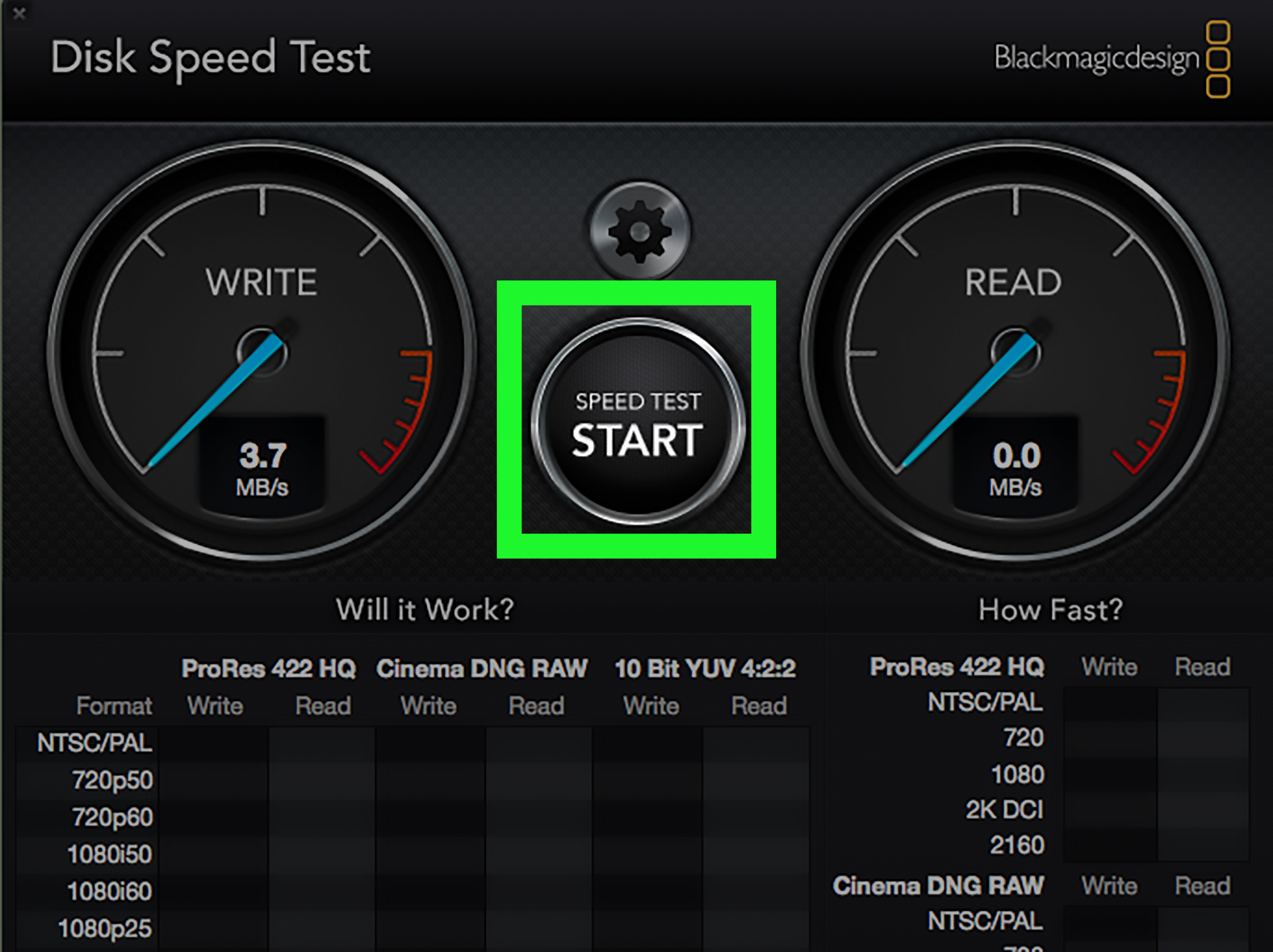
How to test USB speed on Mac with Blackmagic Disk Speed Test
One of the easiest Mac benchmark apps is Blackmagic Disk Speed Test.
- Connect the external USB drive to your Mac.
- Open Blackmagic Disk Speed Test.
- Select the correct target drive in the app settings.
- Click Start.
- Let the write and read tests run for long enough to stabilize.
This app is especially handy because it gives you an immediate, visual feel for sustained read and write performance. If your speed starts high and then falls off a cliff, that tells you something important about the drive’s cache, thermals, or controller behavior.
Use AJA System Test for another view
If you want a second opinion, use AJA System Test. It is a strong option for testing read/write throughput and seeing how a storage device behaves over time. Running two benchmark tools is smart when a result seems suspicious. If both apps tell a similar story, you can trust the pattern more.
Try a Finder copy test too
On a Mac, do the same real-world test you would do on Windows. Copy one giant file, then copy a folder full of small files. Time the transfer with a stopwatch if needed. Synthetic tools are great, but your daily workflow does not care how pretty the benchmark graph looked. It cares how fast your files move.
What USB speeds should you expect?
There is no single “correct” result, but these rough patterns are common:
- USB 2.0 flash drives: usually very slow by modern standards.
- 5Gbps USB 3.x external SSDs: often land in the several-hundred MB/s range.
- 10Gbps USB 3.x external SSDs: often get close to about 1,000MB/s in good conditions.
- 20Gbps USB devices: can go much higher, provided the host, cable, enclosure, and drive all match.
- Thunderbolt or USB4 storage: can go higher still, depending on the actual device and protocol support.
If your result is way below what the hardware class suggests, start looking at the cable, port type, hub, adapter, thermal throttling, drive fullness, file system, and operating mode before assuming the drive is defective.
Why your USB speed test may look slow even when nothing is broken
Sometimes the drive is fine. The setup is just not ideal.
Common reasons for disappointing results
- You used a USB 2.0 cable or charging-only cable.
- You connected through an older hub or adapter.
- The port you used is slower than another port on the same machine.
- The external SSD is overheating and throttling.
- The drive is almost full.
- You tested a cheap flash drive and expected SSD behavior.
- You copied a folder with thousands of tiny files instead of one large file.
- The drive is formatted for compatibility rather than peak performance.
- Background apps, indexing, antivirus, or sync tools were hitting the drive during the test.
That last one matters more than people realize. A drive benchmark does not happen in a vacuum. If cloud sync, malware scanning, photo indexing, or backup software wakes up in the middle of the test, the result can look worse than the hardware deserves.
Quick troubleshooting checklist
If the benchmark result looks wrong, try this in order:
- Reconnect the drive directly to a different port.
- Swap the cable.
- Remove hubs and adapters.
- Reboot the computer.
- Re-run the benchmark with background apps closed.
- Test the same drive on another computer.
- Test another known-fast drive on the same port.
- Check the drive format and free space.
- Update firmware or drivers if the manufacturer provides them.
That process helps you isolate whether the problem follows the drive, the cable, the port, or the computer. Troubleshooting is less glamorous than buying a new SSD, but it is much cheaper.
Real-world experiences testing USB speed on PC or Mac
In real life, testing USB speed often teaches people the same lesson: the drive is only one piece of the story. A lot of users start out convinced they bought a “bad” external SSD because they expected the huge number on the package to appear instantly in Finder or File Explorer. Then they run a benchmark and discover the real issue was a slow cable, a weak hub, or the wrong port. That moment is both frustrating and weirdly satisfying, like solving a mystery in which the suspect was a cable all along.
One of the most common experiences happens on desktops and laptops with multiple USB ports. A user plugs a drive into the most convenient front port, runs a test, and gets underwhelming results. Then they move the same drive to a rear high-speed port or a Thunderbolt-capable USB-C port and suddenly the benchmark jumps. Nothing magical happened. The connection path just changed. This is why port selection matters more than most people expect.
Another classic scenario involves portable SSDs that begin a test looking incredibly fast, then gradually slow down during a long write. People often assume the benchmark app is broken. Usually it is not. What they are seeing is the difference between short-burst performance and sustained performance. Some drives use cache aggressively, so the first few seconds look amazing. Once that cache fills, the speed settles into the device’s true long-run behavior. If you copy giant video files for work, that sustained number matters much more than the flashy first burst.
Mac users often run into a different kind of surprise: everything looks physically connected, but the drive is not behaving as expected because of a permissions prompt, an accessory approval setting, or a cable that supports charging but not the full data speed they assumed. On Apple silicon laptops, that extra security prompt can catch people off guard. On Windows, the equivalent surprise is usually a hidden bottleneck in a dock or a USB policy setting that changes how the system handles the drive.
People who test both a single large file and a folder of small files usually learn the most. A drive that copies one giant movie file quickly may still crawl through 40,000 tiny project files. That does not always mean the hardware is poor. It may simply mean the workload is different. This is why creative professionals, students, editors, and everyday users often report very different impressions of the exact same USB drive.
Probably the most valuable experience is this: after you benchmark a few drives on both PC and Mac, USB speed stops feeling mysterious. You begin to recognize patterns. Slow write but decent read? Possibly a budget flash drive. Great benchmark but sluggish real-world folder copy? Probably tiny-file overhead. Fast on one machine and slow on another? Start with the cable, port, hub, and protocol support. Once you get used to reading those clues, testing USB speed becomes less about numbers and more about understanding the full path your data takes from one device to another.
Final thoughts
If you want to test USB speed on a PC or Mac, the basic formula is simple: verify the connection, use a reliable benchmark tool, run a real-world copy test, and interpret the results in context. CrystalDiskMark is a great choice for Windows. Blackmagic Disk Speed Test and AJA System Test are solid options on Mac. System Information on macOS and USBView on Windows can help confirm whether the connection itself is the problem.
Most importantly, remember that USB speed is a team sport. The port, cable, enclosure, controller, file system, operating system, and workload all get a vote. So when your shiny new external drive underperforms, do not panic. Test smart, change one variable at a time, and let the numbers tell you where the slowdown is hiding.