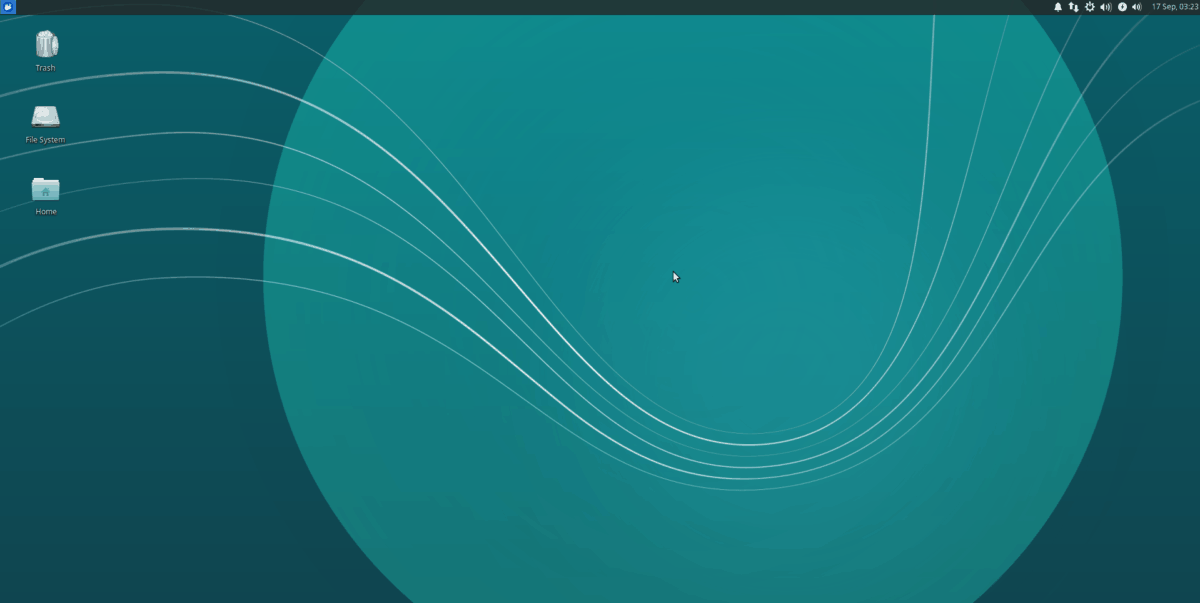
If you have a Raspberry Pi 4 sitting on your desk looking adorable but slightly underemployed, Xubuntu can give it a second life as a surprisingly capable little Linux desktop. And by “little,” I mean “smaller than some sandwiches, yet somehow still demanding updates.”
Xubuntu is a flavor of Ubuntu built around the Xfce desktop environment, which is known for being lightweight, clean, and refreshingly uninterested in wasting your system resources on flashy nonsense. That makes it a natural match for the Raspberry Pi 4, a tiny ARM-based computer that can do a lot more than blink LEDs and pretend it is just for “educational purposes.”
In this guide, you will learn how to use Xubuntu on Raspberry Pi 4 the smart way: what hardware works best, how to install it, which method is easiest, how to improve performance, what apps make sense, and what kind of real-world experience you should expect once the novelty wears off and you actually try to get work done.
What “Using Xubuntu on Raspberry Pi 4” Really Means
Here is the key thing to understand from the start: on a Raspberry Pi 4, the most practical path is usually not hunting for a magical one-click “Xubuntu for Pi” download and hoping for desktop destiny. Instead, most people start with a Raspberry Pi-ready Ubuntu image and then install the Xubuntu desktop packages on top of it.
That sounds more dramatic than it is. In plain English, you are taking a supported Ubuntu base for the Pi and then adding the Xfce-powered Xubuntu experience. The result feels very close to Xubuntu as most people know it: lighter than standard Ubuntu Desktop, faster on modest hardware, and far more pleasant when you would like your tiny computer to stop sounding like it is emotionally overwhelmed by three browser tabs.
Why Xubuntu Makes Sense on Raspberry Pi 4
The Raspberry Pi 4 is a 64-bit board with enough horsepower to run a full Linux desktop, especially if you choose a lighter environment. Xubuntu is appealing because it gives you a traditional desktop layout, good customization, and a lower overhead than a heavier desktop shell.
That matters on the Pi 4. While the board can absolutely run desktop Linux, every saved resource counts. Xfce tends to launch quickly, stay out of your way, and avoid the “why is my tiny board acting like it is rendering a Hollywood movie trailer?” problem that heavier desktops can trigger.
In practical terms, Xubuntu on Raspberry Pi 4 is a good fit for:
- Web browsing with a reasonable number of tabs
- Writing, coding, note-taking, and schoolwork
- SSH, terminal work, and light development
- Office apps and PDFs
- Media playback and light tinkering
- A low-cost desktop for learning Linux
It is not the dream machine for heavy video editing, giant spreadsheets, or opening 47 Chrome tabs because you “might need them later.” The Pi 4 is clever, not magical.
What You Need Before You Start
Recommended Hardware
For the smoothest experience, aim for a Raspberry Pi 4 with 4GB or 8GB of RAM. A 2GB model can work for lighter use, but the more RAM you have, the less often your Pi will stare into the void when you open a browser and a few apps at the same time.
You should also have:
- A quality microSD card, ideally 32GB or larger
- A proper USB-C power supply
- A keyboard, mouse, and display
- Cooling, such as a heatsink or fan
- An external USB 3.0 SSD if you want faster performance
The SSD part is worth highlighting. If you want Xubuntu on Raspberry Pi 4 to feel noticeably snappier, booting from USB storage is often one of the biggest upgrades you can make.
The Best Installation Methods
There are two sensible ways to get Xubuntu running on a Pi 4.
Method 1: Install Ubuntu Desktop, Then Add Xubuntu
This is the easiest route for most users. You start with Ubuntu Desktop for Raspberry Pi, boot it, update it, and then install Xubuntu packages.
This method is great if:
- You want a visual installer-like experience after first boot
- You are more comfortable starting from a desktop
- You want a fallback desktop in case you change your mind later
Method 2: Install Ubuntu Server, Then Add Xubuntu
This route is leaner and often cleaner. You flash Ubuntu Server to the Pi, boot into a terminal environment, then install the Xubuntu desktop packages yourself.
This method is great if:
- You want a lighter starting point
- You prefer less preinstalled desktop overhead
- You are comfortable using the terminal
- You want more control over what gets installed
For many people who want the best balance of speed and simplicity, Ubuntu Server plus a Xubuntu minimal desktop is the sweet spot.
How to Install Xubuntu on Raspberry Pi 4
Step 1: Flash Ubuntu to Your microSD Card or SSD
Install Raspberry Pi Imager on your Windows, macOS, or Linux computer. Then choose a Raspberry Pi-compatible Ubuntu image. If you want the easiest path, pick Ubuntu Desktop for Raspberry Pi 4. If you want to build a lighter setup from scratch, pick Ubuntu Server for Raspberry Pi.
If you are using Raspberry Pi Imager’s advanced settings, preconfigure useful things before flashing:
- Hostname
- Username and password
- Wi-Fi credentials
- SSH access
- Locale and keyboard layout
This saves time and prevents that classic first-boot ritual where your Pi acts like it has never heard of your Wi-Fi network despite the fact that you typed the password three times and glared at it lovingly.
Step 2: First Boot and Update Everything
Boot your Pi 4 and let Ubuntu finish its initial setup. Then open a terminal and run:
After rebooting, your system will be in better shape, with fresher packages and fewer surprises.
Step 3: Install the Xubuntu Desktop Packages
If you want a lighter Xubuntu-style setup, install the minimal package set first:
If you want the fuller Xubuntu experience with more defaults and extras, use:
During installation, you may be asked which display manager to use. Choose lightdm for the most Xubuntu-like experience.
When the install finishes, reboot:
Step 4: Select the Xfce Session
At the login screen, look for a session chooser. If more than one desktop is available, choose the Xfce or Xubuntu session. Log in, and you should land in a leaner, cleaner desktop environment that feels much more at home on Pi hardware.
How to Make Xubuntu Faster on Raspberry Pi 4
Getting Xubuntu installed is only half the game. The other half is making it pleasant enough that you do not start negotiating with your computer like it is a stubborn goat.
1. Use an External SSD
This is the biggest real-world upgrade. Booting from a USB 3.0 SSD usually feels faster than using a microSD card, especially for updates, app launches, and browser-heavy workloads.
2. Pick the Minimal Desktop
If your goal is speed, install xubuntu-desktop-minimal instead of the full desktop metapackage. You can always add apps later. Starting lean is easier than uninstalling half the internet afterward.
3. Add Cooling
The Pi 4 can get warm under load. A case with a fan or at least a heatsink helps maintain more stable performance during updates, browsing, package installs, and media playback.
4. Keep Startup Clean
Open session and startup settings in Xfce and disable apps you do not need launching automatically. Fewer background processes means more breathing room.
5. Be Realistic About Browsers
A modern web browser is often the heaviest thing you will run. Keep tab counts under control, avoid loading ten media-heavy sites at once, and consider web apps only when they actually help instead of becoming browser-shaped clutter.
6. Tune the Desktop for Smoothness
Xfce is already lightweight, but you can go further by using a simple wallpaper, avoiding too many panel plugins, and disabling visual effects you do not care about. Pretty is nice. Responsive is nicer.
What Apps Work Well in a Xubuntu Pi Setup
One reason Xubuntu shines on the Pi 4 is that its default ecosystem makes sense for modest hardware. A few especially useful tools include:
- Thunar for file management
- Mousepad for quick text editing
- Xfce Terminal for shell access
- Ristretto for images
- Firefox for general browsing
- LibreOffice for office work
- VS Code alternatives or lightweight editors for coding
If you are building a Pi 4 workstation for writing or coding, Xubuntu gives you a nice balance: it feels like a normal desktop computer, but it is less demanding than a heavyweight environment.
Common Problems and Fixes
The Pi Boots to a Terminal Instead of the Desktop
Try these commands:
This usually helps if the graphical login manager did not get enabled the way you expected.
The Desktop Feels Slow
Switch to an SSD, reduce startup apps, keep browser tabs modest, and use the minimal package set. Also check whether your Pi is running hot; thermal throttling can quietly ruin the fun.
Storage Fills Up Too Fast
Use a larger card or an SSD. Desktop Linux plus updates plus a browser cache plus your downloads folder full of “temporary” files can add up fast.
Wi-Fi Is Fine, but Not Great
Whenever possible, use Ethernet for the initial setup and major updates. It removes one more variable and makes life easier when troubleshooting.
Is Xubuntu Better Than Raspberry Pi OS?
That depends on what you want.
If you want the most native, Pi-specific experience with tight hardware integration, Raspberry Pi OS is still the obvious choice. It is purpose-built for the board and often the smoothest option for beginners.
But if you want an Ubuntu-based workflow, easier alignment with Ubuntu packages, a more familiar Xfce desktop, and a system that feels closer to a standard Linux PC, Xubuntu on Raspberry Pi 4 is a very appealing setup.
In other words, Raspberry Pi OS is the hometown favorite. Xubuntu is the cool cousin who shows up with better customization and a slightly more serious work ethic.
Final Thoughts
If you have been wondering how to use Xubuntu on Raspberry Pi 4, the answer is delightfully straightforward: start with a supported Ubuntu image for the Pi, install Xubuntu’s desktop packages, choose the lighter configuration where possible, and pair it with decent storage and cooling.
The result is a flexible, lightweight Linux desktop that makes the most of the Pi 4’s hardware without asking it to pretend it is a gaming tower. For writing, browsing, coding, learning Linux, and everyday tinkering, it can be genuinely enjoyable.
Will it replace a modern high-end laptop? No. Will it make a tiny, affordable board feel surprisingly grown-up? Absolutely. And that is half the charm of the Raspberry Pi in the first place.
Real-World Experience: What It Is Actually Like to Use Xubuntu on Raspberry Pi 4
Using Xubuntu on Raspberry Pi 4 feels a bit like moving into a small apartment that has been arranged by someone with excellent taste. You do not have infinite space, but everything is where it should be, and nothing is wasting your time. The desktop loads with less fuss than heavier environments, the panel stays familiar, and the overall vibe is calm instead of chaotic.
The first thing most people notice is that Xfce gives the Pi 4 room to breathe. Menus open quickly, settings are easy to find, and routine tasks such as editing files, opening terminals, or managing folders feel light and direct. That makes the board feel more like a practical computer and less like a science project that occasionally lets you check email.
Web browsing is where reality politely taps you on the shoulder. It is fine for normal use, especially with a handful of tabs, a streaming service, documentation pages, and some light research. But if you open massive sites loaded with scripts, autoplay media, trackers, and enough pop-ups to start a small carnival, the Pi 4 will remind you that physics is still in charge. Xubuntu helps, but it cannot turn excess into efficiency.
For writing and coding, though, the experience is better than many people expect. Xfce stays out of the way, text editors are responsive, terminal work feels natural, and the whole system rewards a focused workflow. If your idea of productivity is a browser, a Markdown editor, a terminal, and maybe a music stream in the background, the Pi 4 running Xubuntu can feel genuinely comfortable.
There is also a fun psychological difference compared with heavier desktop systems. Because resources are limited, you become more intentional. You stop installing random junk. You keep your workspace cleaner. You appreciate software that launches fast and does one job well. In a strange way, Xubuntu on a Pi 4 encourages better computing habits simply because it refuses to indulge your digital bad manners.
Booting from an SSD improves the experience so much that it almost feels like cheating. App launches become less annoying, updates stop dragging their feet quite as dramatically, and the system feels more solid under pressure. Add decent cooling, and the Pi 4 becomes a far more dependable little workstation than its size suggests.
What stands out most over time is that Xubuntu gives the Raspberry Pi 4 dignity. Instead of feeling like a compromise, it feels like a purposeful machine. Not overpowered, not flashy, not trying to impress the benchmark crowd. Just useful, responsive, customizable, and oddly charming. It is the kind of setup that makes you smile because it works better than it has any right to. And honestly, that is peak Raspberry Pi energy.