Viewing photos in Windows 10 should not feel like cracking a spy-code folder labeled “Vacation_Final_FINAL_ActuallyFinal.” Luckily, Windows 10 includes several simple ways to open, browse, import, organize, zoom, edit, and troubleshoot pictures without installing a mystery app that promises “super fast photo magic” and then asks for your email, your shoe size, and possibly your firstborn printer.
This guide explains how to view photos in Windows 10 using the built-in Photos app, File Explorer, the Pictures folder, USB imports, thumbnails, slideshows, and default app settings. It also covers common problems such as photos opening in the wrong app, missing thumbnails, HEIC files not opening, and the Photos app refusing to launch because apparently even software needs a dramatic day off.
Main keyword: how to view photos in Windows 10. Related terms include Windows 10 Photos app, open pictures on Windows 10, view image thumbnails, import photos to Windows 10, photo viewer Windows 10, and Windows 10 photo troubleshooting.
What Is the Default Photo Viewer in Windows 10?
On most Windows 10 computers, the built-in Microsoft Photos app is the default photo viewer. It lets you open common image files, browse through pictures, zoom in, rotate images, make basic edits, import media from a phone or camera, and share photos. For everyday users, it is usually enough. You do not need professional editing software just to confirm whether your dog looked noble, blurry, or both.
Windows 10 also gives you another helpful tool: File Explorer. File Explorer is where you browse folders such as Desktop, Downloads, Pictures, OneDrive, external drives, SD cards, and USB devices. If Photos is the showroom, File Explorer is the storage room where all the photo boxes live.
How to View Photos in Windows 10 Using File Explorer
The fastest way to view a photo in Windows 10 is through File Explorer. This method works well when you already know where the image is saved.
Step 1: Open File Explorer
Click the yellow folder icon on the taskbar. You can also press Windows + E on your keyboard. If your keyboard has been collecting crumbs since 2018, this may be its moment of glory.
Step 2: Go to the Folder That Contains Your Photos
Common places include:
- Pictures for saved images and camera imports
- Downloads for photos saved from email, browsers, or messaging apps
- Desktop for photos you planned to organize “later”
- OneDrive for synced cloud photos
- USB drive or SD card for camera files
Step 3: Double-Click the Photo
Double-click any JPG, PNG, BMP, GIF, or supported image file. Windows should open it in the Photos app unless another program has been set as the default. Once the photo opens, use the arrow buttons or keyboard arrow keys to move to the next or previous image in the same folder.
How to View Photos Using the Windows 10 Photos App
The Photos app is useful when you want a more gallery-like experience. Instead of opening one image at a time from a folder, you can browse collections and albums.
Step 1: Open the Photos App
Click Start, type Photos, and select the Photos app from the search results. You can also pin it to the taskbar if you open photos often.
Step 2: Browse Your Collection
The Photos app may show pictures from your Pictures folder, OneDrive, iCloud Photos if configured, and other included locations. If a folder is missing, check the app settings and add the folder location. This is helpful if you store images in a custom folder named something like “Camera Stuff,” “Memes,” or “Do Not Delete Seriously.”
Step 3: Open and Navigate Photos
Click a photo to open it. Use the left and right arrows to move through nearby photos. You can zoom, rotate, favorite, edit, or delete pictures from the viewing screen. Be careful with delete, because Windows does not know that “just testing” means “please save me from myself.”
How to View Photo Thumbnails in Windows 10
Thumbnails are small previews of images inside File Explorer. They make photo browsing much easier because you can see the image before opening it. Without thumbnails, every file looks like a tiny digital mystery box.
Change the Folder View
Open the folder that contains your photos, then click the View tab in File Explorer. Choose Large icons or Extra large icons. Windows will show bigger photo previews, which is perfect when you are trying to find the one decent group photo where nobody blinked.
Turn On Thumbnails If They Are Missing
If you only see generic icons, try this:
- Open File Explorer.
- Click View.
- Select Options.
- Open the View tab.
- Uncheck Always show icons, never thumbnails.
- Click Apply, then OK.
If thumbnails still do not appear, Windows may need time to rebuild the thumbnail cache, especially in folders with hundreds or thousands of pictures. Translation: the computer is thinking, but in a very Windows way.
How to Preview Photos Without Fully Opening Them
Windows 10 File Explorer includes a Preview pane that can help you glance at selected files. Open File Explorer, click the View tab, and choose Preview pane. Then select a photo file. If supported, a larger preview appears on the right side of the window.
This is useful when sorting photos quickly. For example, you can click through images from a school project, product shoot, family event, or recipe collection without launching each file in the Photos app.
How to Zoom, Rotate, and View Photo Details
After opening a photo in the Photos app, you can use the toolbar to zoom in, zoom out, rotate, or view more details. Zooming is especially useful for checking small text, faces, focus quality, or whether the “bird” in your nature photo is actually a leaf with confidence issues.
Useful Viewing Controls
- Mouse wheel: Scroll to move or zoom depending on app behavior and settings.
- Ctrl + mouse wheel: Often helps zoom in and out in Windows interfaces.
- Arrow keys: Move to the next or previous photo.
- Rotate button: Turn sideways images without needing an editing program.
- File info/details: Check file name, size, date, resolution, and location.
If you need larger on-screen viewing across Windows, use Magnifier. Press Windows + Plus (+) to turn it on and Windows + Esc to turn it off. This can help users who need bigger text, icons, or image details.
How to Import Photos from a Phone or Camera
If your pictures are still trapped on your phone, camera, or SD card, Windows 10 can import them. The process is simple, although your phone may first ask whether it should trust the computer. This is fair. Computers have done suspicious things.
Import Photos with a USB Cable
- Connect your phone or camera to the PC using a USB cable that supports data transfer.
- Unlock the phone. A locked phone may not show its photos to Windows.
- Open the Photos app.
- Select Import.
- Choose the connected device.
- Select the photos you want to import.
- Choose the destination folder and start the import.
If the device does not appear, try another cable, check the phone notification for USB transfer options, restart the Photos app, or use File Explorer to open the device manually. Some charging cables only charge; they do not transfer data. They are the decorative pillows of the cable world: nice, but not always useful.
How to View Photos from an SD Card or USB Drive
Insert the SD card or USB drive into your computer. If a pop-up appears, choose to open the folder in File Explorer. If nothing happens, press Windows + E, select This PC, and open the removable drive.
Camera photos are often stored in a folder named DCIM. Open that folder, choose a large icon view, and double-click any image. You can copy photos to your computer by selecting them, pressing Ctrl + C, opening a folder such as Pictures, and pressing Ctrl + V.
How to Set Photos as the Default Photo Viewer
If pictures open in Paint, a browser, or another app when you double-click them, change the default photo viewer.
Method 1: Use Windows Settings
- Click Start.
- Open Settings.
- Select Apps.
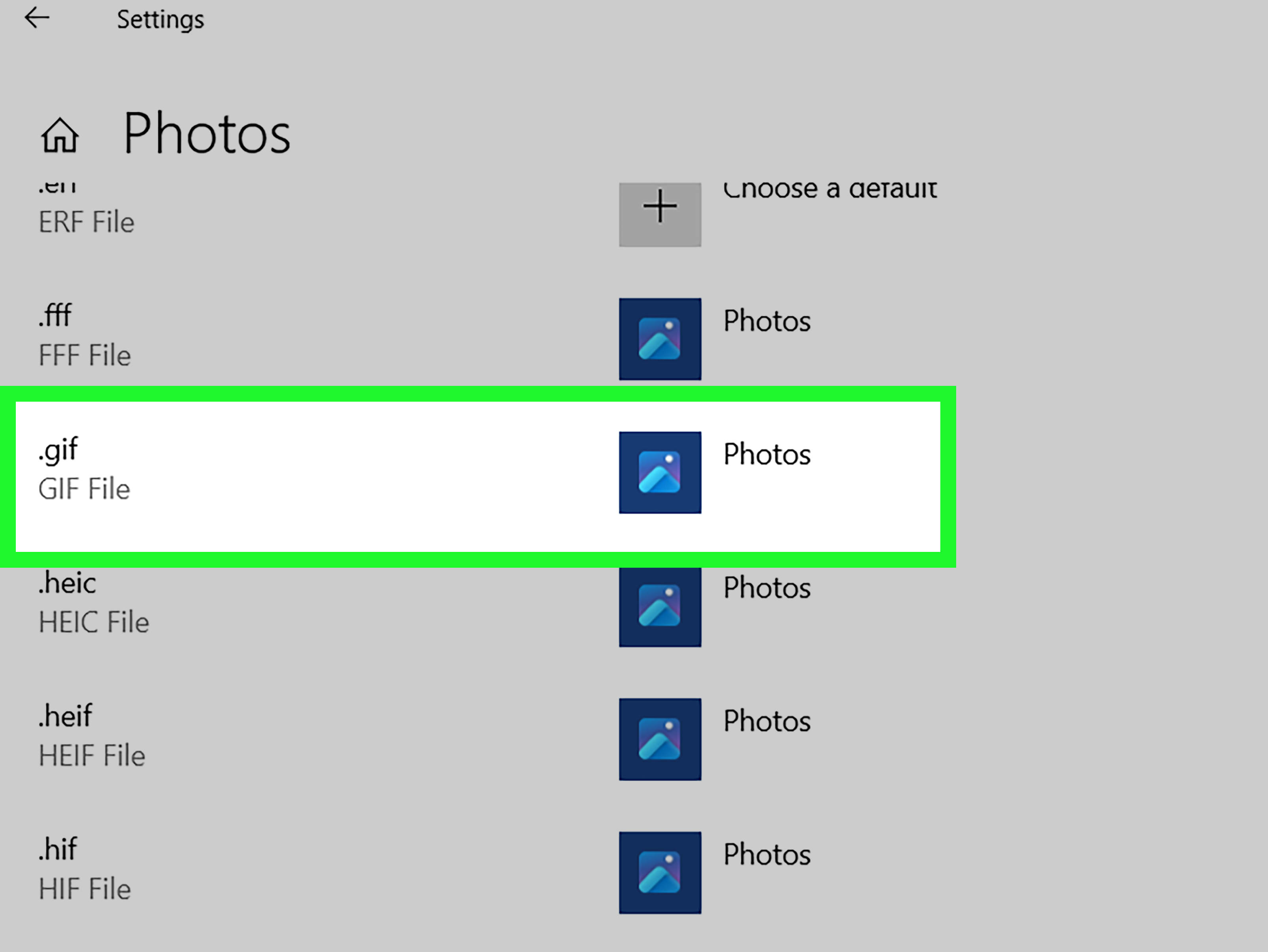
- Choose Default apps.
- Find the photo viewer section or search by file type.
- Select Photos for image formats such as .jpg, .jpeg, .png, .bmp, or .gif.
Method 2: Use “Open With”
- Right-click a photo file.
- Select Open with.
- Choose Choose another app.
- Select Photos.
- Check Always use this app to open files of that type.
- Click OK.
Repeat this for different file types if needed. Setting JPG does not always set PNG, and setting PNG does not automatically make Windows understand your entire emotional relationship with screenshots.
How to Open HEIC Photos in Windows 10
Many iPhones save photos as HEIC or HEIF files. These formats keep image quality high while using less storage, but older Windows 10 setups may not open them without extra support.
If a HEIC photo does not open, install the official HEIF Image Extensions from the Microsoft Store. Some HEIC media may also require HEVC video support, depending on how the file was created. After installation, restart the Photos app and try opening the file again.
Another easy workaround is to change your iPhone camera setting to save photos as “Most Compatible,” which uses JPEG. That is not always necessary, but it can make sharing with older computers simpler.
How to Edit a Photo After Viewing It
The Photos app is not Photoshop, and that is good news if all you need is a quick fix. You can crop, rotate, adjust brightness, tweak color, apply filters, and save a copy.
Basic Editing Steps
- Open a photo in the Photos app.
- Click Edit image or the edit icon.
- Choose crop, rotate, adjustment, or filter tools.
- Preview the result.
- Save a copy if you want to keep the original unchanged.
Saving a copy is a smart habit. It prevents the classic “I cropped Grandma out of the only good holiday photo” situation, which is not technically a computer error but may still require emotional tech support.
How to Organize Photos in Windows 10
Viewing photos is easier when your folders are not a digital laundry pile. Start with a simple structure:
- Pictures > Family
- Pictures > Travel
- Pictures > School
- Pictures > Work
- Pictures > Screenshots
- Pictures > To Edit
Use clear names like 2026-05-New-York-Trip or Product-Photos-May-2026. Dates at the beginning help folders sort neatly. Avoid names like “New Folder,” “New Folder 2,” and “New Folder 2 Real One,” unless you enjoy future archaeology.
How to Search for Photos in Windows 10
Open File Explorer and use the search box in the upper-right corner. You can search by file type, date, or name. For example:
- *.jpg finds JPG images.
- *.png finds PNG screenshots and graphics.
- date: this month helps locate recent files.
- kind:=picture can help filter image files.
If you rename photos with descriptive words, search becomes much easier. “blue-shirt-headshot.jpg” is more useful than “IMG_4937.jpg,” unless you have a supernatural memory for camera numbers.
Common Problems and Fixes
Photos App Will Not Open
Go to Settings > Apps > Apps & features, select Microsoft Photos, choose Advanced options, and try Repair. If that fails, try Reset. Repair attempts to fix the app without removing its data. Reset is stronger and may clear app settings.
Photos Open Slowly
Large image files, cloud-only files, slow drives, or a huge photo library can make opening photos slower. Try copying the image to your local Pictures folder, closing unused apps, updating Photos from Microsoft Store, or restarting the PC.
Thumbnails Are Missing
Use Large icons or Extra large icons in File Explorer. Then check Folder Options and make sure “Always show icons, never thumbnails” is turned off. If necessary, use Disk Cleanup to clear thumbnail cache so Windows can rebuild it.
Photos Open in the Wrong App
Change your default app in Settings > Apps > Default apps, or right-click an image and use Open with. Remember to check the box that makes the choice permanent for that file type.
Imported Photos Are Hard to Find
Check the Pictures folder first. Also check folders named by date or device. If you used OneDrive, look in the OneDrive Pictures folder. If you imported manually, search File Explorer for *.jpg or sort by date modified.
Windows 10 Support Note
Windows 10 reached the end of regular support on October 14, 2025. If you still use Windows 10 online, keep security in mind. Microsoft offers Extended Security Updates for eligible users through October 13, 2026, and Windows may encourage upgrading to Windows 11 on supported devices. Viewing photos still works on Windows 10, but an unsupported system can become riskier over time, especially if it connects to the internet.
FAQ: How to View Photos in Windows 10
What is the easiest way to view photos in Windows 10?
The easiest method is to open File Explorer, go to the folder containing your photos, and double-click an image. It should open in the Microsoft Photos app by default.
Where are my photos stored in Windows 10?
Most photos are stored in the Pictures, Downloads, Desktop, OneDrive, or camera import folders. Photos copied from cameras may also be inside a DCIM folder.
Can I view photos without the Photos app?
Yes. You can preview photos in File Explorer, open them with Paint, use another installed viewer, or use a browser for some image formats. However, Photos is the built-in option for most users.
How do I make thumbnails bigger?
Open the folder, click the View tab, and choose Large icons or Extra large icons. This makes photo previews easier to see.
Why can’t I open HEIC photos?
Windows 10 may need the HEIF Image Extensions from Microsoft Store. Some files may also need HEVC support. Installing the needed extension usually solves the problem.
How do I import pictures from my phone?
Connect your phone with a data-capable USB cable, unlock the phone, open Photos, select Import, choose your device, and follow the prompts.
How do I stop photos from opening in Paint?
Change the default photo viewer in Settings or right-click an image, choose Open with, select Photos, and check the option to always use that app for the file type.
Can I view photos as a slideshow?
Yes. Open a photo in the Photos app and look for slideshow or playback options depending on your app version. You can also select multiple photos in File Explorer and open them together.
Personal Experience: What Actually Makes Viewing Photos Easier in Windows 10
After helping many everyday users organize and view photos in Windows 10, one lesson stands out: the problem is rarely “I do not know how to open a picture.” The real problem is usually “I have 14,000 pictures, five folders named New Folder, three cloud accounts, two phones, and no idea where the birthday photos went.” Windows 10 gives you enough tools, but the experience becomes much smoother when you build a simple habit around them.
The first habit is to use the Pictures folder as home base. Even if you import from a phone, download from email, or copy from a camera card, move important images into organized folders under Pictures. This reduces the endless treasure hunt through Downloads, Desktop, and random USB drives. I have seen users spend twenty minutes searching for an image that was sitting in Downloads the whole time, quietly judging everyone.
The second habit is to rename folders, not every single image. Renaming 800 photos one by one is a recipe for giving up and making coffee. Instead, create useful folders such as “2026-04-Family-Reunion” or “2026-05-Website-Product-Photos.” Inside that folder, the original camera file names are acceptable. The folder name gives enough context, and File Explorer can still sort by date.
The third habit is to use thumbnails properly. Many people open every image one by one because their folder is set to Details view. Switching to Large icons or Extra large icons instantly makes browsing faster. It feels small, but it changes the whole experience. Suddenly, you can spot the right image visually instead of playing a slow game of “IMG_1029 or IMG_1030?”
The fourth habit is to keep originals. If you crop, rotate, brighten, or filter a picture, save a copy when possible. This matters for school projects, work images, family photos, online store photos, and anything sentimental. A quick edit can improve a photo, but an accidental overwrite can turn into a tiny tragedy wearing a file extension.
The fifth habit is to learn where imported photos go. During import, Windows usually lets you choose a destination. Do not click through too fast. Pick a folder you will remember. If you import often, create a folder called “Phone Imports” or “Camera Imports,” then sort later. It is not perfect, but it is better than letting each import become a mystery novel.
Finally, do not ignore cloud folders. OneDrive can be helpful, but it can also confuse users who expect everything to be stored only on the computer. If a photo shows a cloud icon or takes time to open, it may be online-only. For important photos you need offline, right-click the folder or file and choose the option to keep it on the device, if available. This is especially useful before travel, presentations, or editing work.
In short, the best Windows 10 photo-viewing experience comes from combining Photos for viewing, File Explorer for organization, thumbnails for quick scanning, and smart folder names for sanity. The tools are already there. You just need to stop letting your Downloads folder run the household.
Conclusion
Learning how to view photos in Windows 10 is mostly about knowing which tool to use. File Explorer is best for finding and organizing image files. The Photos app is best for opening, browsing, importing, rotating, and making quick edits. Default app settings help when pictures open in the wrong program. Thumbnail settings make browsing faster. HEIF extensions solve many iPhone photo issues. Repair and reset options can rescue the Photos app when it acts like it has joined a silent protest.
Once your folders are organized and your default viewer is set, Windows 10 becomes a comfortable place to browse photos, whether you are reviewing family memories, school images, product photos, screenshots, camera imports, or that one blurry sunset you refuse to delete because it “had potential.”