Learning how to write basic SQL statements in SQL Server is a little like learning how to talk to a very organized librarian. Ask clearly, and SQL Server brings you exactly the rows you need. Ask vaguely, and it may hand you the entire library, alphabetized by chaos. The good news? You do not need to become a database wizard overnight. You only need to understand the core building blocks: how to create tables, insert data, query records, filter results, update rows, delete safely, and join related information.
This beginner-friendly guide walks through 11 practical steps for writing SQL Server statements using Transact-SQL, often called T-SQL. T-SQL is Microsoft’s version of SQL used in SQL Server, Azure SQL Database, and related Microsoft data platforms. The examples below are simple enough for beginners but structured carefully enough to help you avoid classic database mistakes, such as deleting every customer because you forgot a WHERE clause. That one is not a “learning moment.” That is a “call your manager and breathe into a paper bag” moment.
By the end, you will know how to write basic SQL queries in SQL Server with confidence, read tables, filter data, sort results, use joins, group records, and practice safely in SQL Server Management Studio or Azure Data Studio.
What Are SQL Statements in SQL Server?
SQL statements are commands that tell a relational database what to do. In SQL Server, these statements are written in T-SQL. You use them to create database objects, retrieve information, add rows, change existing records, remove data, and control how results are displayed.
Most beginner SQL Server statements fall into a few major categories:
- Data Definition Language (DDL): Commands such as
CREATE TABLEandALTER TABLEthat define database structure. - Data Manipulation Language (DML): Commands such as
INSERT,UPDATE, andDELETEthat change table data. - Data Query Language (DQL): Most commonly
SELECT, which retrieves data. - Filtering and organizing clauses: Clauses such as
WHERE,ORDER BY,GROUP BY, andHAVING.
Think of SQL as a precise request system. Instead of saying, “Show me some sales stuff,” you say, “Show me the customer name, order date, and total amount from orders placed after January 1, sorted by newest first.” SQL Server appreciates your manners.
How to Write Basic SQL Statements in SQL Server: 11 Steps
Step 1: Open SQL Server Management Studio or Azure Data Studio
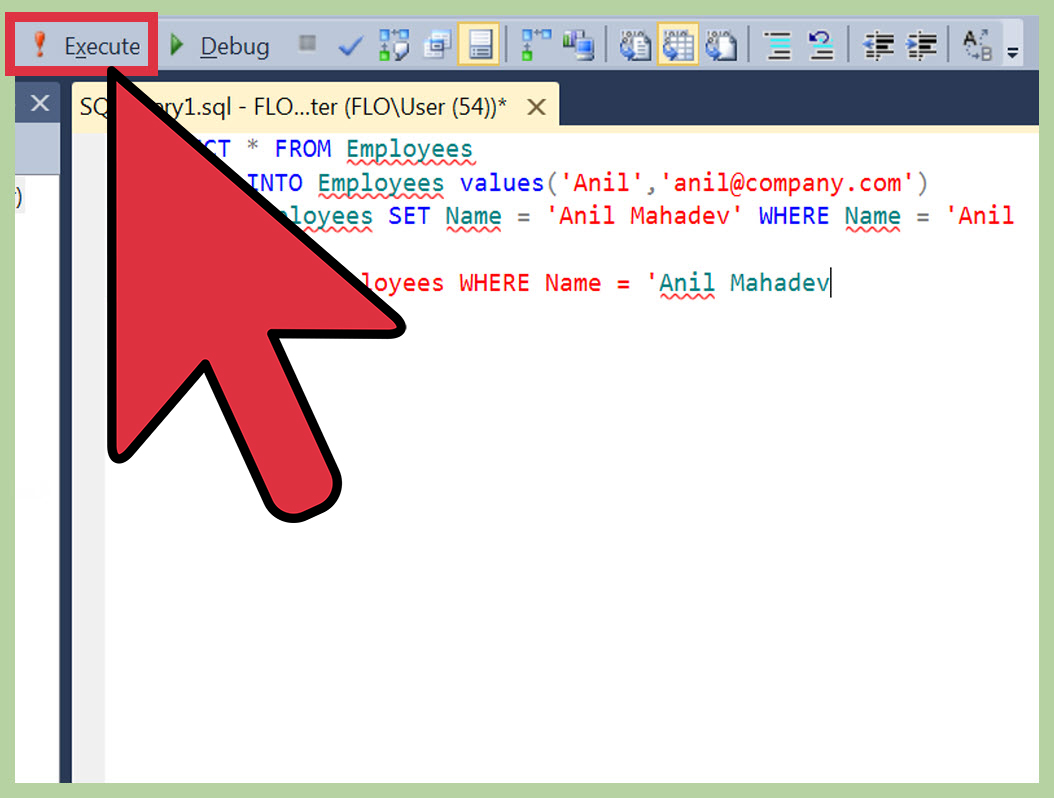
Before writing SQL statements, you need a place to run them. Many SQL Server users work in SQL Server Management Studio, commonly called SSMS. Azure Data Studio is another popular option, especially for developers who like a lighter, modern editor.
Connect to your SQL Server instance, open a new query window, and select the database you want to use. If you are practicing, create a test database instead of experimenting inside a production database. Production data is not a sandbox; it is the company’s nervous system.
The USE statement tells SQL Server which database your query should run against. The GO command is commonly used in SQL Server tools to separate batches. It is not technically a T-SQL statement, but it is useful when running scripts in SSMS.
Step 2: Understand the Basic SQL Server Statement Structure
Most SQL statements follow a logical pattern. A simple query usually starts with SELECT, names the columns you want, identifies the table with FROM, and optionally filters with WHERE.
SQL Server is not generally case-sensitive for keywords, so select and SELECT can both work depending on database collation and context. However, using uppercase keywords makes your SQL easier to scan. Future-you will thank present-you, probably while drinking coffee and debugging something weird.
Semicolons are recommended at the end of SQL statements. SQL Server does not always require them for older syntax, but using them is a clean habit and helps avoid issues with certain statements.
Step 3: Create a Simple Table
To store data, you need a table. A table is made of columns and rows. Columns define the type of information stored, such as customer names, email addresses, dates, or prices. Rows contain actual records.
Here is a basic CREATE TABLE statement:
This statement creates a table named Customers. The CustomerID column uses IDENTITY(1,1), meaning SQL Server automatically generates values starting at 1 and increasing by 1. The PRIMARY KEY uniquely identifies each row. The NOT NULL rule means the column must have a value. The UNIQUE rule helps prevent duplicate email addresses.
Choosing the right data type matters. Use INT for whole numbers, DECIMAL for money-like values requiring precision, NVARCHAR for Unicode text, and DATETIME2 for date and time values. Do not store dates as random text unless you enjoy future suffering.
Step 4: Insert Data with INSERT INTO
Once you have a table, you can add rows with INSERT INTO. Always name the columns you are inserting into. This makes your statement clearer and protects your code if the table structure changes later.
You can also insert multiple rows at once:
Notice that the CustomerID and CreatedDate columns are not included. SQL Server fills them automatically because one is an identity column and the other has a default value.
Step 5: Retrieve Data with SELECT
The SELECT statement is the superstar of basic SQL queries in SQL Server. It retrieves data from one or more tables.
You can use SELECT * to retrieve all columns, but be careful. It is fine for quick exploration, but in real work, select only the columns you need. Pulling every column from a large table can slow performance and make your result set harder to read.
Use aliases to make column names friendlier in the output:
Square brackets are commonly used in SQL Server when column aliases contain spaces. They are also useful when object names include special characters, although naming things cleanly is usually better than adding brackets everywhere like decorative database jewelry.
Step 6: Filter Rows with WHERE
The WHERE clause limits results to rows that match a condition. Without it, SQL Server returns every row from the table.
You can use comparison operators such as =, <>, >, <, >=, and <=.
For pattern matching, use LIKE:
The percent sign works as a wildcard. In this example, SQL Server finds email addresses ending with example.com.
You can combine filters with AND and OR:
Step 7: Sort Results with ORDER BY
The ORDER BY clause sorts your query results. Without it, SQL Server does not guarantee the order of returned rows, even if the results appear sorted by accident. Databases are not mind readers; they are rule followers.
DESC sorts from newest to oldest or highest to lowest. ASC sorts from oldest to newest or lowest to highest. Ascending order is the default, but writing it explicitly can make your intention clearer.
This sorts customers by last name first, then first name. It is simple, readable, and much better than scrolling through random rows like you are hunting for socks in a laundry basket.
Step 8: Update Existing Records Safely
The UPDATE statement changes existing rows. This is where beginners need to slow down and double-check the WHERE clause. An UPDATE without WHERE changes every row in the table.
First, preview the row you plan to update:
Then update it:
You can update more than one column:
After running an update, verify the result:
This select-before-and-after habit is boring in the best possible way. Boring database habits prevent exciting database disasters.
Step 9: Delete Rows with DELETE, Not Panic
The DELETE statement removes rows from a table. Like UPDATE, it should almost always include a WHERE clause.
Preview first:
Then delete:
If you omit the WHERE clause, SQL Server deletes all rows from the table:
That statement is valid, but it is also the kind of valid that can ruin a perfectly nice Tuesday. When practicing, use a test database. In professional environments, use transactions, backups, permissions, and review processes before deleting important data.
Step 10: Join Tables to Combine Related Data
Relational databases become powerful when you connect related tables. For example, customers may place orders. Instead of storing customer details repeatedly in every order row, you store customers in one table and orders in another, then connect them with keys.
Create an Orders table:
Insert a few orders:
Now use an INNER JOIN to show customer names with their orders:
The aliases c and o make the query shorter. The ON condition tells SQL Server how the tables are related. An INNER JOIN returns matching rows from both tables. If a customer has no orders, that customer will not appear in this result.
If you want all customers, including those without orders, use LEFT JOIN:
Joins are one of the most important SQL Server skills. They let you answer real business questions, such as which customers ordered this month, which products sold best, and which invoices are still unpaid.
Step 11: Group Data with GROUP BY and HAVING
The GROUP BY clause organizes rows into groups, usually so you can calculate totals, counts, averages, minimums, or maximums. Use aggregate functions such as COUNT, SUM, AVG, MIN, and MAX.
For example, count how many orders each customer has:
Calculate total spending by customer:
Use HAVING to filter grouped results. The WHERE clause filters rows before grouping, while HAVING filters groups after aggregation.
This query shows customers whose total order value is greater than 100. That is the kind of query a sales team, finance team, or mildly curious spreadsheet enthusiast might love.
Common SQL Server Mistakes Beginners Should Avoid
Using SELECT * Everywhere
SELECT * is convenient during practice, but it can be inefficient in real applications. It returns every column, including columns you may not need. If the table later changes, your application may receive unexpected data. Name the columns you want.
Forgetting WHERE in UPDATE or DELETE
This is the classic beginner mistake. Before running UPDATE or DELETE, write a SELECT statement with the same WHERE clause. Confirm the rows are correct. Then run the change.
Ignoring Data Types
Data types are not decoration. They affect storage, validation, sorting, calculations, and performance. Store numbers as numbers, dates as dates, and text as text. Your database is not a junk drawer.
Not Formatting Queries
Readable SQL is easier to debug. Put major clauses on separate lines, indent joins and conditions, and use consistent aliases. SQL Server does not care if your query looks elegant, but humans do, and humans usually have to fix it later.
Confusing WHERE and HAVING
Use WHERE to filter individual rows before aggregation. Use HAVING to filter grouped results after aggregation. If your condition involves SUM, COUNT, or another aggregate function, there is a good chance HAVING belongs in the conversation.
Best Practices for Writing Basic SQL Queries in SQL Server
Good SQL is not only about getting the right answer. It is about getting the right answer clearly, safely, and efficiently. Start by writing simple queries and testing them in small pieces. If you need a complicated report, build it one step at a time: first query one table, then add filters, then add joins, then add grouping.
Use meaningful table and column names. A table named Orders is better than Tbl_Ord_2024_Final_v3, which sounds like it escaped from someone’s desktop. Use consistent naming patterns so other people can understand your database without needing a treasure map.
When modifying data, use transactions for extra safety:
The example above starts a transaction, performs an update, checks the result, and rolls it back. If the change is correct and you want to keep it, use COMMIT TRANSACTION instead of ROLLBACK TRANSACTION. Transactions are like the “are you sure?” button SQL Server kindly lets you build for yourself.
Practice Exercise: Build a Mini SQL Server Query
Here is a small practice challenge. Suppose your manager asks, “Which customers spent more than $100, and how much did they spend?” You can answer with a joined, grouped, filtered, and sorted query:
This one query uses several beginner SQL Server skills at once: SELECT, aliases, INNER JOIN, GROUP BY, HAVING, SUM, and ORDER BY. That is a strong foundation. You are no longer just poking at tables; you are asking structured questions and getting useful answers.
Real-World Experience: What Writing Basic SQL in SQL Server Actually Feels Like
The first time many people write SQL Server statements, they expect it to feel like programming. Sometimes it does. But often, SQL feels more like asking a very literal person to organize a filing cabinet. You must be specific. If you ask for “customers,” SQL Server gives customers. If you ask for “all customers,” it gives all customers. If you accidentally ask it to update every customer’s email address to the same value, it may do exactly that with terrifying obedience.
One of the most useful habits from real SQL Server work is learning to preview everything. Before updating rows, write a SELECT. Before deleting rows, write a SELECT. Before joining five tables, join two. This approach may feel slower, but it saves time because you catch problems early. Most SQL mistakes are not dramatic syntax errors. They are logical mistakes that return the wrong rows while looking perfectly confident.
Another practical lesson is that table design affects query writing. If tables have clear primary keys, foreign keys, and sensible data types, queries become easier. If tables are messy, with dates stored as text and duplicate customer records everywhere, even a simple report can turn into a detective story. A good SQL statement is often the visible tip of a good database design iceberg.
In day-to-day work, beginners also discover that formatting matters more than they expected. A one-line query may run, but a neatly formatted query can be reviewed, debugged, and improved. When a query grows from five lines to fifty, indentation becomes a survival tool. Clear aliases help too. Short aliases such as c for Customers and o for Orders are easy to understand. Random aliases like x1, abc, and thingy are how future confusion is born.
Performance is another experience-based lesson. Beginner queries often work fine on small sample tables. Then the same pattern runs on millions of rows and suddenly the database sounds like it is climbing a mountain in flip-flops. Selecting only needed columns, filtering early, using proper joins, and understanding indexes all become important as data grows. You do not need to master performance tuning on day one, but you should learn habits that do not sabotage performance later.
Finally, SQL Server rewards curiosity. After learning basic statements, you naturally start asking better questions: Which customers returned this month? Which products have no sales? What is the average order value by region? Which records are missing required information? SQL turns raw data into answers. That is why the basics matter. They are not just academic commands; they are tools for solving everyday business problems.
The best way to improve is to create a small practice database and write queries repeatedly. Break things safely. Fix them. Rename columns. Add rows. Join tables. Group totals. Make mistakes in a test environment where the only consequence is learning and maybe a tiny sigh. Over time, SQL Server stops feeling mysterious and starts feeling like a reliable workspace. Still picky, still literal, but extremely useful.
Conclusion
Writing basic SQL statements in SQL Server starts with a few essential skills: creating tables, inserting rows, selecting data, filtering with WHERE, sorting with ORDER BY, updating carefully, deleting safely, joining related tables, and grouping results. Once you understand these 11 steps, you can handle many everyday database tasks with confidence.
The secret is not memorizing every T-SQL feature at once. The secret is writing clear statements, testing small pieces, protecting your data, and building good habits early. SQL Server will do exactly what you ask, so learn to ask well. Your queries will become cleaner, your reports will become smarter, and your database will be much less likely to glare at you from the server room.