Share Location Unavailable on iPhone is one of those little messages that can turn a normal day into a mini detective movie. One minute you are trying to let a friend know where you are, help your family track your trip home, or share your ETA through Messages. The next minute, your iPhone politely refuses to cooperate like it has joined a witness protection program.
The good news: in most cases, this problem is not dramatic. It usually comes down to a disabled setting, a weak internet connection, a Find My glitch, Screen Time restrictions, or the wrong device being used as your location source. The better news: most fixes take only a few minutes, and you do not need to be an Apple genius wearing a blue shirt and carrying a tiny screwdriver.
This guide explains why location sharing may be unavailable on iPhone, how to fix it step by step, and what to check when the problem keeps coming back. Whether you are using Find My, Messages, Family Sharing, or location services in general, these practical solutions will help you get your iPhone back on the mapliterally.
What Does “Share Location Unavailable” Mean on iPhone?
When your iPhone says Share Location Unavailable, it usually means the device cannot send your live or current location to another person through Apple’s location-sharing system. This can happen in the Find My app, in Messages, or through Family Sharing.
The message does not always mean GPS is broken. Your iPhone may still know where you are, but Apple’s sharing feature cannot publish that location because something is blocking it. Think of it like having a perfectly good address but no mailbox, no stamp, and a mail carrier who is currently on lunch break.
Location sharing depends on several parts working together: Location Services, Find My, your Apple Account, internet access, device permissions, privacy settings, and sometimes family or parental controls. If one piece is off, your location may stop updating or become unavailable.
Common Causes of Share Location Unavailable on iPhone
1. Location Services Is Turned Off
The most obvious cause is also the easiest to miss. If Location Services is turned off, your iPhone cannot use GPS, Wi-Fi, Bluetooth, and cellular data to determine where you are. Without that information, location sharing cannot work properly.
To check it, open Settings, tap Privacy & Security, then choose Location Services. Make sure the main Location Services switch is turned on.
2. Share My Location Is Disabled
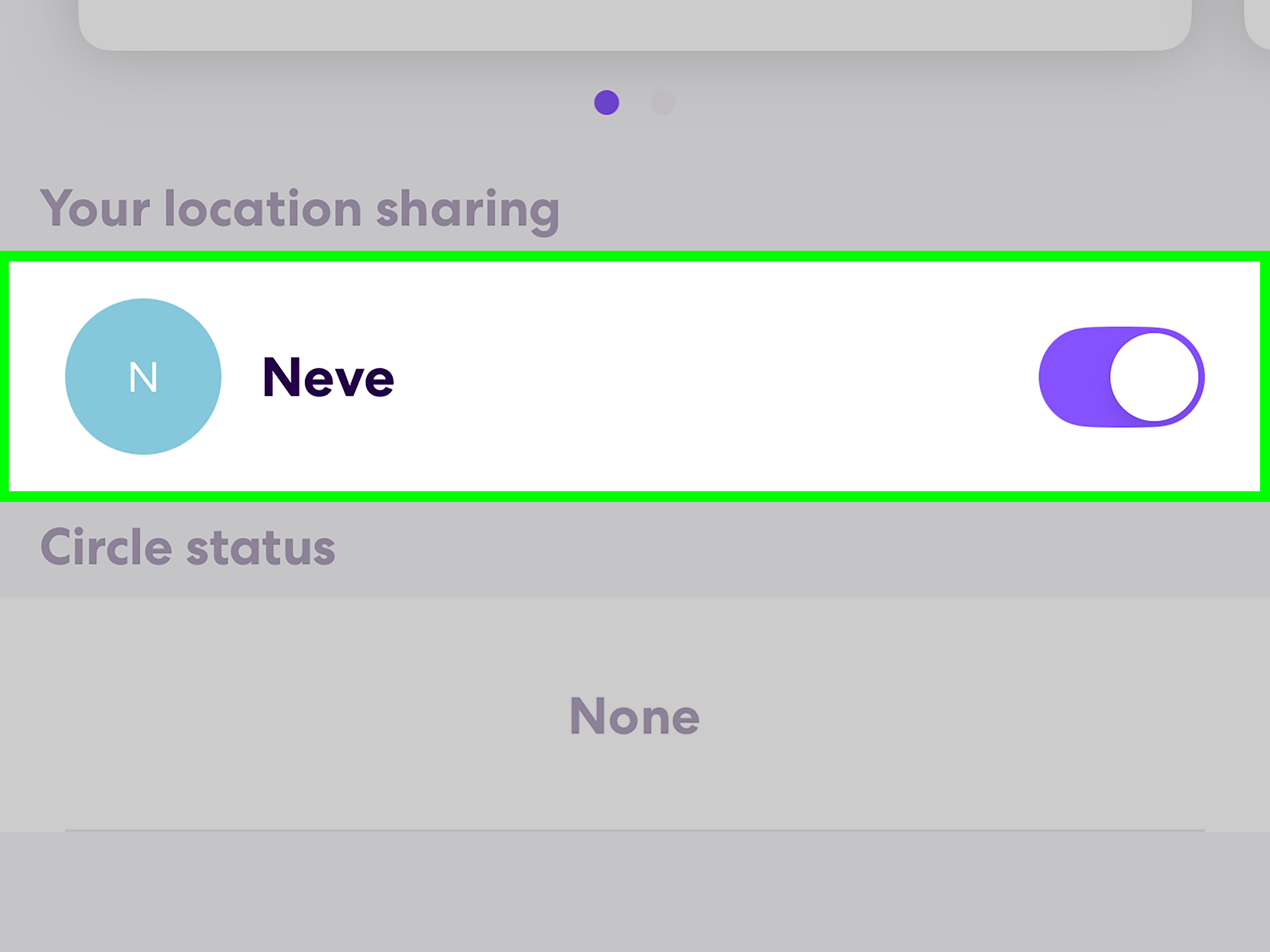
Even if Location Services is enabled, your iPhone also needs permission to share your location with other people. This is controlled through Share My Location, which is connected to Find My and your Apple Account.
Go to Settings, tap your name at the top, choose Find My, and make sure Share My Location is on. You can also open the Find My app, tap Me, and confirm that Share My Location is enabled.
3. The Wrong Device Is Sharing Your Location
If you own multiple Apple devices, your location may be set to share from an iPad, old iPhone, or another device sitting at home on a coffee table living its best retired life. When that happens, your current iPhone may show location-sharing problems or send the wrong location.
To fix it, go to Settings > [Your Name] > Find My, then tap Use This iPhone as My Location. In the Find My app, you can also check the Me tab to see which device is being used.
4. Find My Is Not Properly Enabled
Find My is the backbone of Apple’s location-sharing system. If Find My iPhone or Find My network settings are disabled, location features may become limited. This is especially important if you are trying to share ongoing location updates with family members or trusted contacts.
Open Settings, tap your name, select Find My, then tap Find My iPhone. Make sure Find My iPhone is turned on. It is also smart to enable Find My network and Send Last Location, especially for device recovery.
5. Your iPhone Has Poor Internet Connection
Your iPhone needs a working internet connection to send location data. GPS can help determine where you are, but Wi-Fi or cellular data is usually needed to share that information with someone else. If you are in a parking garage, elevator, basement, rural area, or a building with signal-blocking walls, location sharing may fail.
Try switching between Wi-Fi and cellular data. Turn Airplane Mode on for about 10 seconds, then turn it off again. If you are traveling internationally, check that cellular data and data roaming are properly enabled for your carrier plan.
6. Airplane Mode Is On
Airplane Mode shuts down wireless connections unless you manually turn Wi-Fi or Bluetooth back on. If Airplane Mode is enabled, your iPhone may not be able to send your location, even if Location Services itself is turned on.
Swipe down from the top-right corner of the screen to open Control Center. Make sure the airplane icon is off. Then check whether Wi-Fi or cellular data is active.
7. Screen Time or Parental Controls Are Blocking Location Sharing
Screen Time can restrict changes to privacy settings, including Location Services and Share My Location. This is common on a child’s iPhone, a school-managed device, or a phone set up with family restrictions.
Go to Settings > Screen Time > Content & Privacy Restrictions. Check whether privacy changes are restricted. If this is a child’s device, the family organizer may need to adjust the setting from their own iPhone.
8. Location Sharing Is Not Available in Every Region
Apple notes that location sharing is not available in all countries or regions. If you or the person you are trying to share with recently traveled, changed region settings, or uses an Apple Account tied to another country, the feature may behave differently.
In that case, check whether Find My and location sharing are supported where you are. You should also confirm that both people are signed in with valid Apple Accounts and have Find My enabled.
9. iOS Is Outdated or Glitching
Software bugs can affect Find My, Messages, iCloud syncing, and Location Services. If location sharing stopped working after an updateor has not worked in months because you have avoided updates like they are broccoliinstalling the latest available iOS version may help.
Go to Settings > General > Software Update. If an update is available, back up your iPhone first, then install it.
10. The Other Person’s iPhone Has the Problem
Sometimes your phone is innocent. If you cannot see someone else’s location, their iPhone may be offline, powered off, out of battery, disconnected from the internet, or no longer sharing with you. They may also have stopped sharing location intentionally.
Ask the other person to open Find My, tap People, choose your name, and confirm that they are sharing their location with you. A polite message works better than sending “WHY ARE YOU INVISIBLE?” in all caps.
How to Fix Share Location Unavailable on iPhone
Fix 1: Turn Location Services Off and Back On
Open Settings > Privacy & Security > Location Services. Turn Location Services off, wait a few seconds, then turn it back on. This refreshes the location system and can clear temporary glitches.
Fix 2: Enable Location Access for Find My
Go to Settings > Privacy & Security > Location Services > Find My. Choose an access option that allows Find My to use your location. If you see Precise Location, turn it on for more accurate sharing.
Fix 3: Turn Share My Location On
Open Settings, tap your name, select Find My, and turn on Share My Location. Then open the Find My app, tap Me, and confirm the same setting there.
Fix 4: Choose This iPhone as Your Location Device
If you use more than one Apple device, go to Settings > [Your Name] > Find My, then tap Use This iPhone as My Location. This tells Apple to share the location from the phone actually in your pocket, not the iPad charging in your kitchen.
Fix 5: Restart Your iPhone
A restart sounds basic, but it is basic because it works surprisingly often. Restarting refreshes network connections, background services, and temporary system processes. Turn your iPhone off, wait about 30 seconds, then turn it back on.
If the device is frozen, use a force restart: quickly press and release Volume Up, quickly press and release Volume Down, then hold the Side button until the Apple logo appears.
Fix 6: Check Wi-Fi and Cellular Data
Open Safari and load a webpage. If it does not load, your location-sharing issue may actually be an internet issue wearing a fake mustache. Try another Wi-Fi network, move to a stronger signal area, or switch to cellular data.
You can also go to Settings > Cellular and make sure Cellular Data is turned on. If you are abroad, check your carrier plan and confirm whether Data Roaming should be enabled.
Fix 7: Sign Out and Back Into Your Apple Account Carefully
If Find My appears stuck, your Apple Account may not be syncing correctly. Before signing out, make sure you know your Apple Account password and have access to trusted devices or phone numbers for verification.
Go to Settings > [Your Name], scroll down, and choose Sign Out. Restart your iPhone, then sign back in. This can refresh iCloud and Find My services, but do it carefully so you do not interrupt important synced data.
Fix 8: Update iOS
Open Settings > General > Software Update. Install the newest version available for your iPhone. Updates often include bug fixes, security patches, and improvements to system services that location sharing depends on.
Fix 9: Reset Network Settings
If Wi-Fi or cellular problems keep appearing, reset your network settings as a deeper fix. Go to Settings > General > Transfer or Reset iPhone > Reset > Reset Network Settings.
This removes saved Wi-Fi networks, Wi-Fi passwords, cellular settings, VPN settings, and APN settings. It does not delete your photos, apps, or messages, but you will need to reconnect to Wi-Fi afterward.
Fix 10: Check Family Sharing Settings
If the problem happens only with family members, open Settings > Family > Location Sharing. Make sure location sharing is enabled for the correct family members. Each person may also need to share their own location back if you want two-way visibility.
Find My vs. Messages: Which One Should You Fix First?
If location sharing fails in Messages, test it in the Find My app. If it also fails there, the issue is likely with Location Services, Find My, your Apple Account, or network access. If Find My works but Messages does not, the issue may be app-specific.
For Messages, open a conversation, tap the person’s name or icon at the top, then look for location-sharing options. You can send your current location once or share live location for a period of time. If the option is missing, confirm that both people use Apple devices and that iMessage is working correctly.
Privacy Reminder: Share Location Only With People You Trust
Location sharing is useful, but it is also personal. Share your live location only with people you trust. To review who can see your location, open the Find My app and tap People. Select any person and choose Stop Sharing My Location if needed.
You can also go to Settings > Privacy & Security > Location Services to review which apps can access your location. For apps that do not need exact GPS data, consider turning off Precise Location.
When to Contact Apple Support or Your Carrier
If you have checked every setting, updated iOS, restarted your iPhone, tested different networks, and reset network settings, the problem may involve your Apple Account, carrier service, device management profile, or hardware.
Contact Apple Support if Find My will not enable, Location Services keeps turning off, or your iPhone cannot detect location in any app. Contact your carrier if the issue appears only on cellular data, during roaming, or in areas where your signal should normally work.
Real-World Experience: What Usually Fixes Share Location Unavailable on iPhone
In everyday use, the most common fix is not the most advanced one. It is usually a simple settings refresh. The first thing I would check is whether Share My Location is actually enabled under Find My. Many users assume it is on because Find My iPhone is enabled, but those are not exactly the same thing. Find My iPhone helps locate your device; Share My Location lets other people see where you are.
A very common real-life example looks like this: someone upgrades to a new iPhone, restores from backup, signs into their Apple Account, and everything seems normal. Calls work. Apps work. Photos appear. But family members suddenly cannot see their location. The cause is often that the new iPhone was not selected as the location-sharing device. The old iPhone, iPad, or another Apple device may still be listed as the source. Tapping Use This iPhone as My Location fixes the issue almost instantly.
Another frequent situation happens during travel. A person lands in another country, connects to hotel Wi-Fi, and wonders why location sharing is unavailable. The iPhone may know the approximate location, but the data connection is weak, blocked, or unstable. In that case, toggling Airplane Mode, checking data roaming, or switching to a stronger Wi-Fi network usually helps. Location sharing is not magic; it still needs a road to send the information.
Screen Time restrictions are also sneaky. On family devices, especially for teens or younger users, Content & Privacy Restrictions may prevent changes to Location Services or Share My Location. From the user’s perspective, it looks like the iPhone is broken. From the parent or family organizer’s perspective, the setting may have been enabled months ago and forgotten. Checking Screen Time can save a lot of unnecessary troubleshooting.
One practical habit is to test location sharing in layers. First, open Maps and see whether your iPhone can locate you. If Maps cannot find you, the issue is probably Location Services, signal, or hardware. Next, open Find My and check the Me tab. If Find My does not work, focus on Share My Location, Apple Account, and Find My settings. Finally, test Messages. If only Messages fails, restart the app, check iMessage, and try sharing through Find My instead.
It is also worth remembering that the problem may be on the other person’s phone. If someone says, “Your location is unavailable,” your iPhone may not be the villain. Their device may be offline, their Find My app may not be refreshing, or they may be signed into a different Apple Account. A quick two-person check is often faster than one person changing every setting on their phone like they are defusing a tiny glass bomb.
For most users, the best repair order is simple: turn on Location Services, enable Share My Location, select the correct iPhone, restart the device, check internet access, update iOS, and reset network settings only if needed. That order solves the majority of cases without causing extra work. Do the easy fixes first. Save the “big hammer” options, like signing out of your Apple Account or resetting network settings, for later.
Finally, do not ignore privacy. Location sharing should be convenient, not creepy. After fixing the issue, review who can see your location. Keep trusted people on the list and remove anyone who no longer needs access. A working location-sharing setup should make your life easier, safer, and less confusingnot turn your iPhone into a 24-hour tracking beacon for people who do not need backstage passes to your daily routine.
Conclusion
Share Location Unavailable on iPhone can be annoying, but it is usually fixable. Start with the basics: enable Location Services, turn on Share My Location, confirm Find My permissions, select the correct device, and check your internet connection. If that does not work, restart your iPhone, update iOS, review Screen Time restrictions, check Family Sharing, and reset network settings as a last resort.
The key is not to panic. Your iPhone probably has not forgotten where Earth is. It just needs the right permissions, a stable connection, and a small settings tune-up. Once everything is configured correctly, location sharing should work smoothly again in Find My, Messages, and Family Sharing.